How to filter a WooCommerce variations grid


A variations grid lets shoppers see many product options in one place instead of opening each variation separately. WooCommerce Bulk Variations 2.5.2 makes large grids easier to buy from with instant attribute filters above the grid.
If you sell products with lots of product variations, the grid is often the clearest way to show everything at once. However, once a product has eight colors and six sizes, your customer is looking at 48 cells before they can choose anything.
Version 2.5.2 of WooCommerce Bulk Variations adds attribute filters to make large variation grids easier to scan. The plugin now shows dropdowns above the variations grid, with one filter for each attribute that appears in the grid, such as size and color. I'll show you how the filters work and how to switch them on.
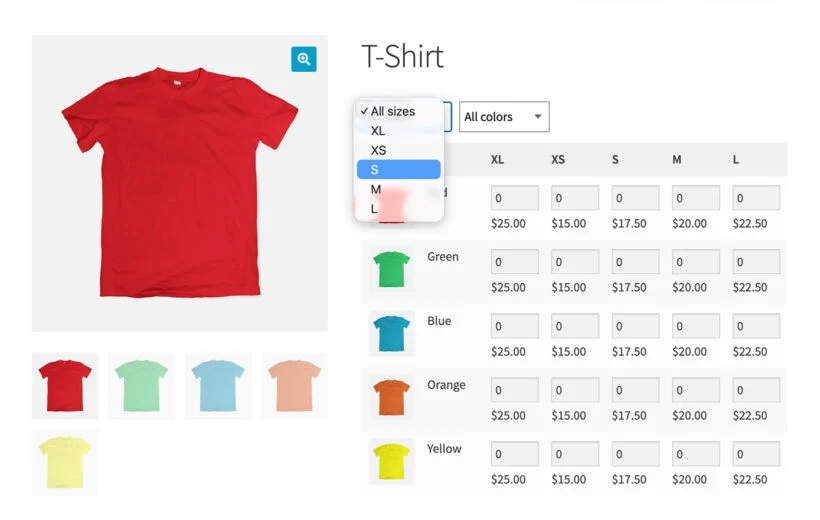
The feature our customers kept asking for
Customers have asked us for this because they did not always want shoppers to start with the full variations grid. They wanted the shopper to choose a color first and then see only the sizes for that color.
For example, a workwear store sells branded polo shirts, and a trade customer ordering ten navy polos in mixed sizes still has to find the navy row first. From there, the shopper has to work through the grid on screen and ignore everything that does not match the order. The filters make that part faster.
We built attribute filters into the plugin so shoppers can narrow the grid by color and size.
The rest of this post covers how the filters behave on the product page. It also shows where to switch them on.
How attribute filters work on the product page
Your shopper sees the filters above the variations grid, before they get to the quantity boxes. Each attribute that appears in the grid gets its own dropdown, including products with three or more variation attributes.
If your grid uses size and color, the shopper sees controls for those two product attributes, and any extra attributes get controls too. On WooCommerce variable products with many variation attributes, this keeps the full grid visible while giving shoppers a faster way to narrow it.
These filters narrow one product's grid. For shop or category pages, see our separate guide to attribute filters across product listings.
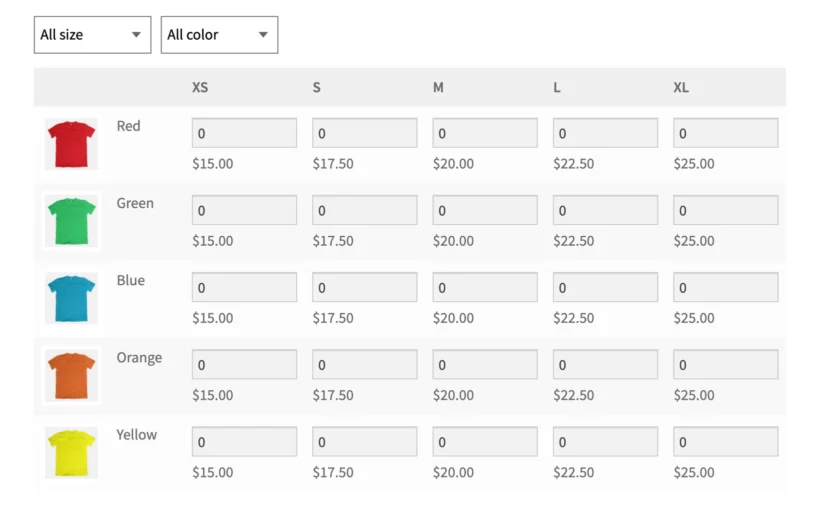
Each dropdown starts on "All ", for example "All colors", and then lists the terms for that attribute. The shopper can leave the full grid visible, or pick a specific value. As soon as they choose a value, the filtering happens in the browser. Nothing reloads, which keeps the buying flow quick.
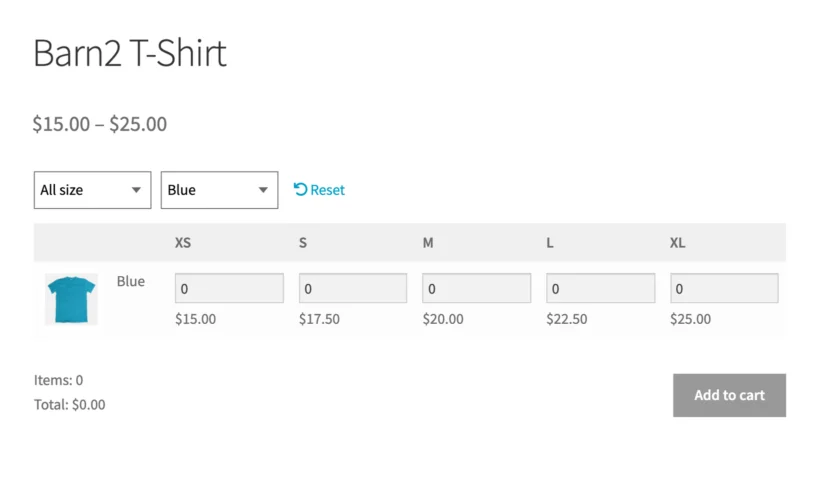
Filters can also be combined. If the shopper picks Blue and Medium, the grid narrows to that one cell. If the selected combination has no purchasable product, the grid is replaced by the message "No products available for your filters".
A Reset link appears next to the dropdowns as soon as a filter is active. The link clears the choices and brings back the full grid. A dropdown only appears when that attribute has two or more purchasable terms. A filter with one option would just add noise.
Single-attribute grids in vertical mode get a filter too. The quantity boxes, prices and Add to Cart button behave exactly as before. Filtering only changes what the shopper sees on screen, so the rest of your existing managing bulk variations setup stays familiar.
Developers can use the development filters to customize the filters as needed.
How to turn on attribute filters
Existing stores will not suddenly change their product pages after updating to 2.5.2. Attribute filters are off by default on stores that update to this version. New installs get them switched on, because new users are setting up the grid from scratch.
Turn them on globally from the main plugin settings.
- Go to WooCommerce → Settings → Products → Bulk variations.
- Find 'Attribute filters', which sits between 'Single variation attribute' and 'Sticky grid headers'.
- Tick 'Show filter dropdowns above the variations grid' and save.
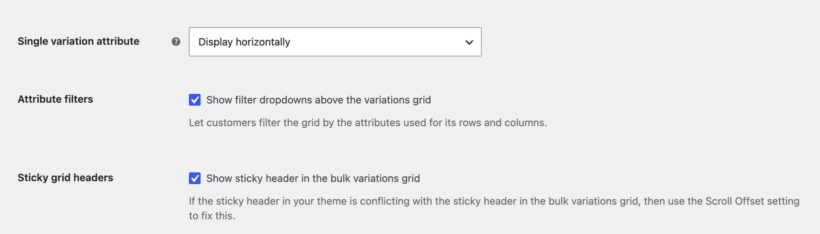
Control the setting per product from the product editor.
- Edit the product and open Product data → Bulk Variations.
- Tick 'Product-level control' so the product can override the global setting.
- Tick 'Attribute filters', which appears between 'Disable purchasing' and the horizontal and vertical attribute dropdowns.
That makes the new filter bar useful on the products that need it, without forcing it onto every small grid. The setup wizard also asks about attribute filters, so a new store can switch them on during setup.
Which stores benefit most from attribute filters
I know from our own customers that clothing, uniform and workwear stores are the most common way this plugin gets used.
Attribute filters belong on any store where the shopper already knows one thing they want before they reach the grid, such as a color or a finish. They come to buy navy polos, not to browse, so providing attribute filters to these stores will save customers a lot of time.
- Clothing, uniform and workwear storesSize crossed with color is the classic large grid. A t-shirt store might also use variation swatches or variation images, but the grid is still where the buyer enters quantities.
- Building and trade suppliersProducts sold in many sizes and finishes at once can create a wide grid quickly. Filtering lets a buyer pick the finish first and then focus on the sizes that remain.
- Print shopsA price matrix of quantity crossed with delivery tier can be easier to use when the customer can narrow the grid before choosing a quantity.
- Wholesale and B2B reorder formsA returning buyer may need one line repeatedly rather than a browsing experience. In that context, a filtered grid can sit neatly alongside a bulk order form or a wholesale order form.
A grid of two sizes and two colors does not need filtering.
Every element on a web page should be there for a reason. If you do not have enough variations to benefit from filtering, I recommend leaving the filters disabled. Instead, enable the filters on the products with big grids, whether that is your entire catalog or just specific items.
Getting started with WooCommerce Bulk Variations 2.5.2
Existing customers can update from the WordPress dashboard like any other plugin update, at no extra cost. After updating, switch the setting on if you want filters on your grids. The update does not turn filters on by itself for an existing store.
If you are new to the plugin, install WooCommerce Bulk Variations and choose your grid settings during setup. The setup wizard includes the new attribute filters option, so you can start with the filter bar switched on. You can also change it later in the global settings or on individual products.
This release follows the previous variation descriptions update, which made each cell more informative when customers need extra buying detail. Attribute filters solve a different problem: They help customers get to the right part of a large grid faster. You can see the full release notes in the WooCommerce Bulk Variations changelog.
I would love to hear what you want us to improve next. Our best product decisions often come from the buying flows that customers describe to our support team.