SaveTo Wishlist: How to add wishlist buttons to WooCommerce Product Table


We're pleased to announce that WooCommerce Product Table now works with the free SaveTo Wishlist plugin. Use the two together and shoppers can save products to a wishlist directly from your product tables, without opening each product page.
When customers browse a large table of products, they're comparing rows and weighing up options. Some they'll add to the cart now, and others they'll want to keep track of for later. A wishlist button right there in the table lets them do exactly that.
Below, I'll cover what each plugin does, how they work together, and how to set it all up. The same integration also works with our WooCommerce Fast Cart plugin, which I'll come to at the end.
What is WooCommerce Product Table?
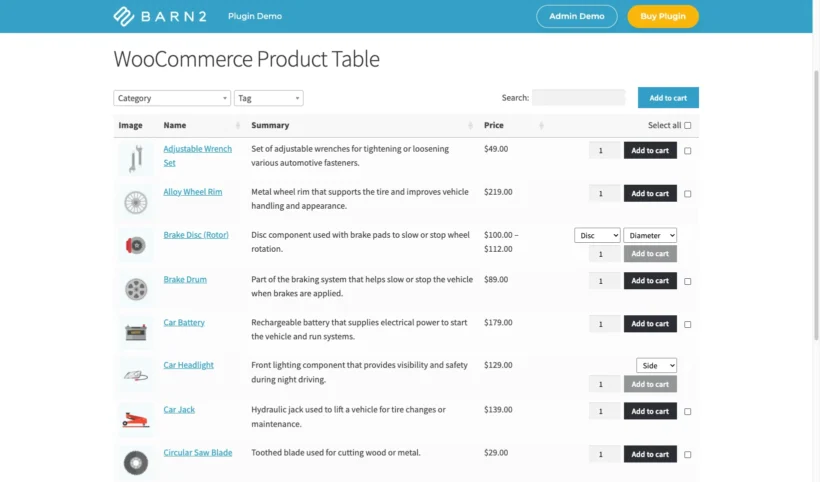
WooCommerce Product Table is our bestselling table plugin for WooCommerce. It instantly lists products in an interactive table view, with customizable columns and extra features such as a search box and filters.
Product tables are popular for many types of online store, including:
What is SaveTo Wishlist?
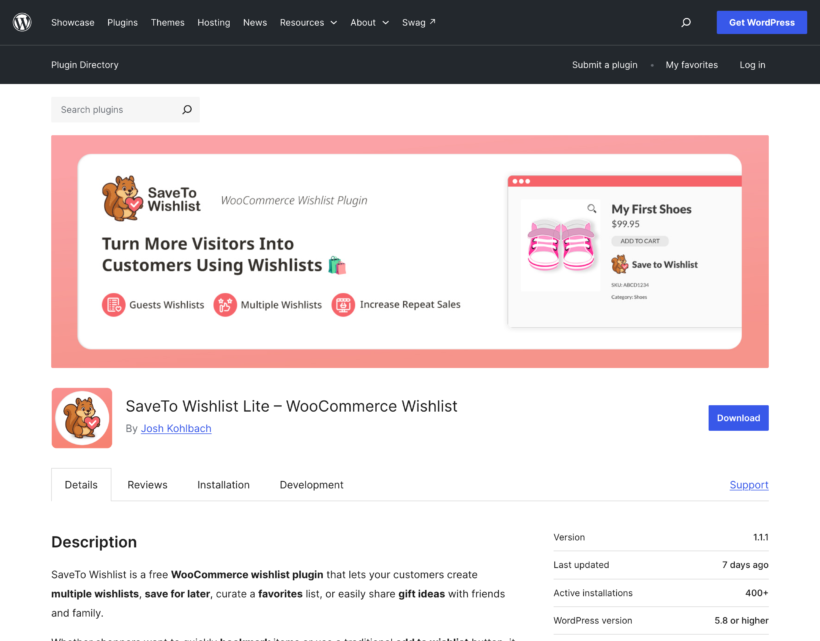
SaveTo Wishlist Lite, from the team at Rymera, is a free WooCommerce wishlist plugin. It lets customers save the products they're interested in and come back to them later, either while logged in to an account or as a guest.
Shoppers can create wishlists, add and remove products, and pick up where they left off on their next visit. There's a Pro version too, but everything in this integration works with the free plugin.
How do the two plugins work together?
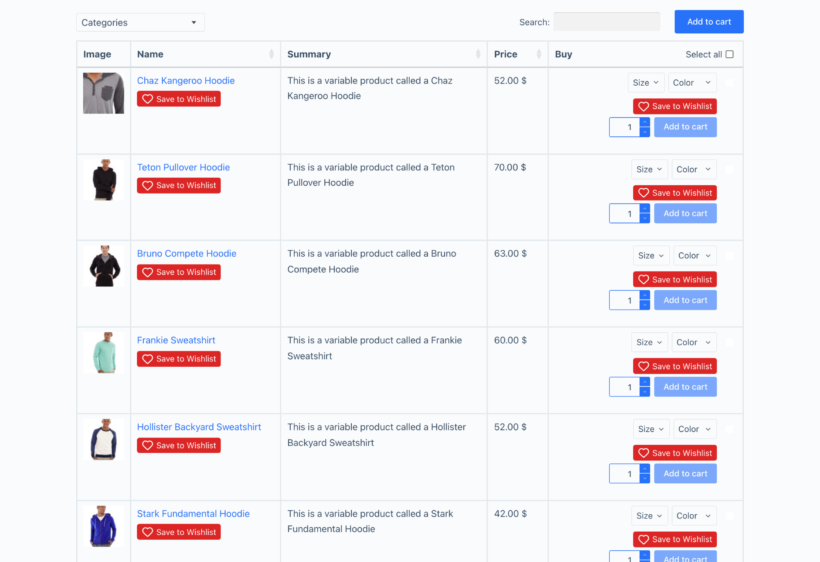
Once both plugins are active, SaveTo Wishlist adds a "Save to Wishlist" button to the product-name column of your table, either above or below the product name. Customers can save any product straight from the table, without first opening its individual product page.
That keeps the whole comparison in one place. As shoppers scan the rows, they can add some products to the cart and save others to a wishlist for later. Logged-in customers save to their account wishlist, and if you've enabled multiple wishlists they can choose which one to use. Guests can save products too, as long as guest wishlists are enabled. The button stays put after searching and sorting the table, including on lazy-loaded tables.
How do I set it up?
There's no connection process, API key or paid add-on involved. Once both plugins are active and your table includes the product-name column, the button appears automatically. These steps assume you already have WooCommerce installed with some products added:
- Get WooCommerce Product Table, then install and activate it. The table builder opens automatically so you can choose your columns and options.
- Add a product table to any page using the shortcode, or by inserting the 'Product Table' block. Make sure the table includes the product-name column.
- Go to Plugins → Add New, search for 'SaveTo Wishlist', and install and activate the free plugin (version 1.1.0 or later).
- Go to SaveTo Wishlist → Settings → Button Placement & Styles. In the 'Shop Page' section, make sure 'Button Placement' is not set to 'Don't show'.
- Set 'Barn2 Product Table Position' to 'Above product name' or 'Below product name'.
- Under the 'Shop Page' settings, choose how the button looks, then pick your 'Add to wishlist button' behavior ('Redirect', 'Popup' or 'Fade') under SaveTo Wishlist → Settings → General.
- View the page with your product table and check the wishlist button appears. If you allow guest wishlists, test it while logged out too.
For the full details, including guest wishlists and troubleshooting, see our guide on using SaveTo Wishlist with WooCommerce Product Table.
Customizing the wishlist button
The table wishlist button uses SaveTo Wishlist's 'Shop Page' button configuration, so you control its look from one place. Choose 'Use Presets', 'Custom Settings' or 'Theme Default' under SaveTo Wishlist → Settings → Button Placement & Styles.
The 'Barn2 Product Table Position' setting decides whether the button sits above or below the product name. If you'd rather not show wishlist buttons in your tables at all, set the Shop Page 'Button Placement' to 'Don't show'.
Also works with WooCommerce Fast Cart
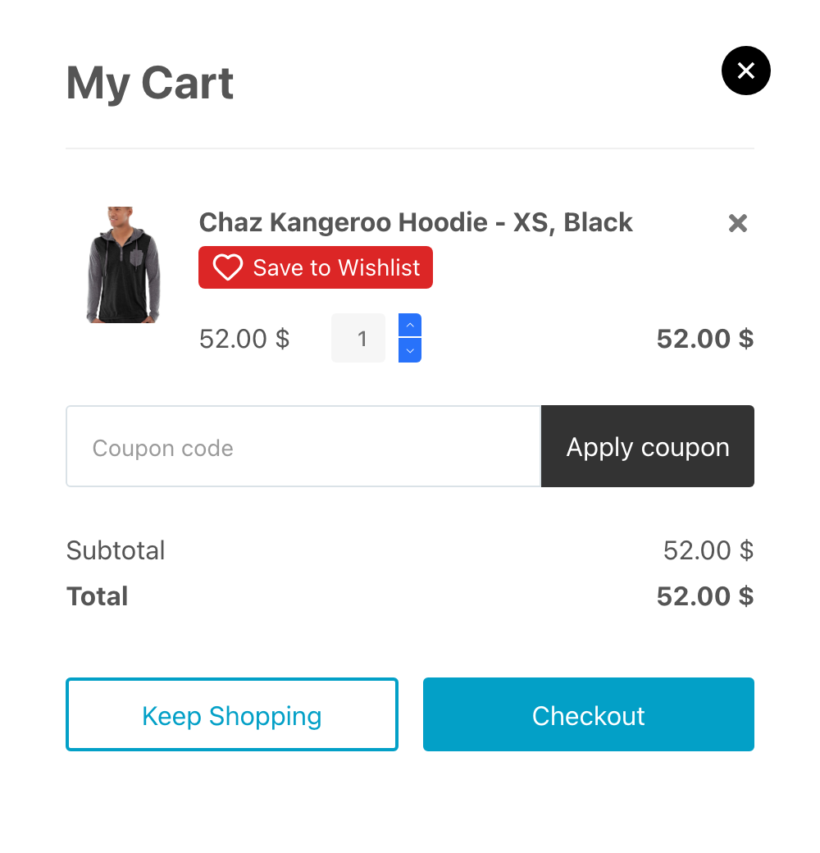
SaveTo Wishlist works with our WooCommerce Fast Cart plugin as well. Fast Cart replaces the standard WooCommerce cart and checkout with a quick slide-out popup, and the integration adds a "Save to Wishlist" button after each product name inside that popup.
That lets shoppers save items for later without leaving the cart or losing their place. It's the same free SaveTo Wishlist plugin, controlled by the 'Show in WooCommerce Fast Cart' setting. For a full walkthrough, see our guide on using SaveTo Wishlist with WooCommerce Fast Cart.
More integrations coming soon!
We're always looking for popular plugins that work well with WooCommerce Product Table. If you're using product tables alongside other third-party plugins, please let us know. We might even feature your store as a case study!