9 best document library software tools compared


Document Library Pro is the best document library software if you want a public, searchable library on your own site, while Google Drive is the best free way to start. I've compared eight options in depth, from free cloud storage to self-hosted platforms.
Most teams start by dropping files into a shared Google Drive folder, then hit a wall the moment the audience grows past their own staff. Plenty of apps can store your files. Far fewer turn them into a clean, searchable library that the right people can find and the wrong people can't.
The following document library software tools range from free cloud storage like Google Drive to purpose-built self-hosted platforms. Which one to choose depends on whether you're publishing files to the public, sharing them with a team, or keeping a long-term archive.
The quick verdict
There's no one-size-fits-all solution for document library software. Instead, I'll make different recommendations depending on your organization's needs:
- Best for a public, searchable libraryDocument Library Pro, if you want a branded library that anyone can browse and you fully control.
- Best free way to startGoogle Drive, for sharing a folder of files with a small group at no cost.
- Best for internal team sharingSharePoint or Dropbox, if the files live behind a company login.
- Best open-source, self-hosted optionOpenKM for an internal system, or DSpace for a research archive.
What is an online document library?
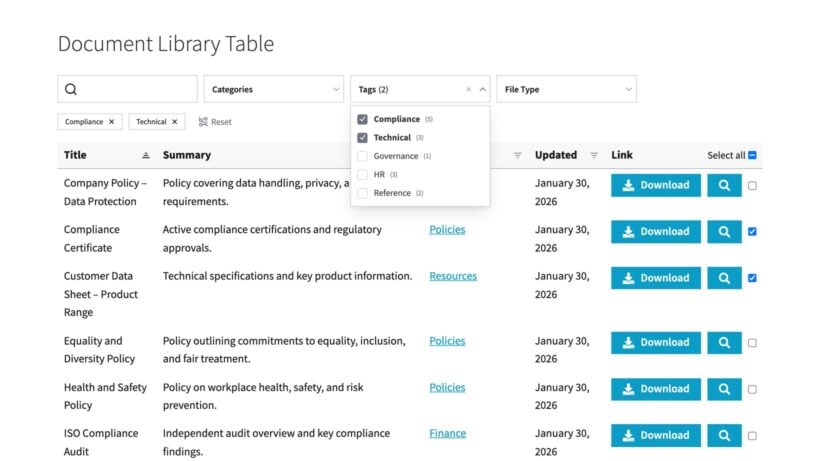
An online document library is a web page that lists your files in a searchable, filterable layout, so people can find and download what they need without help. It does the job that a shared folder can't: instead of a flat list of filenames, you get categories, search, sort and columns showing each file's details.
The "Document library software" covers a wide range of tools. At one end is consumer cloud storage like Google Drive, where you share a folder and hope people can find the right file. At the other end is purpose-built document library software, where every file has a title, a category, a description and a download button on a single front-end page.
A document library might be available for the public to browse and download from; or it might be private for internal employees only.
Document library vs document management vs cloud storage
When choosing document library software, you need to understand the different categories. The main options are:
- Cloud storageGoogle Drive, Dropbox and similar. Great for syncing and sharing files with people you invite. Weak at presenting a large set of files as a browsable library.
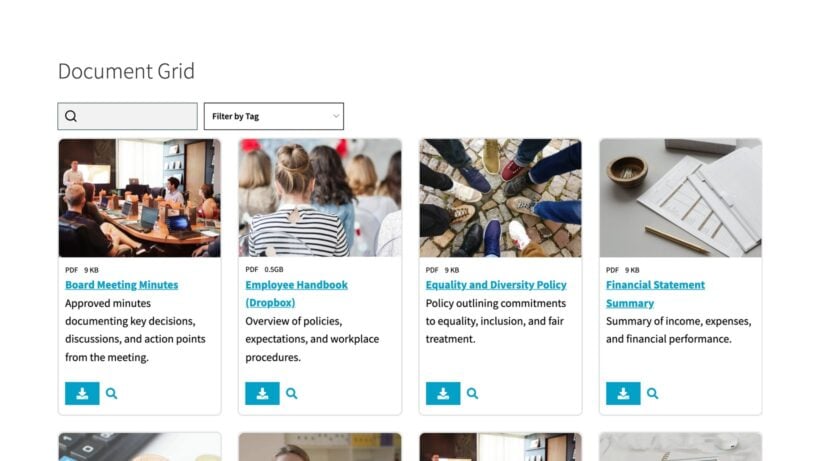
- Document library softwareA front-end page that publishes files in a searchable, filterable table or grid. Built for letting an audience find and download documents on their own.
- Document managementThe internal job of storing, versioning, approving and retaining files over time. If that's your main need, I cover how to choose document management software in a separate guide.
You'll also see the term "document repository software", which leans more toward long-term archiving and metadata. A repository exists to preserve files for the long term, while a library exists to help people find and download them today.
The evaluation criteria
I compared each software platform by looking at the bigger picture, instead of just the feature list. Price came first, then hosting, features, the quality of search and filtering, and how tightly you can control access.
I also thought about who each type of document library software really suits. For example, a parish council that just needs residents to download minutes is better off with a simple public library than a heavy internal records system.
The 9 best document library software compared
The table sums up how the eight main options compare. I go through each one in detail underneath.
| Tool | Type | Hosting | Public-facing library? | Search & filter | Access control | Best for | Pricing (from) |
|---|---|---|---|---|---|---|---|
| Document Library Pro | Library software | Any platform (embed) | Yes | Strong | By user role | Public website libraries | $149/yr |
| Google Drive / Workspace | Cloud storage | Cloud | Limited | Basic | By link or account | Quick free sharing | Free / $7 user/mo |
| Dropbox | Cloud storage | Cloud | Limited | Basic | By link or account | File sync and sharing | Free / $11.99/mo |
| SharePoint | Intranet / DMS | Cloud or on-premise | Internal mainly | Strong | By Microsoft account | Microsoft 365 teams | $5 user/mo |
| M-Files | Enterprise DMS | Cloud or on-premise | No | Strong (metadata) | Granular | Regulated enterprises | Custom quote |
| OpenKM | Open-source DMS | Self-hosted or cloud | No | Strong | Granular | Internal records | Free / paid tiers |
| Mayan EDMS | Open-source DMS | Self-hosted | No | Strong (OCR) | Granular | Scanned records | Free |
| DSpace | Open-source repository | Self-hosted | Yes | Strong (metadata) | By role | Academic archives | Free |
| FileBird Document Library | Library Software | Self-hosted | Yes | Strong | Basic | Public document librarie | Free |
1. Document Library Pro
Document Library Pro is the only software here built specifically for creating public-facing libraries, rather than for internal storage. We created it to fill this gap.
It turns a set of files into a searchable, filterable library on your own site. You add documents by uploading a file (or adding the URL where the file is hosted), adding information about it as needed, giving each one a category and tags. They appear on the front end as either a table or grid with live search, filters and sort columns.
You create your library once and embed it in any website, on any platform. It works the same whether your site is built with WordPress, Shopify, Squarespace or Wix. On WordPress, you can either embed the cloud version or install the purpose-built WordPress plugin. For Shopify stores, there's also a dedicated Shopify app for adding document downloads straight to your product pages.
The library sits on your own domain, in your own branding, with no per-user fee. The Advanced plan adds document management, version control, searching inside document contents, and download analytics.
On the cloud version, it also includes folder sync, which imports a shared Google Drive or Dropbox folder into a document category automatically. Every file in the folder becomes a searchable, downloadable document, and subfolders become subcategories. The library then re-syncs with the folder every day.
There are no API keys or account connections to set up, and we are bringing folder sync to the WordPress plugin too.
Pros
- Built specifically to publish a public, searchable library.
- One flat annual price with no per-user charge.
- Full control of branding, hosting and access on your own site.
- Folder sync builds a library automatically from a shared Google Drive or Dropbox folder (cloud version).
Cons
- Less suited to heavy internal workflows like approvals and retention.
- The limited free version (Document Library Lite) is only available for WordPress and Shopify, not the other platforms.
Pricing: from $149/year (Essentials) or $199/year (Advanced) for a single site.
2. Google Drive and Workspace
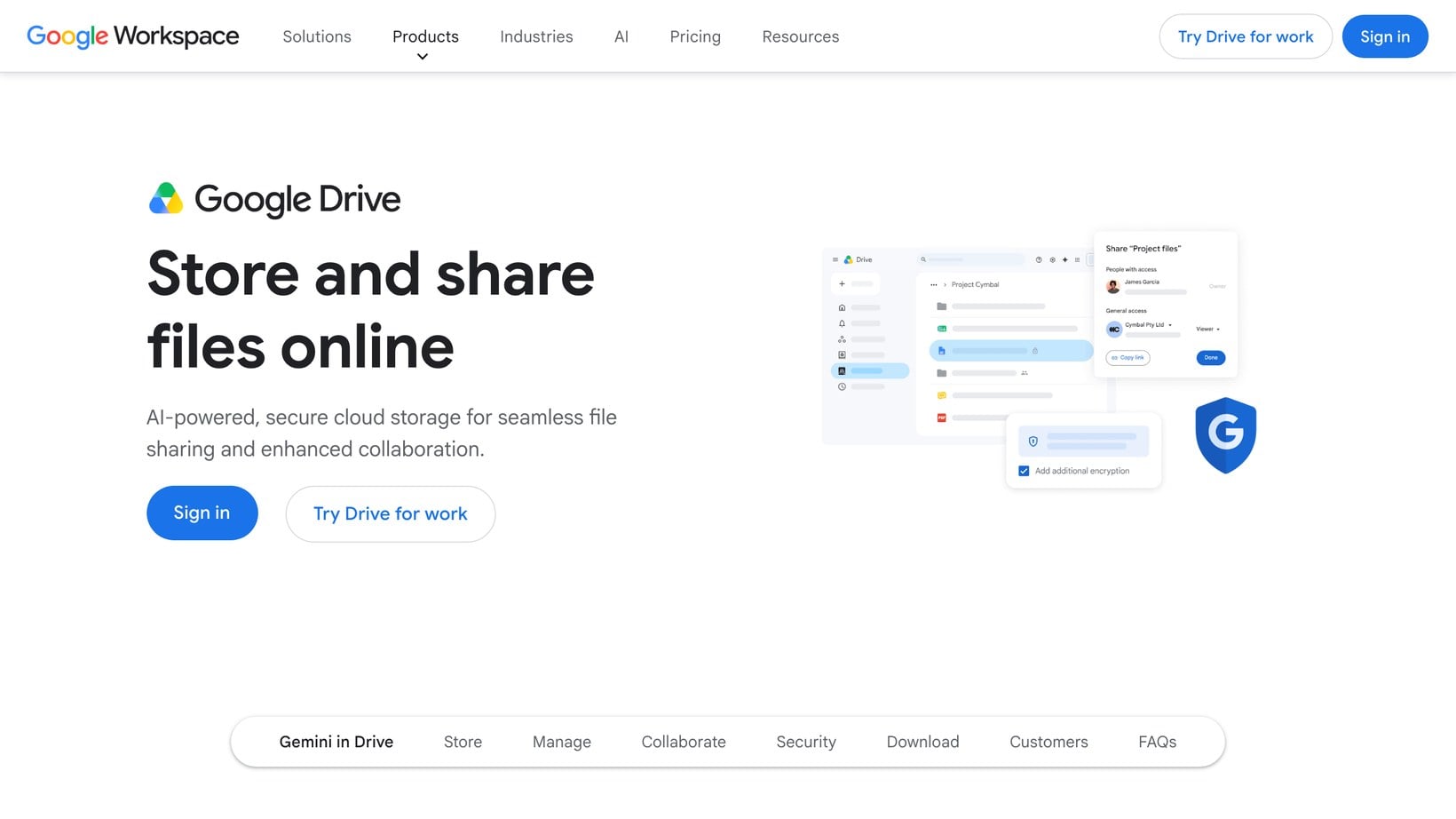
Most people already use Google Drive. In case you don't know, this document software lets you create and upload files to WordPress, structure them into folders, and share a link or invite people to access them by email. For a small group passing files around, it's hard to beat on speed and price. Google's search across your own Drive is excellent - in fact, I rarely bother organizing my own Google Drive files into folders because they're so easy to find via search!
However, you start to hit limits when you start trying to use Google Drive as a real library. A shared Drive folder is a folder, not a branded page with filters and download columns. Visitors see Google's interface, not yours, and link-based sharing gets awkward to manage once the audience grows.
Google Workspace adds admin controls and more storage, but this is still just storage - not a publishing tool. Google Drive's document sharing works best as back-office software, not as a way for your audience to search and access your documents.
If your team already works in Google Drive, you don't have to choose. Document Library Pro's folder sync turns a shared Drive folder into a branded, searchable library and keeps it up to date automatically.
Pros
- Free tier with 15 GB and a near-zero learning curve.
- Excellent search across your own files.
- Real-time collaboration on Google's own document formats.
Cons
- No branded, public library page; visitors see Google's interface.
- Link sharing gets hard to manage at scale.
- Filtering and presentation are basic.
Pricing: free for personal use; Workspace from $7/user/month.
3. Dropbox
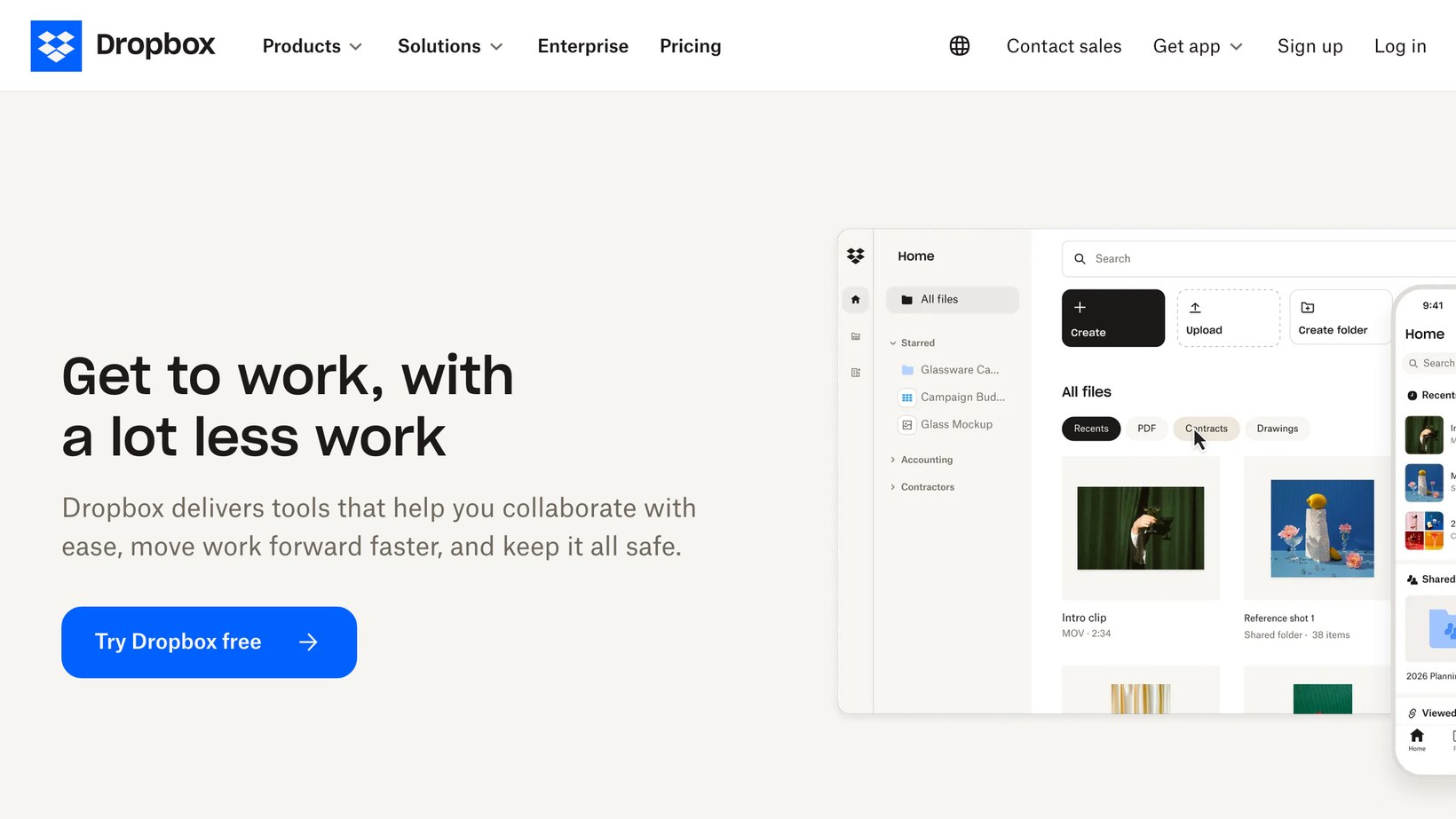
Dropbox built its name on file sync that just works, and that's still its strength. Files stay mirrored across devices, sharing a link takes one click, and it's reliable. For teams that mainly need to keep the same files in sync and hand them to clients, it does the job cleanly. There are also Dropbox plugins for WordPress that pull files into your own pages.
However, if you want to use it as public library software, then Dropbox runs into the same wall as Google Drive. You're sharing folders and links, not publishing a searchable page you control. Dropbox Paper and the newer web previews help, but the audience still lands in Dropbox's interface rather than on your site.
Pros
- Best-in-class file sync across devices.
- One-click link sharing.
- Reliable desktop and mobile apps.
Cons
- No branded public library; sharing is link-based.
- The free tier is only 2 GB.
- Per-user pricing adds up for larger teams.
Pricing: free for 2 GB; Plus from $11.99/month; team plans from $15/user/month.
4. SharePoint
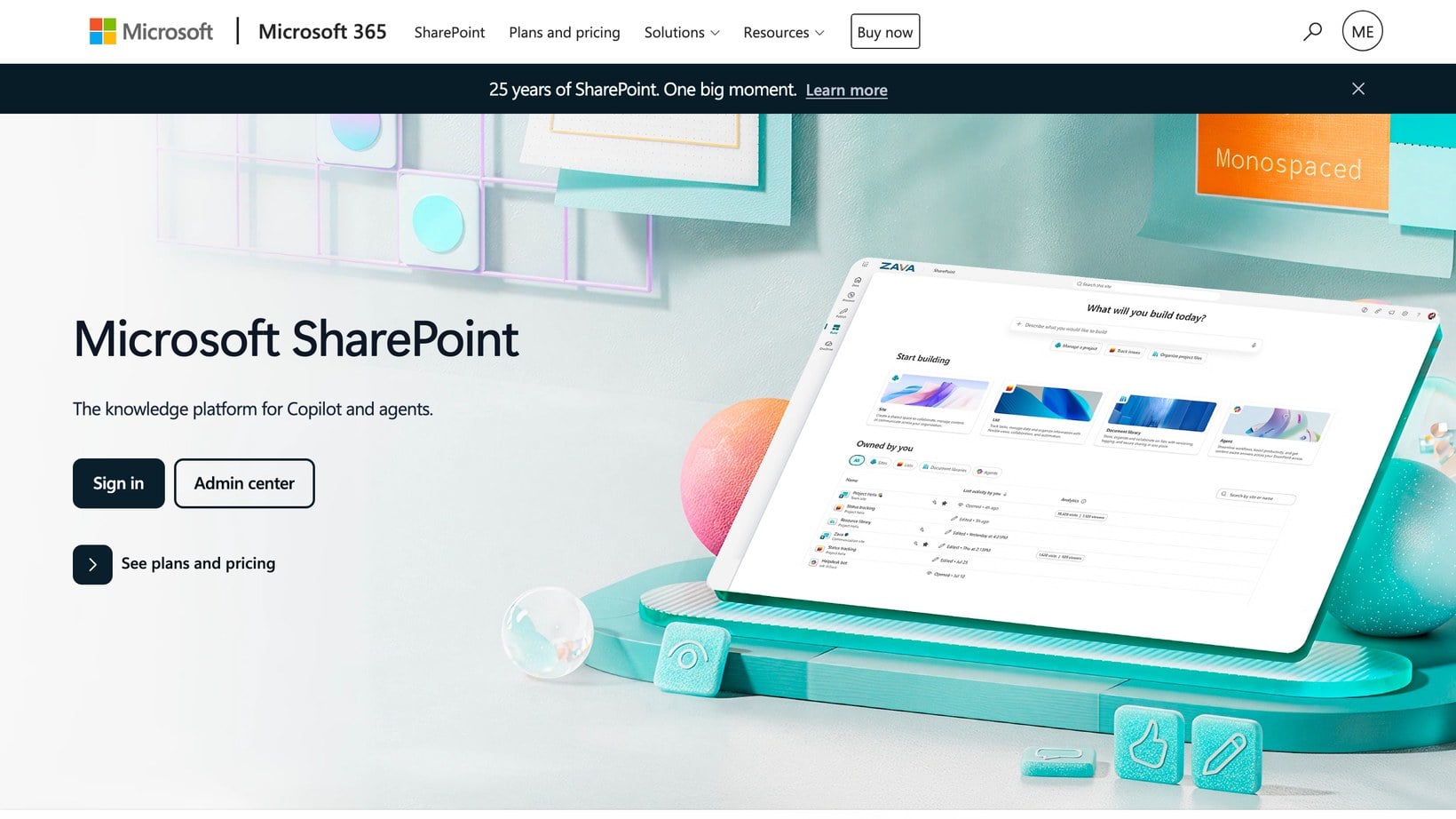
SharePoint is Microsoft's document and intranet software platform. For organizations already living in Microsoft 365 it's the default home for internal files. It does genuine document management: version history, co-authoring, metadata columns and tight permissions tied to your Microsoft accounts.
However, SharePoint's weak spot is its public-facing library. It assumes everyone browsing is already signed in to your organization, which leaves anonymous residents or members locked out. It's also famously fiddly (and expensive) to set up well, and smaller organizations often find it much heavier than they need. If SharePoint feels like too much, then I've compared the leading SharePoint alternatives separately.
Pros
- Deep document management with versioning and metadata.
- Tight integration with Microsoft 365 and Teams.
- Strong permissions for internal access.
Cons
- Built for internal use, not public libraries.
- It's complex to configure and maintain.
- Best value only if you already pay for Microsoft 365.
Pricing: from $5/user/month standalone, or bundled with Microsoft 365 Business plans.
5. M-Files
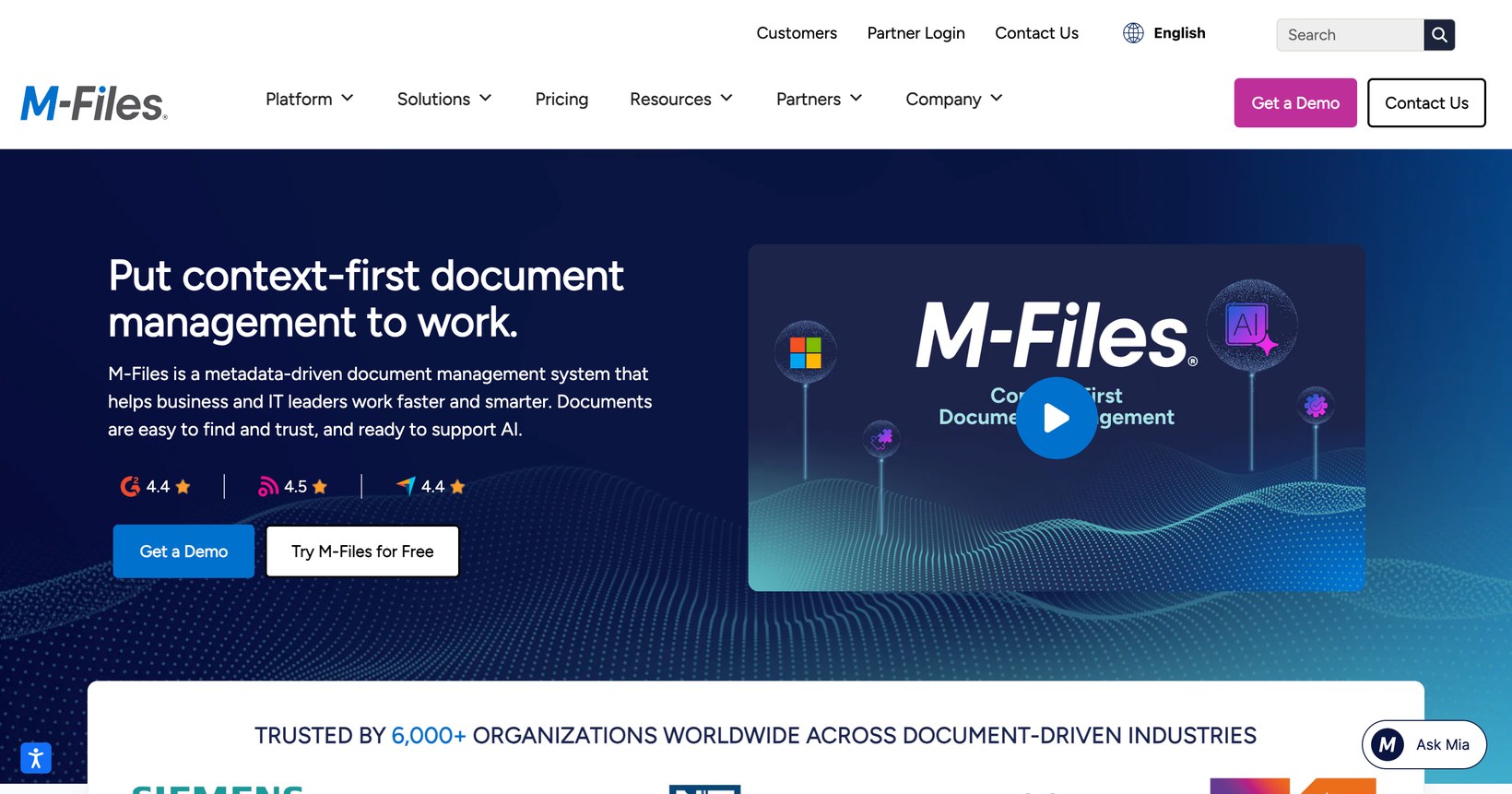
M-Files takes a different angle from other types of document library software. Instead of folders, it organizes files by metadata. This means that users can find documents by what they are (e.g. an invoice, contract or policy) rather than having to navigate to it. For regulated industries that need audit trails, retention rules and compliance, that approach is powerful.
But be warned - that power comes at enterprise weight and enterprise price. M-Files is sold through sales conversations and custom quotes - you don't just sign up on their website. It's overkill for anyone who just wants a page of downloadable files. M-Files is an internal document management system first and foremost, with no real interest in being a public-facing library.
Pros
- Metadata-driven organization that scales to huge archives.
- Strong compliance, audit and retention features.
- Automation and workflow for internal processes.
Cons
- No public-facing library function.
- Enterprise pricing with no public price list.
- Heavy for small teams and simple needs.
Pricing: custom quote only.
6. OpenKM
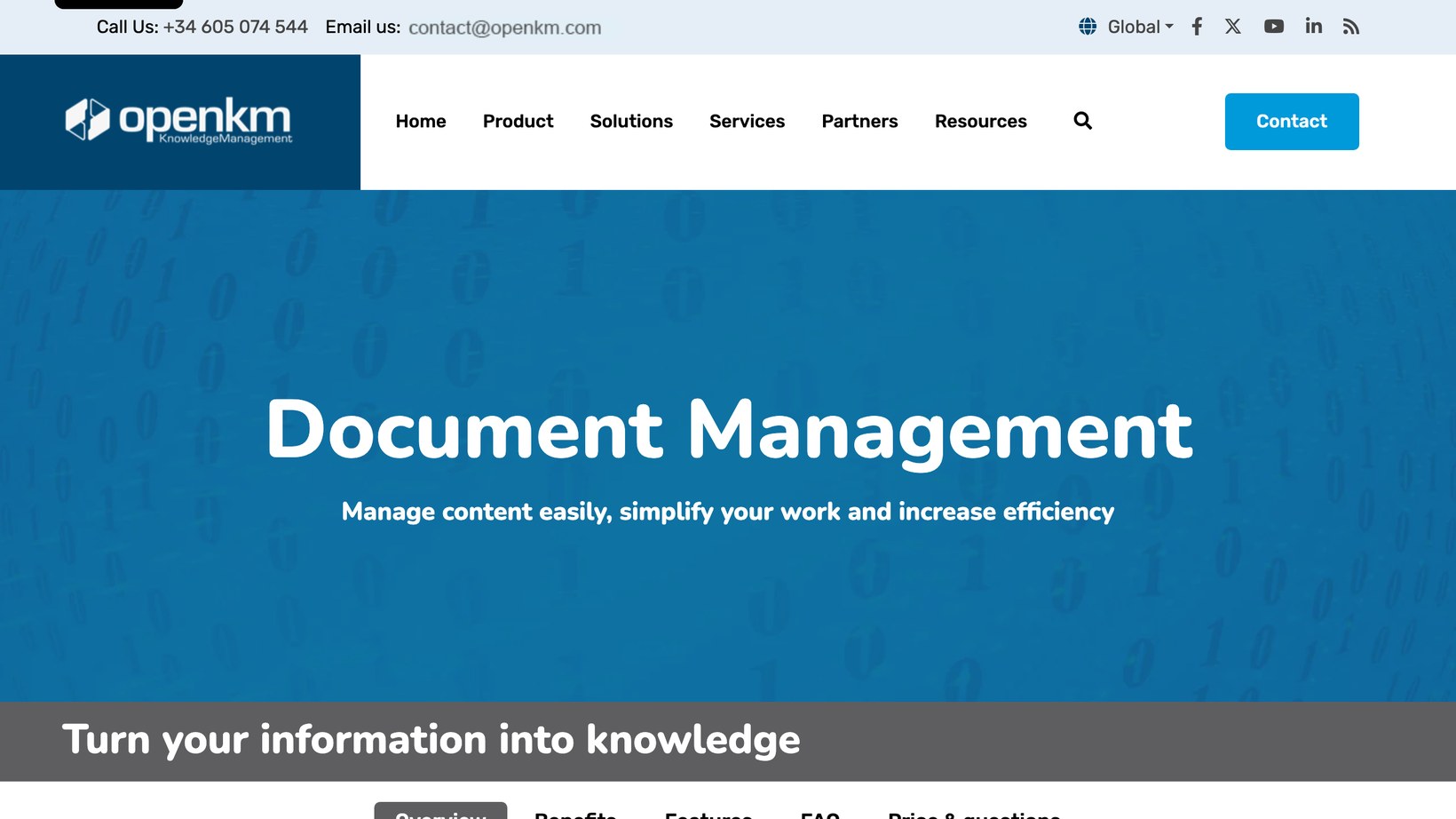
OpenKM is open-source document management software with a free community edition you can self-host. For an in-house team that wants real document management without enterprise fees, it covers the essentials such as full-text search, version control, metadata and granular permissions.
However, it's an internal tool rather than a publishing platform. Setting up the community edition takes technical know-how, and it's not as polished as commercial products. Sign up to their paid cloud services and professional tiers for support and hosting. Just be aware that creating public, branded document libraries job isn't what OpenKM is for.
Pros
- Free, self-hostable community edition.
- Full document management features for internal use.
- Granular roles and permissions.
Cons
- Built for internal use, not public libraries.
- Self-hosting needs technical skills.
- Interface is less polished than commercial tools.
Pricing: free community edition; paid cloud and professional tiers.
7. Mayan EDMS
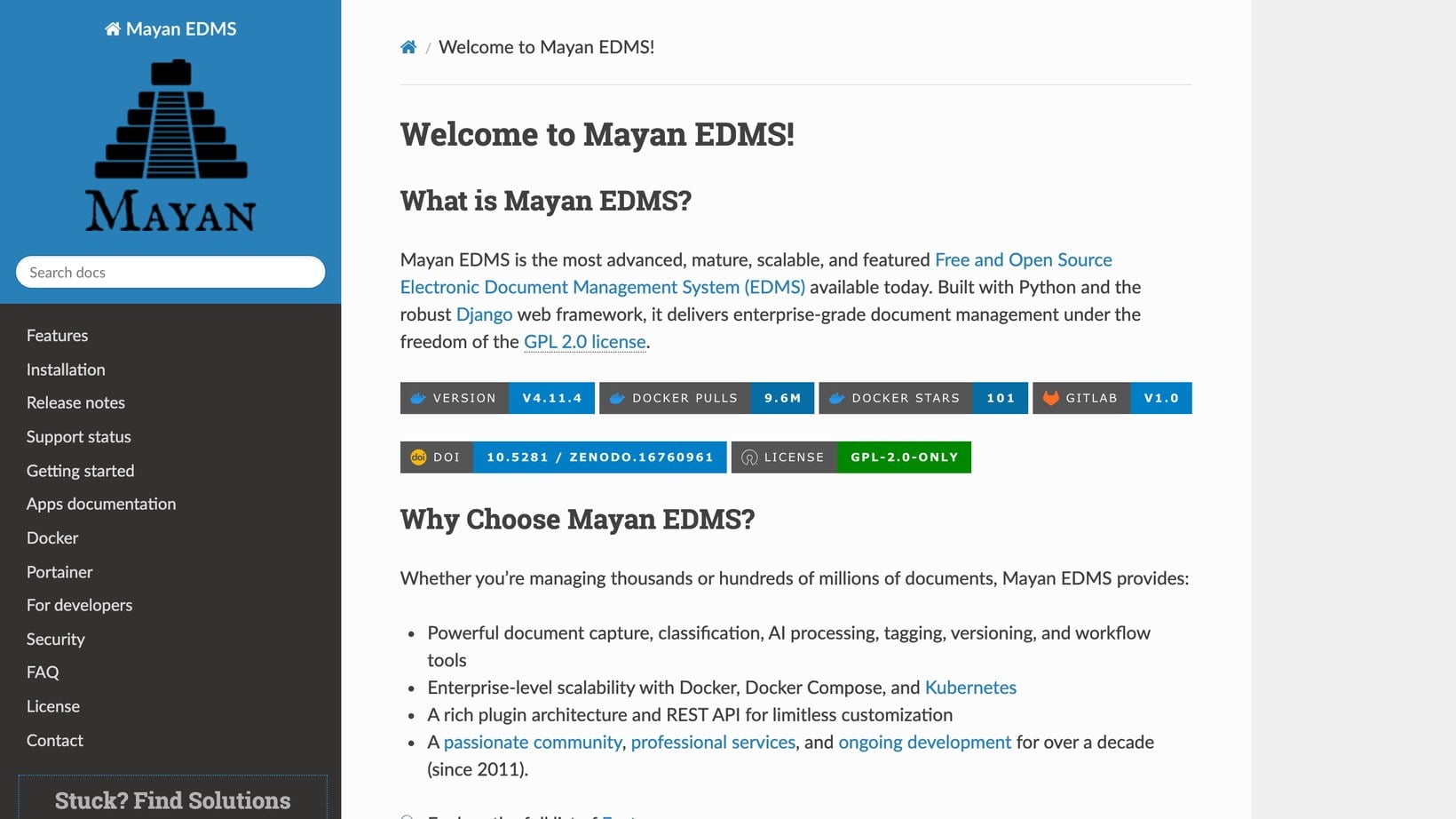
Mayan EDMS is free, open-source document manager software built around scanned paperwork. Its standout feature is OCR. This means that it can read the text inside scanned PDFs and images so that you can search the actual document contents, not just the filenames. That makes it ideal for organizations digitizing large amounts of written paperwork such as the contents of a filing cabinet.
Like OpenKM, Mayan is self-hosted and internal. You'll need to run the software on your own server, usually via Docker, and there's no public library mode. The audience is your own staff working through documents, not visitors browsing a website.
Pros
- Completely free and open source.
- Strong OCR for searching scanned documents.
- Tagging, workflows and metadata for internal records.
Cons
- No public-facing library.
- Requires server setup and maintenance.
- Aimed at records management, not website publishing.
Pricing: free and open source.
8. DSpace
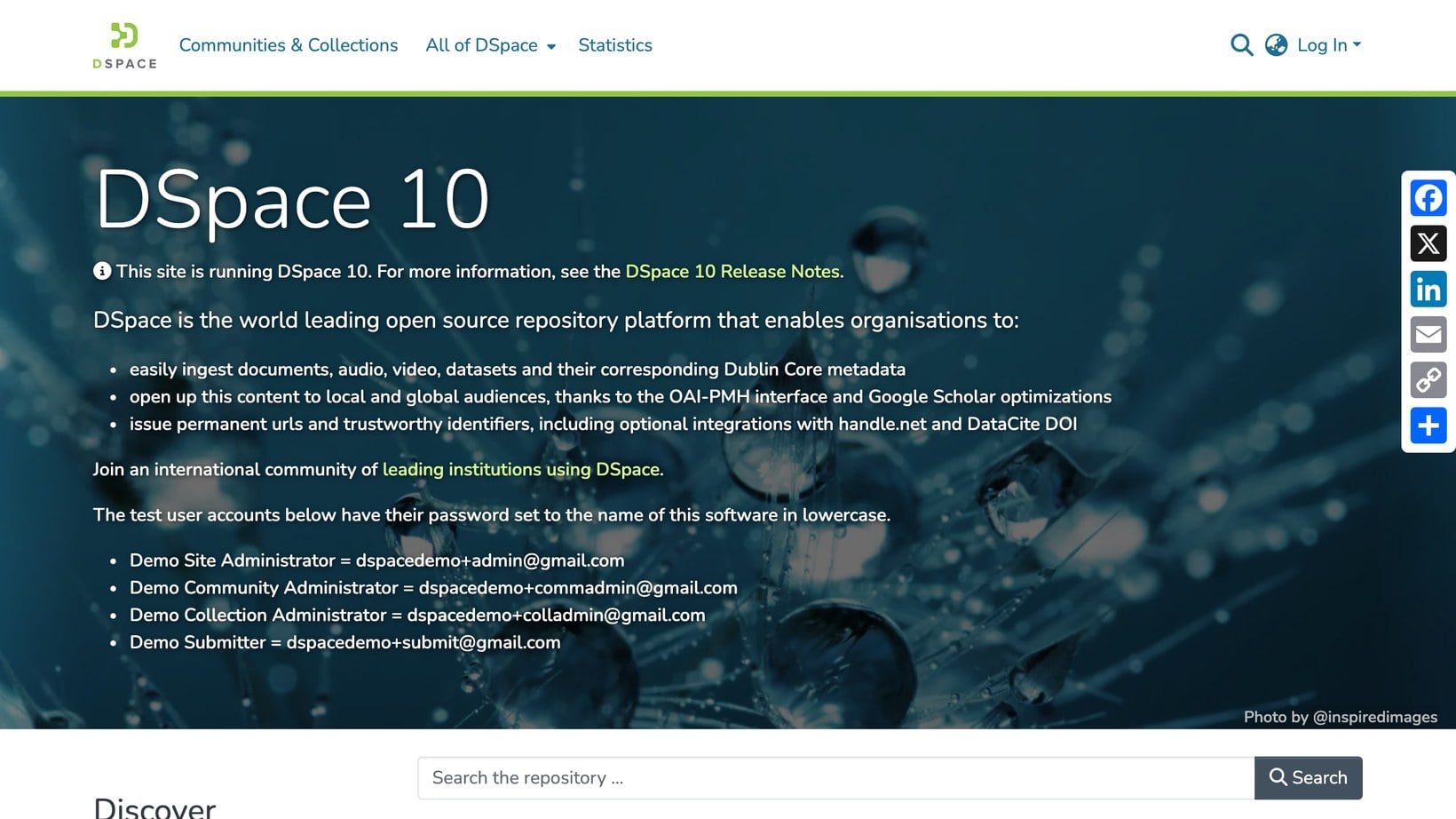
DSpace is the odd one out in a good way: it's an open-source repository built for universities, libraries and research institutions to publish and preserve their work. The software does have a public front end, so visitors can search and download papers, theses and dataset. It also supports document metadata standards, which are important for academic archives.
However, the benefits of DSpace are limited to the academic world. Setting it up is a serious technical project. The interface looks like what you'd expect from an institutional repository - definitely not an everyday document library! As a result, it's overkill (and overly complicated) for a council or a small business or nonprofit.
Pros
- Free, open-source and genuinely public-facing.
- Built for long-term preservation and academic metadata.
- Trusted across universities and research libraries.
Cons
- Heavy technical setup and maintenance.
- Interface designed for institutional repositories.
- Overkill for general business or community use.
Pricing: free and open source.
9. FileBird Document Library
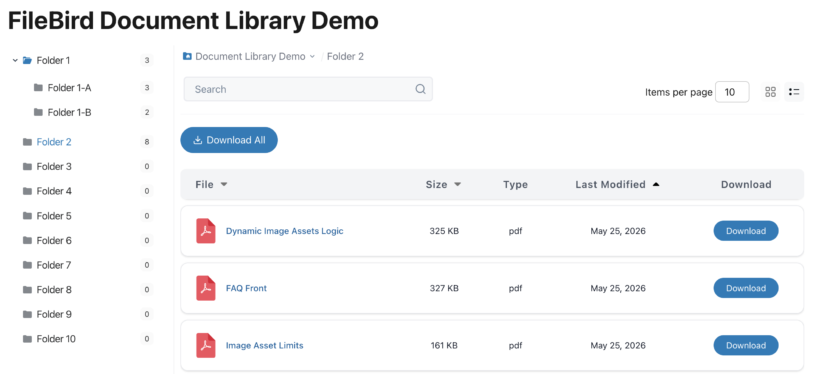
FileBird Document Library is a WordPress plugin that turns your media library into a professional document library. It builds on the popular FileBird plugin, allowing you to organize documents into folders and display them on the front end in a clean, searchable table or grid layout.
You can upload documents directly or link to existing files, organize them using folders and categories, and let visitors search, filter, and download them easily. The plugin supports frontend document display with sorting, pagination, and download tracking.
It’s particularly useful for businesses that want to publish resources, guides, or internal documents on their own WordPress site without relying on third-party platforms.
While it offers good organization and frontend presentation, it is more focused on document display and management than on heavy internal workflows such as approvals or version control.
Pros
- Easy to organize documents using folders and categories
- Clean frontend document display with search and filters
- Works well for both public and internal document libraries
- Lightweight and integrates smoothly with WordPress
- Good for sharing resources, guides, and downloadable content
Cons
- Less suited for complex internal workflows (approvals, retention policies)
- Requires FileBird (free or pro) as the base plugin
Who uses an online document library?
Document library software is most useful when it allows a specific audience to find specific files on their own, without phoning or emailing to request them. This is useful to many types of organization:
- Councils and governmentPublishing meeting minutes, agendas, budgets and public records as searchable document libraries which residents can download on demand.
- Schools and educationSharing policies, forms, newsletters and board papers with parents and staff. This is close to how schools share school board documents publicly and privately.
- Membership organizationsGiving members access to resources, guides and back issues behind a login. It's a common need for membership associations, and you can see how real groups built theirs in these nonprofit resource library examples.
- Professional servicesLaw firms, accountants and agencies sharing documents with clients through a client document portal.
- Homeowner associations (HOAs)Storing CC&Rs, bylaws, meeting minutes, budgets and community rules so every resident can find them without asking the board. Most HOAs run on email threads and a shared drive nobody can navigate, which may not fully meet the latest legal requirements.
A simple, searchable library lets people find and access the relevant documents themselves. As we have seen, most so-called document library software is designed for internal purposes only. If that's what you need then there's plenty of choice, whatever the size of your organization. In contrast, if you need a public-facing library then the choice is more limited, but good options are still available to you.
Building your own document library
If your audience is wider than a single team, the strongest option is a library on your own site rather than a shared cloud folder. That keeps it on your domain, in your branding, with no per-user fee. It also gives you full control over who sees what.
You can easily achieve this with the right software. Rather than repeat the full walkthrough here, I've written a step-by-step guide to building a WordPress document library that covers adding documents, setting categories and choosing a table or grid layout.
If you also need to charge for files, see how to sell documents online. For PDF library software specifically, there's a guide to building a searchable PDF library.
Frequently asked questions about document library software
What is a document library?
A document library is an organized, searchable collection of files that people can browse and download on their own. Online, it usually means a single web page that lists documents with categories, search and filters, instead of a flat folder of files.
Is Google Drive a document management system?
Google Drive is cloud storage with sharing, so it's good for keeping and handing out files. A true document management system adds version control, approval workflows, retention rules and detailed permissions, which Drive only partly covers.
Is there free document library software?
Yes. Open-source options like Mayan EDMS and DSpace are free to use if you can self-host them, and Google Drive's free tier works for small-scale sharing. For a branded, public library on your own site, software like Document Library Pro is paid but avoids per-user fees.
Which document library software should you choose?
There's no single winner here, only the closest fit for the job in front of you. My recommendations, by situation:
- If you want a branded, public, searchable library on your own site, Document Library Pro is the closest fit and the easiest to run.
- If you just need to share a folder of files with a small group for free, start with Google Drive or Dropbox.
- If the files live behind a company login and you already use Microsoft 365, SharePoint is the natural home, with SharePoint alternatives worth a look if it feels too heavy.
- If you need full internal document management on a budget, OpenKM and Mayan EDMS are the open-source picks, while M-Files suits regulated enterprises.
- If you're an academic or research institution publishing an archive, DSpace is built for exactly that.
For most people reading this, the real question is simpler than the list suggests: do you want to publish files on your own site, or share them via a cloud folder? If you want them findable, branded and yours, then a library on your own site wins.
And if you're still weighing whether you need a library at all or a full internal system, my guide to choosing the best document management software covers that decision.