WooCommerce Product Options 2.7: Cart editing, new layouts and image button cards

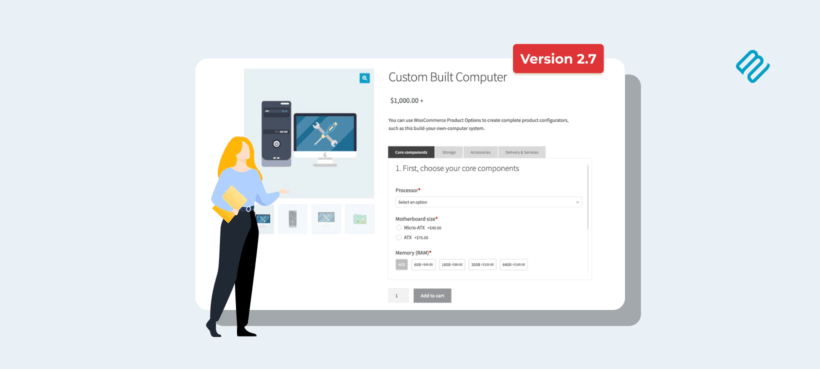
Discover what's new in WooCommerce Product Options 2.7 - a release focused on smoother configuration and a more polished look for products with lots of options.
Configure a product in WooCommerce, get it into the cart, then realize you picked the wrong size or option. By default, the only way to fix it is to remove the product and start the configuration from scratch.
The same product page often runs much taller on the right than the image on the left when there are many options. A busy configurable product can look unbalanced from the moment it loads.
WooCommerce Product Options version 2.7 tackles both. It adds a cart-editing flow, three new display layouts for option groups, and a card display style for the image buttons option type.
This builds on version 2.6, which shipped quantity pickers and shareable cart links earlier this year.
Cart editing - let customers change their options without starting over
Until now, customers who picked the wrong options had to remove the product from their cart and start the configuration from scratch. That's frustrating when the product has lots of options, and it's a common reason for cart abandonment.
Version 2.7 adds an "Edit options" link below each cart item that has WPO options attached.
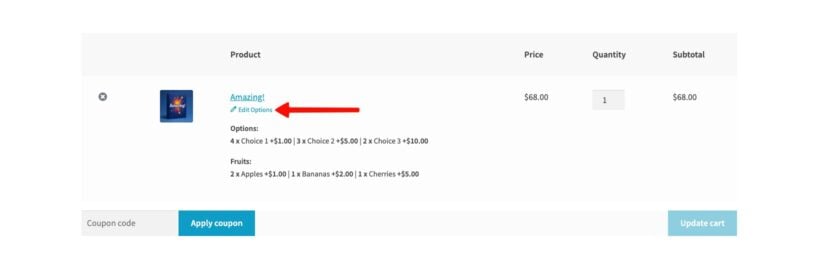
Clicking the link sends the customer straight back to the product page with all their previous choices pre-loaded. The add-to-cart button changes to "Update cart" so it's clear they're modifying an existing item, not adding a new one. A Cancel button sits next to it for customers who want to back out without applying any changes.
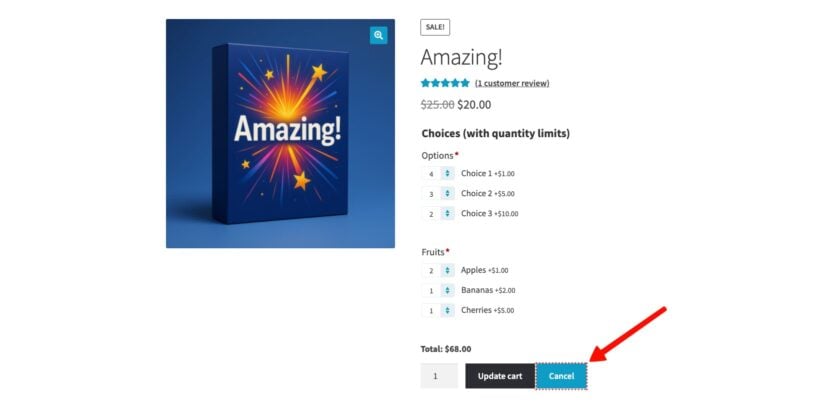
When the customer clicks Update cart, the changes replace the original item in the cart and they're taken straight back to the cart page. No extra clicks needed.
This is particularly useful for highly configurable products where a single typo or missed option used to mean rebuilding the whole order.
Three new layouts for compact, professional-looking option groups
Until now, WPO option groups only displayed as a vertical stack on the product page. That works for simple add-ons but gets unwieldy fast on a product with many options. Version 2.7 adds three new layouts that take up less vertical space and feel more polished. You can pick a different layout for each option group under Products → Product Options.
Tabs
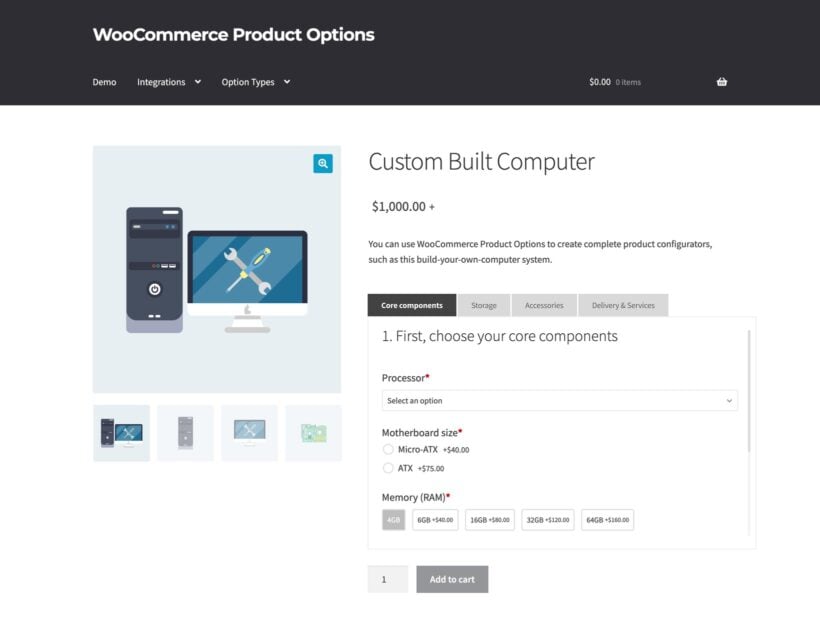
Tabs work well when you have a handful of clearly-named option groups and the customer can pick any of them in any order. Each group becomes a clickable tab. Only the selected tab's options are visible at a time.
Tabs are a strong fit for product pages where customers know what they want to change. They pick the size on one tab, the color on the next, the delivery option on a third.
Popup
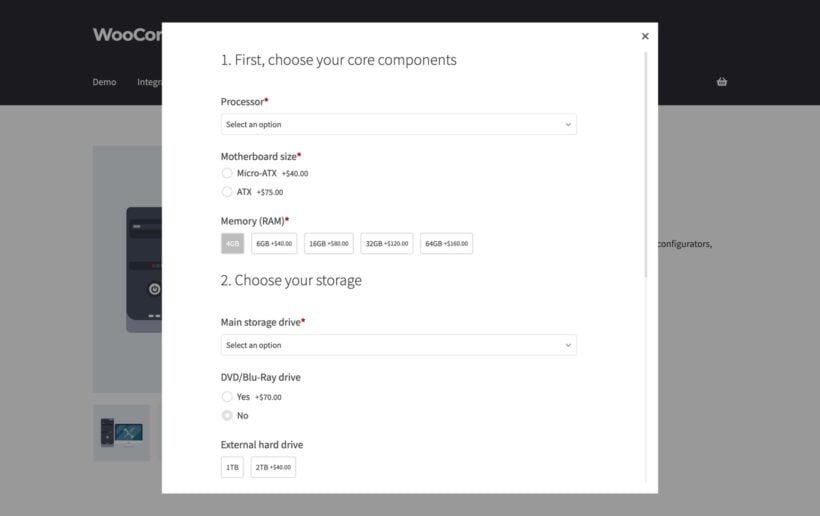
The popup layout keeps the product page itself clean. Instead of showing the options inline, a button on the product page opens a modal with all the option groups inside. You can customize the button text to match your store's tone, whether that's "Customize", "Configure your order" or "Personalize this gift".
This layout works well when most shoppers don't need to change the defaults, and you want to keep the product page focused on the image, the description and the add-to-cart action. Anyone who does want to configure clicks the button and gets the full options experience in a focused overlay.
Numbered step-by-step
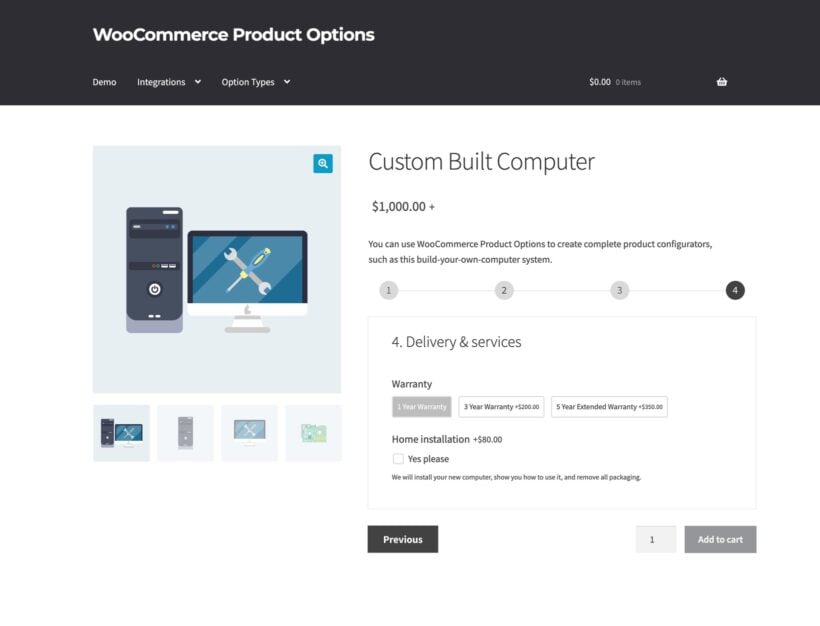
The step-by-step layout walks the customer through one option group at a time with previous and next navigation. This layout works best for full product configurators where the choices build on each other - custom-built computers, gift hampers, made-to-measure clothing - and where guiding the customer through the process keeps them from feeling overwhelmed.
Image button cards with descriptions for each choice
The existing image buttons option type let you display each choice as a clickable button with the image plus an optional name. Version 2.7 adds a third display style: cards.
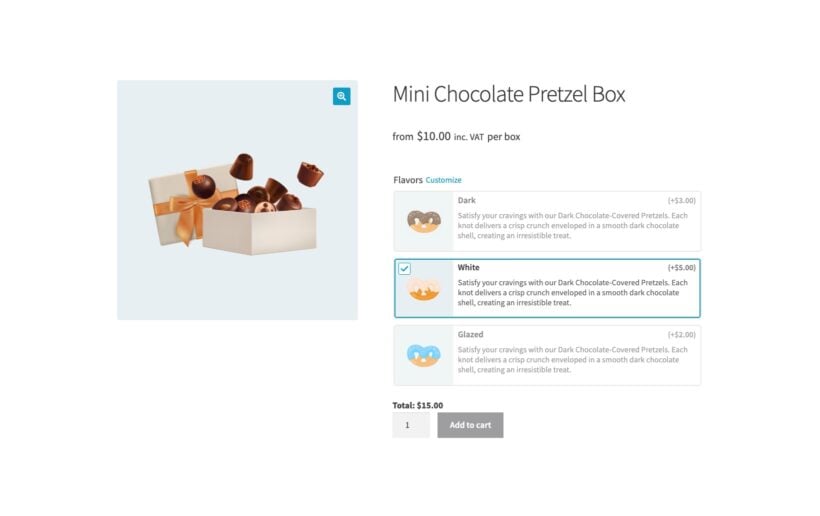
Each card shows the image on the left and the choice name, price and a short description on the right. This is the first time any WPO option type has supported per-choice descriptions. You can finally explain the difference between options without forcing the customer to hover over a tooltip or guess from the name alone.
Cards work well for premium upsells, food and drink options, gift wrapping styles, or any choice where the value needs a sentence of context rather than just a label.
Coming next: layered images in WooCommerce Live Preview
The next release will be a big update to the WooCommerce Live Preview add-on. Today, Live Preview can swap the product image based on the customer's selected options. It can also add custom text on top of a base image for things like engraved gifts and personalized mugs.
The upcoming update adds a third preview type: layered images. Layered previews let customers see a real-time composite of their selections by stacking transparent images on top of a base.
The classic use case is a custom T-shirt designer where the shopper picks the body color, sleeve length and chest logo, then watches the shirt update as they choose. It works for anything where the finished product is a combination of swappable visual elements - phone cases, sneakers, jewelry or scented candles.
We'll write about it properly when the update ships.
Get WooCommerce Product Options 2.7
WooCommerce Product Options 2.7 is available now.
Existing customers can read the full changelog and update directly from the WordPress dashboard. New customers can purchase the plugin as usual, and All Access Pass customers automatically have access to this release.
Documentation and support are available if you need help using any of the new features.