How to add a guest checkout in WooCommerce


A smooth checkout lets people pay as a guest in a few taps, without ever creating an account. For a lot of first-time shoppers, WooCommerce guest checkout is the difference between a completed order and an abandoned cart.
On a lot of WooCommerce stores, the checkout still asks first-time buyers to create an account before they can pay, and a good share of them leave right there. Someone buying a $25 t-shirt doesn't want to set a password and confirm an email first. Forcing account creation is one of the most consistent causes of cart abandonment in ecommerce, and it's one of the easiest to fix.
WooCommerce has a guest checkout option built in. It's a single setting that lets customers order without registering, and on a lot of installs it isn't switched on. Turning it on takes about a minute.
The native guest checkout works, but it still drops customers onto the standard WooCommerce checkout page, which is long and easy to bail out of. I'll show you how to switch guest checkout on, then how to make the whole flow faster with a popup checkout using WooCommerce Fast Cart, so casual buyers can pay in a few clicks without leaving the page.
Why offer guest checkout?
Guest checkout lets a customer complete an order without creating an account. They enter their delivery and payment details, pay, and they're done. No username, no password, no confirmation email before they can buy.
Switching it on helps casual buyers in a few concrete ways:
- Fewer abandoned carts. Mandatory account creation is repeatedly named as a top reason shoppers abandon carts. Removing it takes a major objection off the table.
- Faster for first-time buyers. Someone buying from you once doesn't want an account. Guest checkout matches what they came to do, which is pay and leave.
- Higher conversion on mobile. Typing a new password on a phone is friction. The fewer fields between cart and confirmation, the more mobile shoppers finish.
- A more accessible flow. A shorter, simpler checkout is easier for everyone, including customers using screen readers or with limited dexterity.
You don't lose the customer data either. A guest still gives you their name, email and delivery address with the order, so you can send receipts, fulfil the order and (with their consent) add them to your marketing list later. Everyone wins 😄
Enabling guest checkout in WooCommerce
Guest checkout is a built-in WooCommerce setting. Here's how to turn it on:
- Go to WooCommerce → Settings in your WordPress dashboard.
- Click the 'Accounts & Privacy' tab.
- Under 'Guest checkout', tick 'Allow customers to place orders without an account'.
- Click 'Save changes' at the bottom.

That's the whole native setup. Guests can now order without registering.
While you're on that screen, you can also tick 'Allow customers to create an account during checkout' to offer registration as an option rather than a requirement. For a rundown of each box, WooCommerce's own settings documentation covers them.
The problem with WooCommerce's default checkout
Switching guest checkout on fixes the account barrier, but the default WooCommerce checkout still works against you. It's a full, separate WooCommerce checkout page with two columns of fields, and the customer has to leave your product or cart page to reach it.
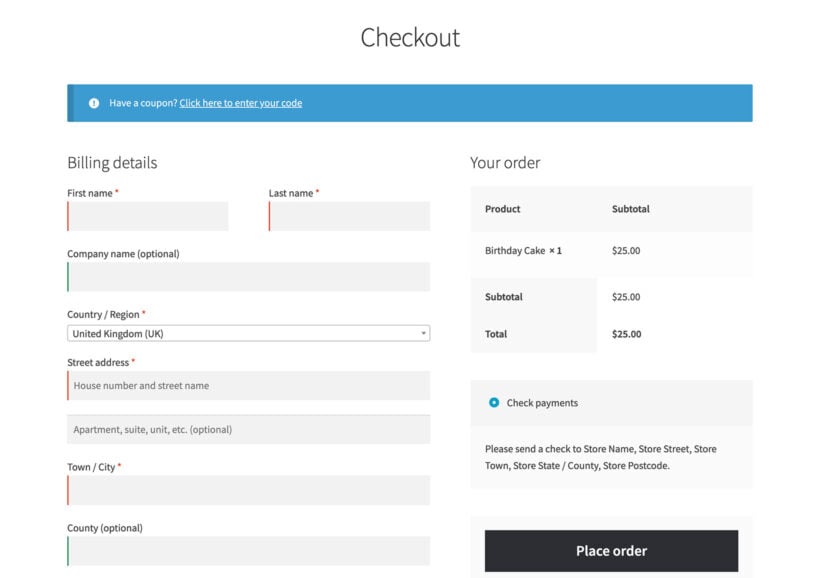
For a guest who just wants one thing, that's a lot of page to take in. Every extra field and every page load is another chance to have second thoughts. It's the same friction the guest checkout setting was meant to remove, showing up in a different place.
The fix is to shorten the distance between "add to cart" and "order placed". A popup checkout does that.
A faster guest checkout with WooCommerce Fast Cart
WooCommerce Fast Cart shows the cart and checkout in an on-page popup instead of sending customers to a separate page. A guest adds a product and the cart slides out. They can then check out right there, with no page reload.
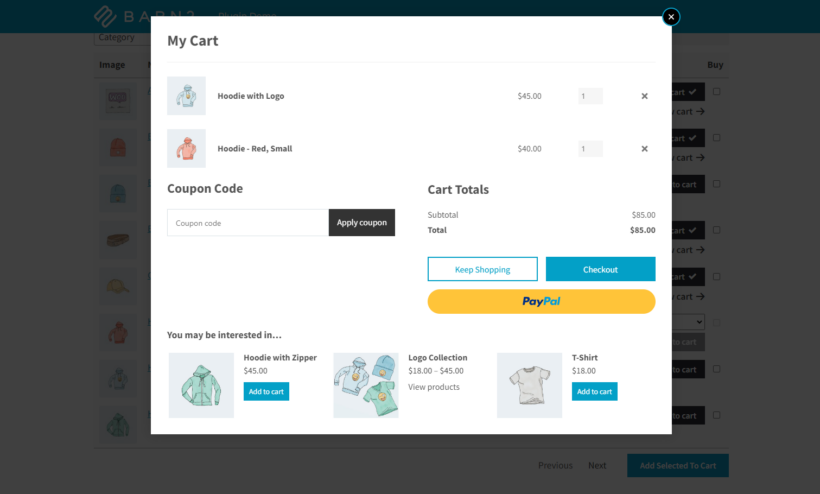
With guest checkout enabled, this is about as short as the buying flow gets. The customer never meets a registration prompt, never leaves the page, and finishes the order in the popup. For casual and first-time buyers, that's the experience that converts.
Fast Cart also has a 'Direct checkout' option that skips the cart popup and opens the checkout popup straight away. If you sell mainly one product or want to speed up reorders, a direct checkout is quicker still. It removes the cart step entirely.
Setting up Fast Cart for guest checkout
You've already enabled guest checkout above. Now add the popup checkout:
- Install and activate WooCommerce Fast Cart, then enter your license key. The setup guide walks through this if you need it.
- Open the setup wizard, or go to WooCommerce → Fast Cart.
- Enable both the cart and the checkout in the popup, so guests can review their order and pay in one place.
- Optionally, tick 'Direct checkout' to skip the cart and send customers straight to the checkout popup.
- Save your settings.
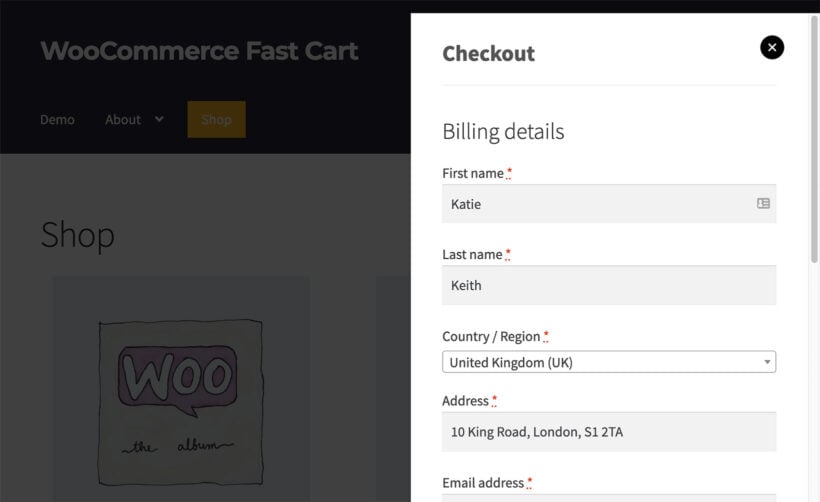
The checkout fields inside the popup are the standard WooCommerce ones, so your guest checkout setting carries straight through. A guest sees the billing fields, fills them in and pays, with no account step in sight. You can also add address autocomplete to the popup so the address fills in from a single line, which removes more typing.
More ways to reduce checkout friction
Guest checkout and a popup are the biggest wins, but a few other changes help casual buyers finish:
- Trim the form. WooCommerce ships with more fields than most stores need, and my guide to removing checkout fields shows which ones are safe to drop.
- Bring the checkout closer to the cart with a popup checkout, so there's no jump between reviewing the order and paying.
- Speed up the page itself. A slow checkout loses sales however short it is, and these checkout speed tips help.
- Keep account creation optional. Offer it as a tickbox at the end, never as a gate, and give returning customers a reason to use the My Account page.
For a wider view of the tools available, my roundup of WooCommerce checkout plugins covers the ones worth knowing about.
Guest checkout isn't always the right fit
Guest checkout suits most stores, but not every one. Skip it, or pair it with accounts, when your model depends on customers logging in:
- Subscription storesRecurring billing needs a saved account so customers can manage their plan, so a store built on recurring payments should keep account creation in the flow.
- Wholesale and B2BApproved-customer pricing and order history rely on logins. A wholesale store usually wants registration, not anonymous guests.
- Membership sitesWhen access depends on a login, a members-only shop needs accounts by design.
Even in these cases, guest checkout can sit alongside accounts for one-off buyers. It's rarely all or nothing, and the WooCommerce setting lets you offer both.
Frequently asked questions about WooCommerce guest checkout
Does WooCommerce support guest checkout by default?
WooCommerce includes a guest checkout option, but it isn't always switched on. Go to WooCommerce → Settings → Accounts & Privacy and tick 'Allow customers to place orders without an account' to enable it.
Can customers still create an account during guest checkout?
Yes. On the same Accounts & Privacy screen, tick 'Allow customers to create an account during checkout'. Customers then get an optional tickbox to register as they pay, rather than being forced to.
Does guest checkout lose me customer data?
No. A guest still provides their name, email and delivery address with every order, so you keep the details you need for fulfilment, receipts and follow-up. They simply don't have a saved login.
How do I make guest checkout faster?
Shorten the flow by removing unnecessary checkout fields, adding address autocomplete, and using a popup checkout like WooCommerce Fast Cart, so guests pay on the page instead of loading a separate checkout page.
Final thoughts
Guest checkout is one of the highest-return changes you can make to a WooCommerce store, and it costs nothing to switch on. Enable it under WooCommerce → Settings → Accounts & Privacy, then look hard at whether the default checkout page is doing your guests any favors. For most stores it isn't.
If you want the shortest possible flow, WooCommerce Fast Cart puts the cart and checkout in a popup so a guest can buy without an account and without leaving the page. Either way, the test is simple. Walk your own checkout as a first-time buyer, count the steps between the cart and the WooCommerce order confirmation page, and cut the ones that don't earn their place.