What is cross-selling and how to do it in WooCommerce

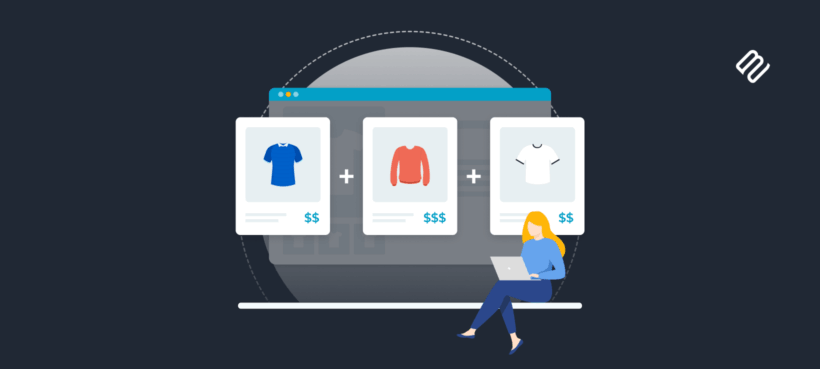
Customers who land on your store with one product in mind will often pay for two if you ask at the right moment. Cross-selling is the technique that does the asking, and it's one of the simplest ways to lift average order value across your whole store.
In this post I'll cover what cross-selling is, how it differs from upselling, and where to place cross-sell offers in a WooCommerce store so customers act on them. I'll then show two practical methods that you can implement without needing a developer:
- Displaying related products on the product page above the Add to Cart button, using WooCommerce Product Options.
- Showing cross-sell offers inside the popup cart at the moment of decision, using WooCommerce Fast Cart.
What is cross-selling?
Cross-selling is the practice of recommending products that complement what a customer is already buying. The customer sees the cross-sell offer at some point in their shopping journey, usually on the product page, in the cart or at checkout, and chooses whether to add it to their order.
A classic example is the drive-through. A customer orders a burger, the cashier asks "Would you like fries and a drink with that?". The fries and drink aren't replacing the burger; they complete it. The customer pays more, the restaurant earns more per transaction and both parties consider the deal a win.
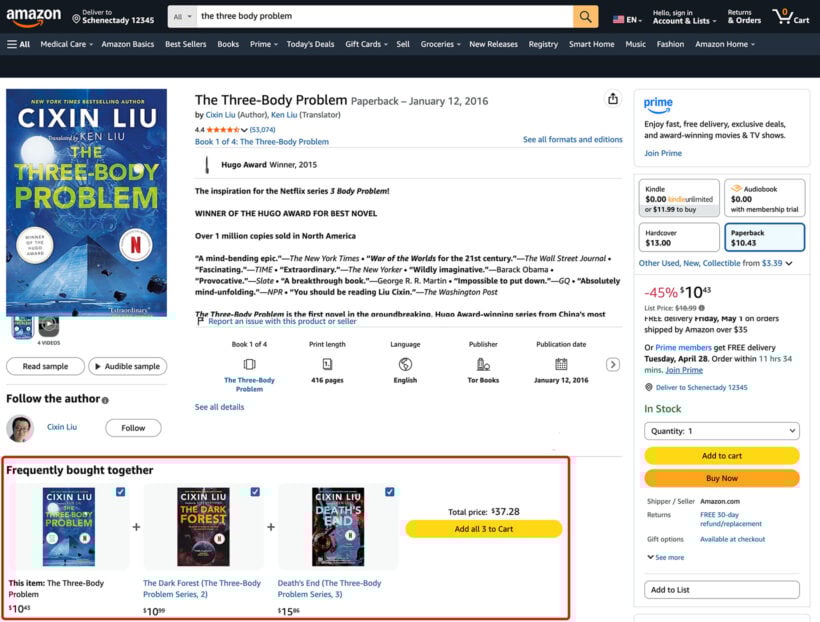
Cross-selling works the same way online, just with software doing the asking. Amazon's "Frequently bought together" widget is the most familiar example. When a customer adds a camera to their cart, the widget surfaces a memory card and a case at the same time.
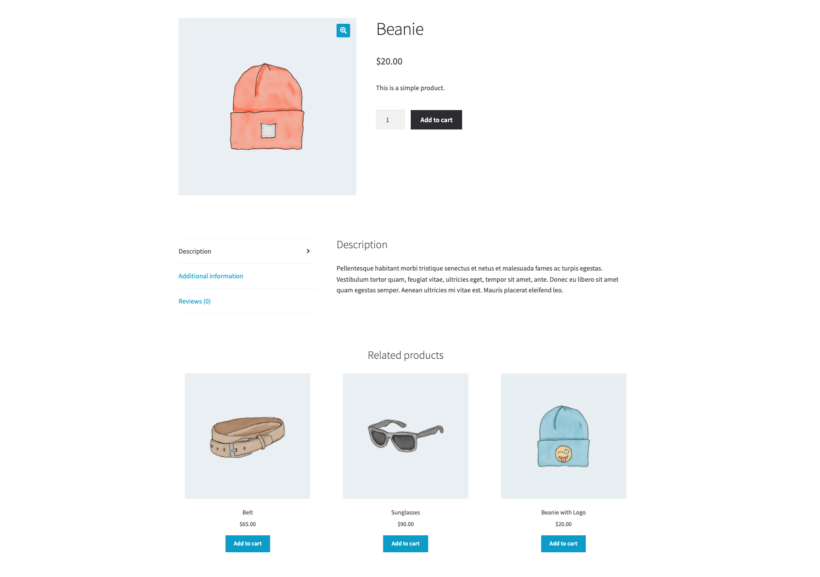
Most ecommerce platforms support some version of cross-selling, including WooCommerce's default related products and linked products features. The methods differ in where the cross-sell appears, how visible it is to the customer and how much control you have over which products are suggested.
Cross-selling vs upselling: What's the difference?
Cross-selling and upselling both aim to increase how much a customer spends, but they do it differently.
Cross-selling recommends complementary products. A customer adds a yoga mat to their cart and you suggest a strap and a block, or they add a camera and you suggest a memory card.
Upselling recommends a more expensive version of the same product. A customer chooses a small coffee and you offer the large for 50 cents more, or they pick the standard subscription tier and you offer the premium one with extra features.
Cross-selling adds breadth (more items in the cart). Upselling adds depth (a better version of what they already chose). Both lift average order value, and most ecommerce stores benefit from running both.
Why cross-selling matters
Cross-selling is one of the few revenue levers that doesn't require new traffic, new products or new ads. The customer is already on your site, already in a buying mindset and already at one of the easier moments to spend a little more.
- Higher average order value. Customers buy more per transaction than they would on their own.
- Better customer experience. Relevant recommendations save customers the work of searching for related items separately. Used well, cross-sells feel like a service.
- Higher customer lifetime value. Customers who get a good cross-sell experience are more likely to come back. Cross-selling builds the habit of expecting useful suggestions from your store.
- More predictable conversion lift. Cross-selling at the cart or checkout step turns "I'm here to buy X" intent into "I'm here to buy X and Y" without extra acquisition cost.
The biggest reason cross-selling works is timing. When a customer is already deciding to spend money, the friction of spending a little more on a complementary item is low. The friction of returning to the site a week later to buy that complementary item is high. Cross-selling captures the order that would have happened later, or wouldn't have happened at all.
How to add cross-sells to your WooCommerce store
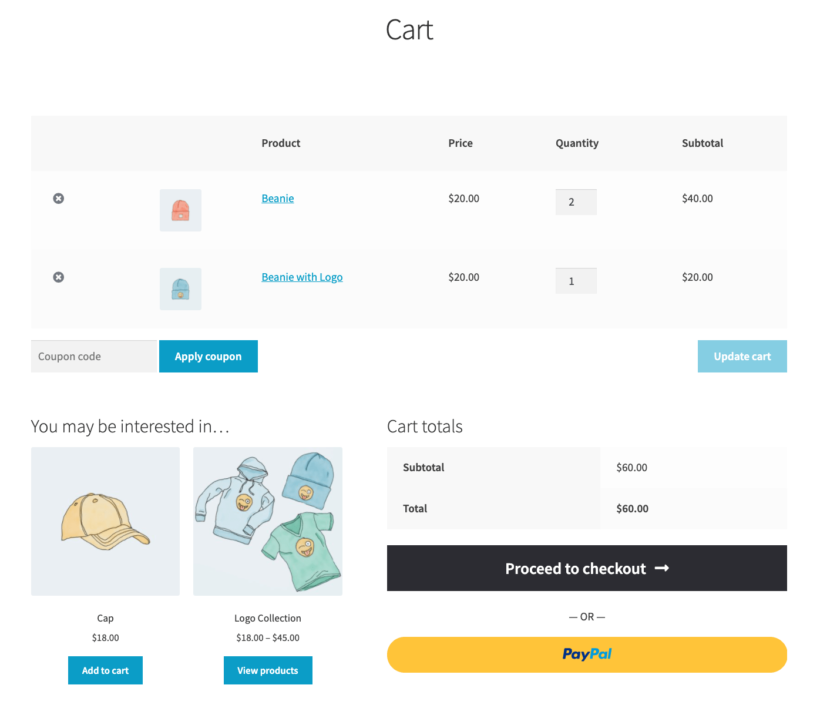
WooCommerce ships with some basic cross-sell functionality. You can add cross-sell products from the Linked Products tab in any product's edit screen, and they appear on the cart page below the cart items. This works, but the placement is weak. Customers see the cross-sells after they've made their buying decision and are scrolling toward checkout, and many don't notice them at all.
For cross-sells that customers actually act on, you need to surface them earlier in the journey, either on the product page itself or inside the cart popup. Two Barn2 plugins handle this without code.
Method 1: Cross-sell on the product page with WooCommerce Product Options
With WooCommerce Product Options, you can show related products as selectable items directly above the Add to Cart button on a single product's page. Customers see the cross-sell as part of the buying decision, not as an afterthought once they've already decided.
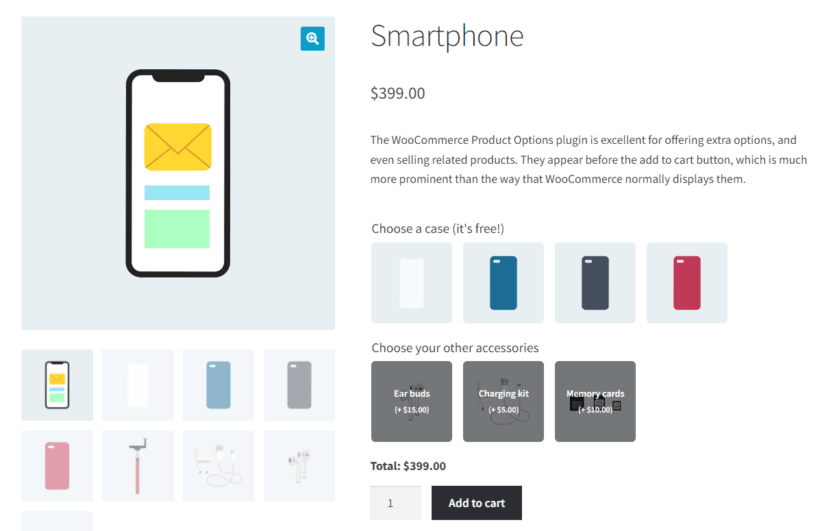
This is more effective than the default WooCommerce linked products section for two reasons:
- The placement is inside the buying flow rather than below it. Customers see the cross-sells while they're still deciding, not after they've already moved on.
- Customers make a conscious decision. They actively tick or skip the cross-sell, instead of scrolling past a generic recommendations grid further down the page.
The backend setup uses the plugin's Products option type, which lets you pick exactly which products appear as cross-sells on the matching product pages:
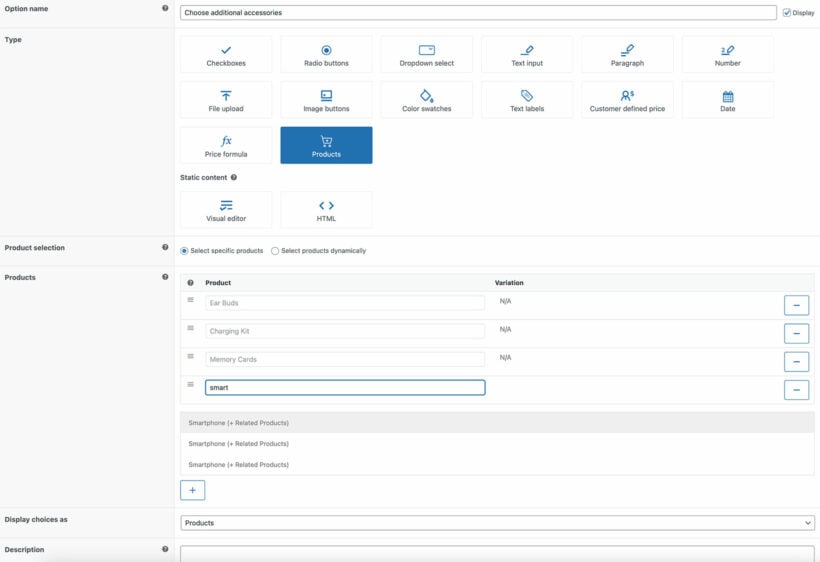
To set it up:
- Install WooCommerce Product Options and activate it on your site.
- Go to Products → Options and click Add New to create a new option group.
- Choose the Products option type, then pick the products you want to offer as cross-sells.
- Choose the products or categories where the option group should appear and save.
The cross-sell appears on the matching product pages immediately.
Method 2: Cross-sell in the cart popup with WooCommerce Fast Cart
WooCommerce Fast Cart replaces the default WooCommerce cart-to-checkout page hop with a popup that appears when a customer adds something to cart. The popup includes a dedicated cross-sell section where you can show related products with their own add-to-cart buttons.
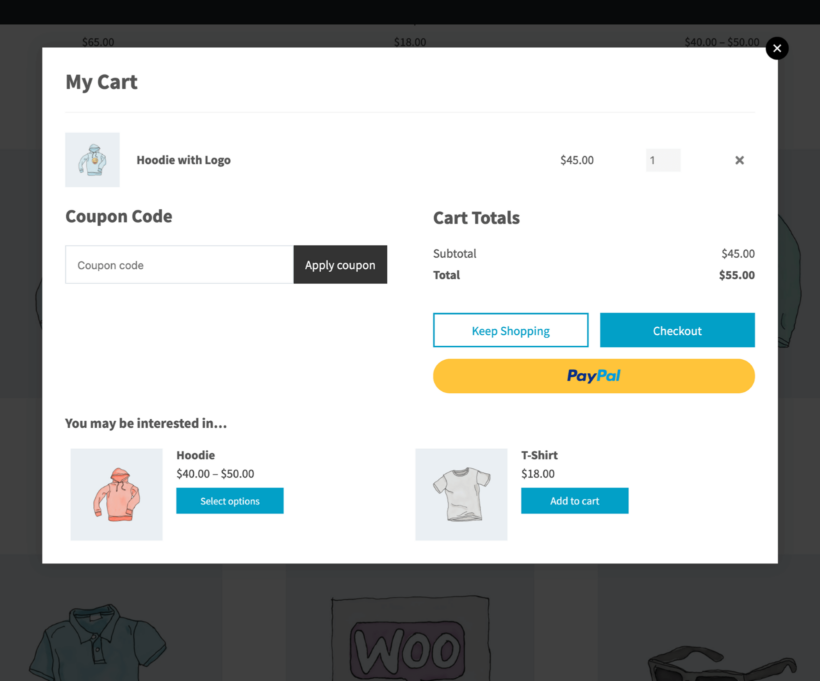
The popup catches the customer in the highest-intent moment of the journey, when they've already decided to buy. A "You may also be interested in" cross-sell at that point lands much better than the same recommendation on the product page, where the customer hasn't fully committed yet.
Combine it with the product-page method above and you cover both decision points. The product-page method (Product Options) catches customers while they're choosing the item. The cart-popup method (Fast Cart) catches them as they're committing to the order.
Tips for effective cross-selling
Cross-selling works when the offer makes sense and irritates customers when it doesn't. A few rules consistently make the difference:
- Keep the cross-sell cheaper than the original product. Customers will add a $20 accessory to a $200 purchase without thinking. They hesitate over a $100 add-on to the same $200 purchase.
- Show fewer options, not more. Three well-chosen cross-sells beat ten generic recommendations. Customers freeze when the recommended list looks like a category page.
- Match the cross-sell to the moment. On the product page, show options that genuinely complement the chosen product. In the cart popup, show items that round out the order, such as accessories, consumables or gift wrap.
- Discount the cross-sell, not the original product. A small discount on the cross-sell ("add a phone case for 20% off") shifts the decision in your favor without lowering the price of the item the customer already wanted.
- Track which cross-sells convert. The cross-sells that work in practice aren't always the ones you'd guess. Drop the ones nobody picks and double down on the rest.
Start cross-selling in your WooCommerce store today
Cross-selling captures revenue you'd otherwise leave on the table. Customers who came to buy one thing leave with two, your average order value lifts and the cost of getting that extra revenue is essentially zero because the customer is already on your site.
The two methods covered here run independently and complement each other.
- Use WooCommerce Product Options to put cross-sells above the Add to Cart button on the product page, where customers consciously tick or skip them.
- Use WooCommerce Fast Cart to show cross-sells inside the popup cart at the moment of decision.
Start with whichever fits your store's current bottleneck. If customers add one item then leave the site, the cart-popup method tends to work better. If customers buy the wrong items and forget the obvious add-ons, the product-page method catches those decisions earlier.
2 Comments
That’s a really helpful breakdown. I've found that showing related products above the button is the most effective way to get people to browse further.
That is a fantastic insight! Placing related products right above the primary call-to-action keeps them directly in the user's natural reading path before they make a final decision, making it much harder to miss. It’s an incredibly effective tactic for capturing attention while intent is highest and naturally boosting your average order value (AOV). Thanks for sharing what is working well for you!