The fastest way to manage WooCommerce product categories in bulk


Looking to bulk edit WooCommerce product categories without clicking through every single one? This guide walks through the fastest way to manage WooCommerce categories, tags, and custom taxonomies in bulk.
A WooCommerce shop with 500 products usually has 30 or more product categories. Each one has a thumbnail, a description, a display type, and SEO data sitting behind it. Editing those one at a time can be a full day's work.
The bigger your store, the more painful it gets. This affects many store managers, especially after a rebrand or a seasonal refresh.
This post covers the fastest way to bulk edit WooCommerce product categories, tags, and any custom taxonomy on your store. After that, there's a bonus section on how to bulk-protect categories using our own plugin, WooCommerce Protected Categories.
What WooCommerce lets you do natively
WooCommerce inherits WordPress's category screen and adds nothing extra for bulk editing. So the native Products → Categories screen edits one category at a time.
Quick Edit covers two fields: name and slug. The Bulk Actions dropdown looks promising at first glance, but the only bulk action available is delete 😕
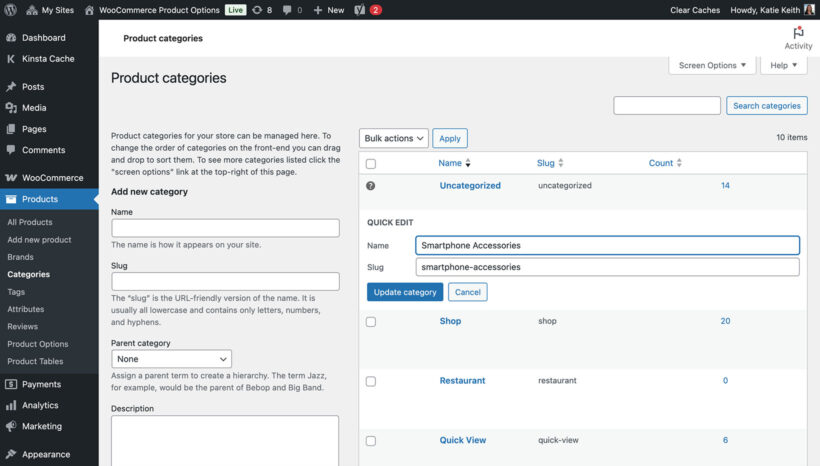
Product tags work exactly the same way. So do any custom product taxonomies registered by other plugins.
WooCommerce doesn't provide a native way to mass-update category thumbnails, swap display types across a range, change parent categories in bulk, or rewrite SEO meta for every category. That's the gap this post fills.
When bulk editing pays off for WooCommerce stores
Bulk editing isn't always needed. Smaller shops can manage fine on the native screen. Past a certain catalog size, it stops being optional. Here are some real situations where it pays for itself:
- Black Friday and seasonal sales, when you need to add promo banners or sale messaging to dozens of category descriptions for a few weeks, then remove it all afterwards.
- Adding compliance or shipping notices to product categories, for example flagging hazmat restrictions or country-specific shipping rules on every relevant category at once.
- Switching category display types after a theme change, when your new theme renders 'Products', 'Subcategories', and 'Both' differently to your old one.
- Cleaning up after a CSV product import that created hundreds of duplicate or near-duplicate product tags ("men", "Men", "Mens").
- Updating thumbnails for an entire range when you've rebranded or commissioned new product photography.
- Translating WooCommerce category names, descriptions, and slugs in one sweep for multilingual stores.
- Locking down trade or wholesale categories after a B2B launch, which I'll cover in the bonus section below.
The common thread is that WooCommerce stores have a lot more moving parts than a regular WordPress site. Categories carry thumbnails, display types, SEO meta, sale messaging, and access rules. Each of these changes more often than most store owners would like.
How to bulk edit WooCommerce categories and tags with Setary
Setary is a third-party app that loads your WooCommerce data into a spreadsheet view, similar to Google Sheets or Excel. It started life as a bulk editor for products and orders, but it also covers product categories, product tags, and any custom product taxonomy on your store.
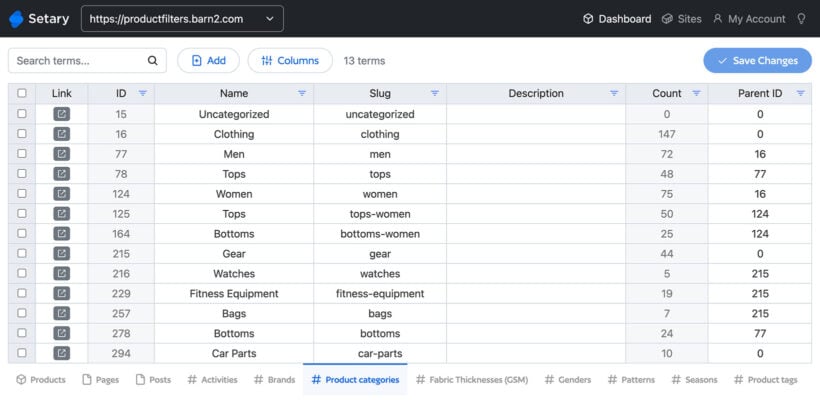
Every change shows a small blue dot before you save, so you can review your edits before they go live.
Step 1: Sign up and install the helper plugin
Start a Setary trial at setary.com, then install the free Setary helper plugin on your store. The plugin is what connects Setary's spreadsheet app to your WooCommerce data.
Step 2: Enable product categories and tags
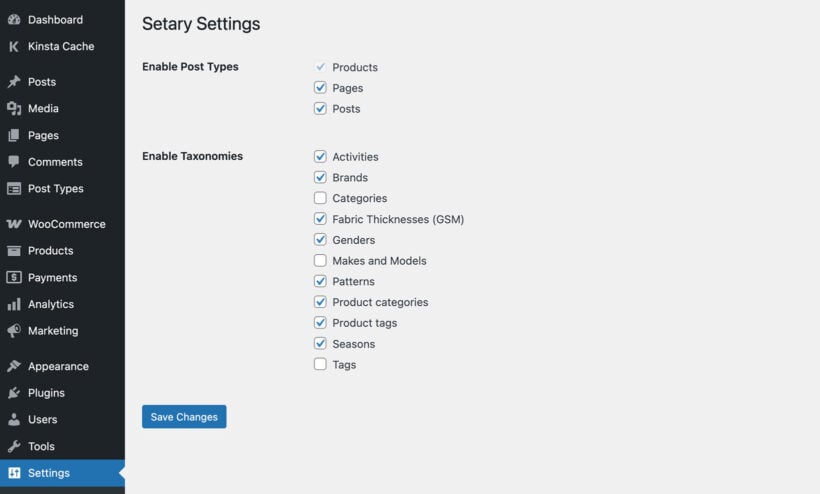
In your WordPress admin, go to Settings → Setary. Tick the box for 'Product categories' and 'Product tags'. Tick any custom product taxonomies too, such as brand taxonomies or vendor taxonomies registered by other plugins. Save your settings.
Step 3: Open the tab you want to edit
Sign in to the Setary app. Each enabled taxonomy appears as a tab along the bottom of the spreadsheet. Click the 'Product categories' or 'Product tags' tab, depending on what you want to edit.
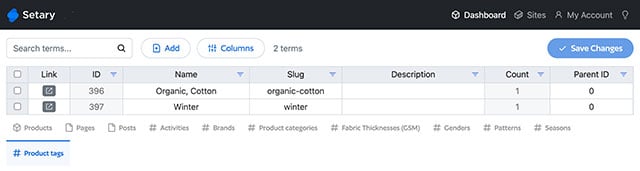
Step 4: Show the columns you need
Click the 'Columns' button at the top of the spreadsheet. Tick the fields you want to bulk edit, then untick the ones you don't need. Available columns include name, slug, description, parent, thumbnail, display type, count, and any SEO fields added by Yoast, RankMath, or AIOSEO.
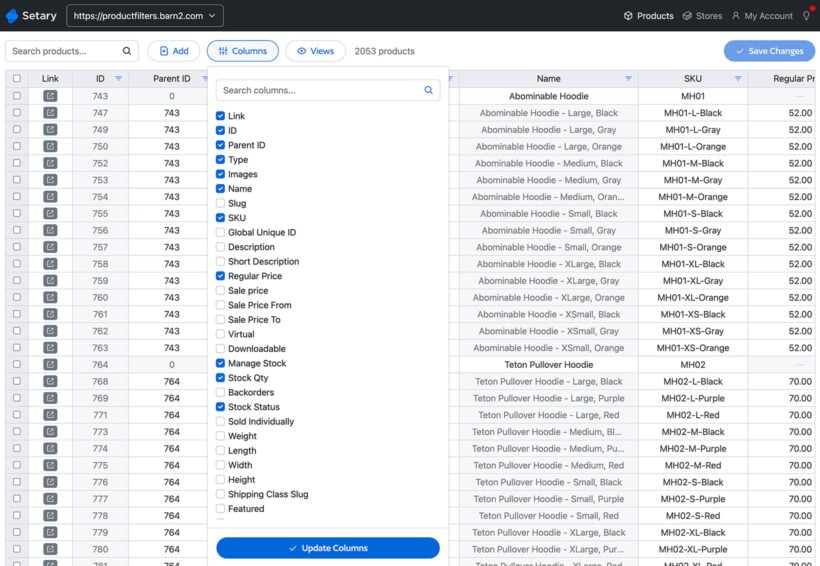
Hiding columns you don't need keeps the view focused on the job in front of you.
Step 5: Make your changes
Click into any cell and edit it directly, just like a spreadsheet. You can copy and paste blocks of data, drag values down a column, or use keyboard shortcuts to move around quickly. A blue dot appears next to every cell you've changed, so you can see exactly what you've edited.
Step 6: Review and save
Scan the blue dots before saving. This is your last chance to spot anything wrong. When you're happy, click 'Save changes' to push every edit to your store at once.
The same workflow handles product tags and any custom taxonomy on your store. Brand taxonomies, vendor taxonomies from multi-vendor plugins, and anything else custom all behave the same way in Setary.
Bonus: How to bulk protect WooCommerce product categories
Many WooCommerce stores need to restrict who can see certain product categories. Wholesale stores hide trade pricing from retail customers. B2B catalogs serve different categories to different customer segments. Members-only stores gate premium ranges behind a subscription.
WooCommerce doesn't include any way to handle WooCommerce product restrictions for categories natively. That's where WooCommerce Protected Categories comes in.
What WooCommerce Protected Categories does
The plugin lets you restrict any WooCommerce product category in one of three ways:
- Password-protect the category, so anyone with the password can view it.
- Restrict the category to specific user roles, such as wholesale customers or trade buyers.
- Restrict the category to specific named users.
You can combine these methods on the same category. For example, you might allow access by password and also grant a list of specific users automatic access without a password.
Setting protection on one category is straightforward. Open the category in Products → Categories, scroll to the 'Visibility' option, choose 'Protected', and pick your protection method. Save the category.
Common reasons stores need this
- Wholesale stores hiding trade-only product categories from retail customers.
- B2B catalogs showing different categories to different customer segments.
- Members-only product ranges restricted to subscribers or paying members.
- Pre-order or early-access product categories restricted to VIP customers.
- Sample stock or staff-discount categories restricted to internal users.
Bulk-protecting your product categories
Setting protection on one category at a time works fine for a handful. For 20 or more, the same problem shows up: you're back to clicking through every category edit screen.
The fix is to combine WooCommerce Protected Categories with Setary. The plugin handles the access control logic, and Setary handles the bulk editing.
In short, the workflow is:
- Save protection on one category manually first, so the protection columns appear in Setary.
- Open the 'Product categories' tab in Setary and enable these columns: 'Visibility', 'Password', 'User roles', and 'Users'.
- Edit row by row, using lowercase values such as
protected, comma-separated user roles likeadministrator,shop_manager, and comma-separated user IDs like25366,2. - Review the blue dots, then click 'Save changes'.
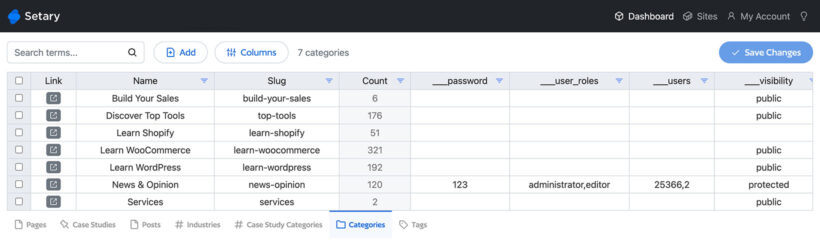
For the full walkthrough, see our how to bulk protect categories guide in the WooCommerce Protected Categories knowledge base.
Final thoughts
The native WooCommerce category screen is fine for small stores, but it becomes a real bottleneck once you have more than a handful of categories to manage. Quick Edit only handles name and slug, and the only bulk action is delete.
Here's the right tool for each job:
- To bulk edit WooCommerce product categories, tags, and custom taxonomies: use Setary to edit them all in a spreadsheet view.
- To restrict product categories by password, user role, or specific users: use WooCommerce Protected Categories.
- To apply protection to lots of categories at once: combine both, so the access control and the bulk editing work together.
Which part of your WooCommerce catalog do you most wish you could manage in bulk?