What to look for in a WooCommerce filter plugin

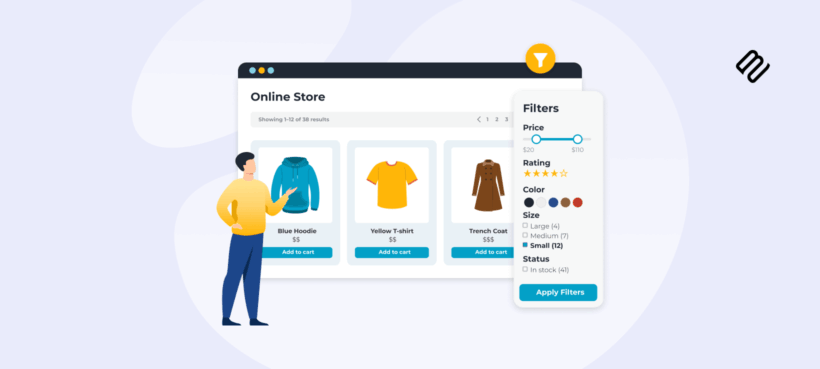
Choosing the wrong WooCommerce plugin filter product setup can slow your store, break on mobile, and quietly damage your SEO. This guide walks through the criteria you need to evaluate before choosing, so you can match the right plugin to your catalog and technical setup.
According to research from Nosto, 80% of shoppers admit to leaving sites when the on-site experience doesn't meet expectations. Product filtering sits right at the heart of that experience. A wrong choice here has real consequences: filters that appear empty after installation, pages that crawl under traffic, mobile layouts that frustrate touch users, and URL patterns that create SEO problems you won't notice until they're already baked in.
This article focuses on how to evaluate WooCommerce filter plugins, not which one to buy. For specific plugin comparisons, I'll point you toward the right resource at the end.
How product filtering directly affects revenue
AJAX filtering is one of the most common phrases you'll see in filter plugin listings. It's worth understanding what it actually does - and what it doesn't guarantee.
AJAX filtering updates only the list of products when a shopper clicks a filter. The whole page doesn't reload. Changes feel faster and smoother as a result. Shoppers stay engaged instead of watching a loading screen between every selection.
However, AJAX alone doesn't determine whether your filters are fast. The architecture of your product filter plugin does.
Plugins that query the database on every filter click slow down as catalogs grow and traffic increases. Indexed filters stay fast because they reference pre-processed lookup tables instead of running fresh queries each time. This difference affects all types of store, such as a fashion store with thousands of SKUs during a sale, a B2B buyer filtering technical specifications, or a mobile shopper with limited patience. Each of these users will abandon if the experience is slow or broken.
That's why the criteria below matter. AJAX is just a delivery mechanism. Everything else - your data structure, your plugin's architecture, your mobile configuration, and your SEO settings - determines whether shoppers buy or leave.
Check your product data structure first

Many store owners install a filter plugin and discover the filters appear empty. This nearly always comes down to product data structure, and it's worth auditing before you evaluate plugins at all.
Filters in WooCommerce are powered by specific data types:
- Categories.
- Global attributes (color, size, material, and so on).
- Tags.
- Custom taxonomies, such as brands.
- Price, stock status, ratings, and on-sale flags.
- Custom fields, including ACF.
The most common mistake involves confusing global attributes with product-level attributes. These are not interchangeable.
- Global attributes are created at Products → Attributes. They aggregate across your entire store and power filters correctly.
- Product-level attributes are created individually on each product. They are freely editable per product, but they cannot aggregate across the store.
WooCommerce's core layered navigation filters rely on global, taxonomy-based attributes. If you add Color as a product-level attribute on 100 products and create a Color filter, it will appear empty.
Some third-party filter plugins can aggregate and filter by custom attributes or product meta, so the behavior does vary by plugin. But starting with clean, global attribute data gives you the most reliable foundation regardless of which plugin you choose.
Custom taxonomy filtering for brands is underused but valuable. If you use a brands plugin, confirm it creates a proper WordPress taxonomy - not just a custom field.
How to tell if you're using product-level attributes

Global attributes appear in the Attributes tab as items chosen from a dropdown. Their name and terms are not editable directly on the product. Custom product-level attributes show a freely editable name and value field per product.
To fix this, create the global attribute at Products → Attributes, add its terms via 'Configure terms', then edit each product to replace the custom attribute with the new global one. For variable products, you'll also need to remap variations. Our guide on how to import and manage product attributes walks through this in detail.
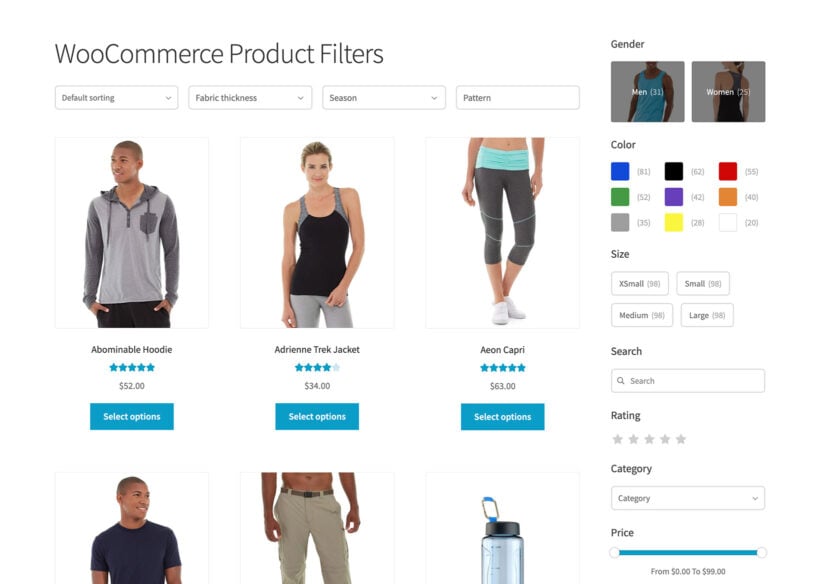
Here's WooCommerce Product Filters in action:
How to make your filters effective for customers
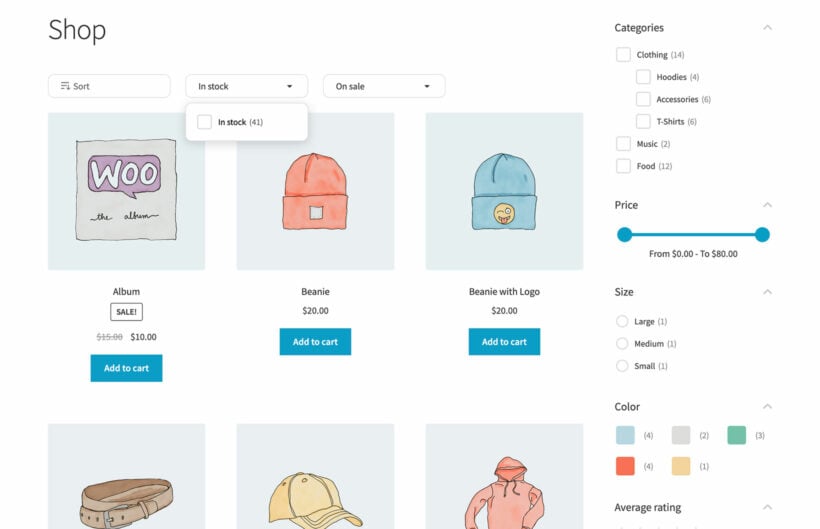
Once your data is structured correctly, the next question is whether your plugin offers the right filter types and UX for your store. I find this is where the differences between plugins become most visible in practice.
Different stores genuinely need different filter types:
- Price sliders work well for fashion and lifestyle stores where range matters.
- Checkboxes suit multi-select scenarios where shoppers want Red OR Blue.
- Hierarchical category trees help with deep catalogs where drill-down navigation is useful.
- Color swatches work better than dropdowns for visual products.
- Stock status filters are particularly useful for B2B and wholesale stores.
Layout options matter too. Vertical sidebars stay permanently visible. Horizontal toolbars above the product grid save screen space. Toggle sections keep organized without overwhelming the page.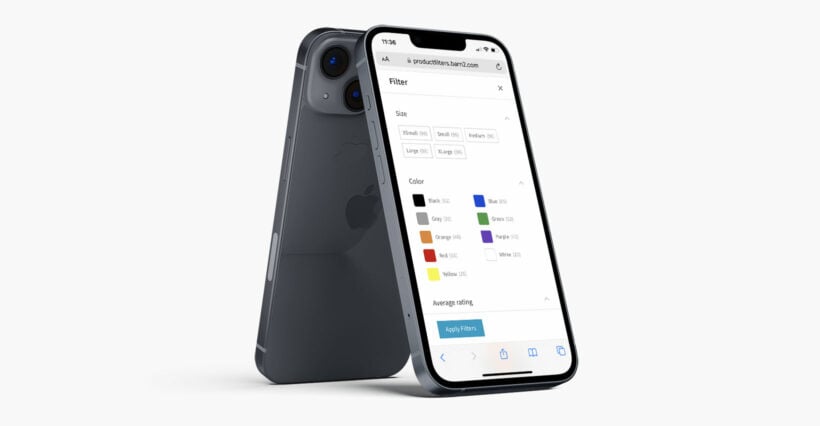
One key differentiator to look for is adaptive filtering. This updates available options and product counts as shoppers make selections. For example, if Large is only available in Blue, a well-implemented adaptive filter disables Large when a shopper selects Red - preventing dead-end frustration. The WooCommerce Product Filters plugin does this by default and also lets you reveal additional filters based on the customer selections.
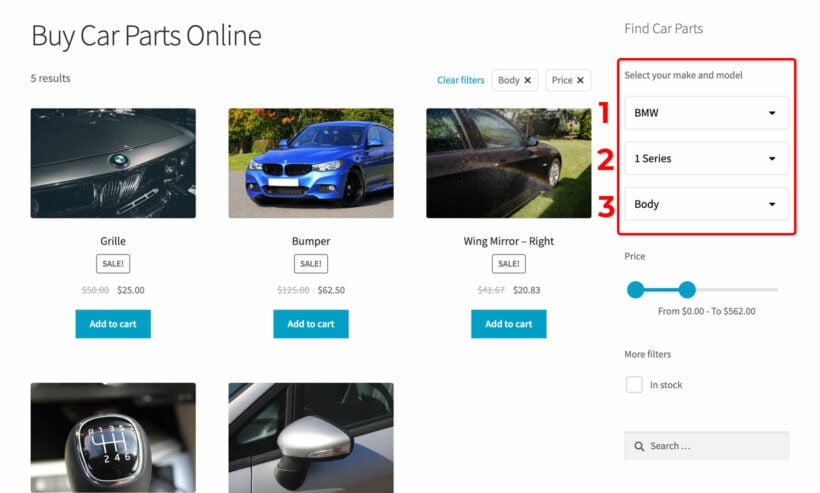
Dynamic product counts (showing "Red (23)" next to each term) update as selections change. Active filter chips, individual remove buttons, and a Reset All option help shoppers understand and manage their current selections.
Filter logic also matters - most stores use OR within a single facet and AND between facets, but the right choice depends on your product type and how your customers think about selection.
What makes filters stay fast under load
As we saw earlier, AJAX handles how results are deliverer, whereas architecture determines whether those results arrive quickly or not. The core distinction is between indexed and real-time query-based filtering.
Real-time meta-query filtering can work adequately on small catalogs. As catalog size and concurrent user numbers grow, the product filters' performance tends to degrade - especially without HPOS, proper indexing, or a dedicated filter index. Each filter click can trigger multiple WP_Query calls that compound under load.
Indexed plugins take a different approach. They pre-process filter data into lookup tables once, then reference that index instead of querying the full product database each time.
Think of it like a library. Real-time filtering scans every shelf to find matching books. Indexed filtering uses a card catalog that tells you exactly which shelf to go to.
Well-implemented indexed plugins can keep filter responses very fast even with 10,000+ products and significant concurrent traffic - assuming adequately provisioned hosting. Barn2's WooCommerce Product Filters uses custom indexing to pre-process filter data, which is why it maintains fast results even on large catalogs.
Indexing matters most when you have 1,000+ products, variable products with many variations, high concurrent traffic, or a significant proportion of mobile visitors.
When evaluating plugins, look for documentation that mentions "custom database tables" or "pre-processed index." That's a reliable signal of proper indexing architecture.
Avoiding mobile, SEO, and compatibility problems
These three areas cause the most post-launch headaches. Getting them right requires deliberate evaluation before you commit.
Mobile configuration
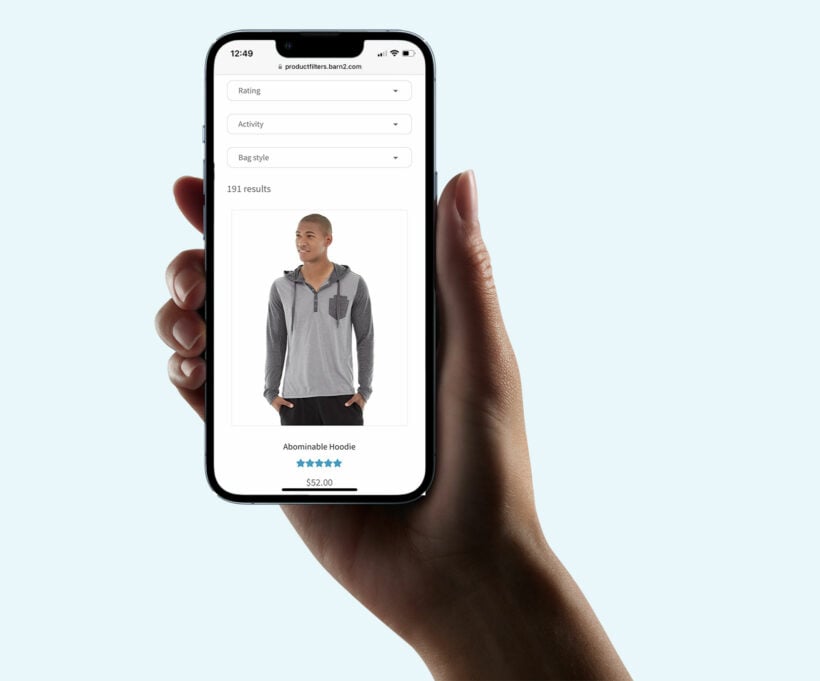
Most modern filter plugins use responsive CSS breakpoints to adapt for mobile automatically. Well-built plugins work on mobile out of the box - issues typically come from theme CSS conflicts or heavy customization rather than the plugin itself.
That said, basic responsiveness and proper mobile configuration aren't the same thing. Some plugins offer device-specific visibility settings that let you hide filters behind a slide-out panel on mobile, preserving screen real estate without removing functionality. This kind of deliberate mobile control produces a better experience than simply scaling down a desktop layout.
SEO and URL structure
Filter URLs deserve a genuine SEO strategy, not an afterthought. Many filter setups create unique URLs for filtered states - whether those URLs are indexable depends entirely on your configuration.
The tradeoff is real. Indexed filter URLs can rank independently. "Red dresses under $50" is a legitimate search intent, and a well-configured filtered page can capture it. On the other hand, flooding the search index with thin or duplicate filtered pages hurts overall rankings.
Good practice typically involves canonicalizing low-value filter combinations to base category pages, using noindex on certain parameter patterns, and creating dedicated landing pages for high-value filter intents rather than relying on raw filter URLs to rank on their own.
Compatibility
Verify page builder compatibility before installing. Filters using AJAX depend on correct product container selectors. Customized themes built with Elementor or Divi sometimes need adjustments for AJAX to detect the right containers.
For multilingual stores, Weglot and TranslatePress typically offer smooth integration with filter plugins, though it's always worth testing your specific setup.
Infinite scroll compatibility with page builders and WooCommerce shortcodes can vary - check plugin documentation carefully and test before deploying to a live store.
For B2B stores, Barn2's integration between WooCommerce Product Filters and WooCommerce Product Table combines filters with spreadsheet-style product layouts, which works well for spec filtering and bulk ordering workflows.
Matching plugins to your needs
Rather than recommending specific plugins here, it's more useful to match your situation to the characteristics that matter most for your store.
- Budget-constrained storesStart with a free tier and upgrade when the revenue impact justifies it.
- Large catalogsPrioritize indexing architecture, quality hosting, and caching - these three factors matter more than any feature list.
- Mobile-dominant trafficEnsure your plugin offers genuine device-specific configuration, not just a responsive layout.
- Non-technical ownersWeight ease of use, quality documentation, and reliable support heavily in your evaluation.
- Developer projectsLook for maximum flexibility and well-documented hooks and filters.
- B2B and wholesaleLook for table layout integration to support spec comparison and bulk ordering.
For index-backed performance, mobile optimization, and ease of use, WooCommerce Product Filters addresses these criteria directly.
Match your decision to your technical capability, catalog size, traffic patterns, and the specific pain points your shoppers experience.
Choose filters that turn browsers into buyers
Filtering determines whether shoppers find products quickly or abandon your store. You now have a framework to evaluate WooCommerce plugin filter product options properly - global attributes that power filters correctly, indexed architecture that scales, deliberate mobile configuration, and SEO governance that protects rankings.
For a side-by-side look at specific options, see our comparison guide on WooCommerce product filter plugins. For a plugin built around indexing, mobile optimization, and ease of use, explore Barn2's WooCommerce Product Filters.