Best WordPress setup for nonprofits: Pros & cons


WordPress powers millions of nonprofit websites, but is it really the right platform for your organization? This guide covers the real pros and cons of using WordPress for nonprofits, from costs and plugin essentials to maintenance realities.
Every nonprofit needs an online presence to build a nonprofit brand identity, amplify its mission, connect with donors, and share its story. But choosing the right platform matters when your time, staff, and budget are limited.
WordPress is one of the most popular choices for nonprofit organizations, and for good reason. It's flexible, affordable, and backed by a massive community. That said, it's not without trade-offs. Updates need managing, security needs monitoring, and there's a learning curve for teams without technical experience.
In this guide, I'll walk you through the full picture. You'll learn whether WordPress fits your nonprofit's needs, how to choose between WordPress.com and WordPress.org, which plugins handle donations and document management, and what ongoing maintenance actually looks like. I'll also cover accessibility requirements many nonprofits overlook.
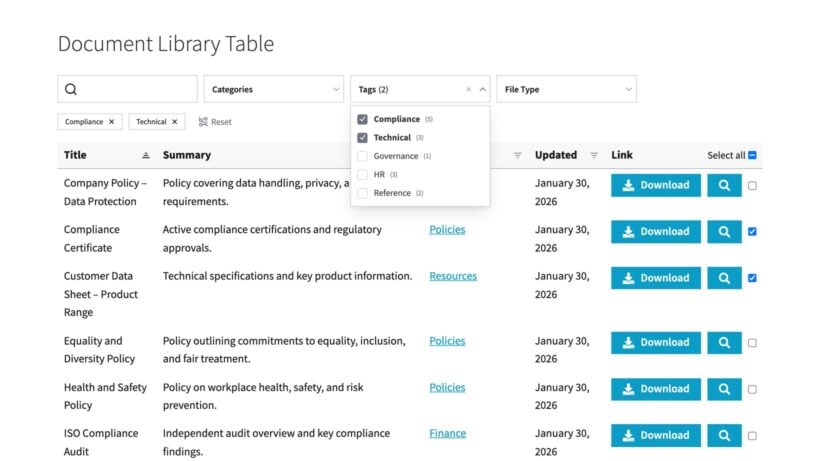
For organizations that need to publish board minutes, policies, and reports, I'll also show how plugins like Document Library Pro (which offers a nonprofit discount) can handle governance documents with proper access controls.
Should you use WordPress for your nonprofit?
Why WordPress works for nonprofits
WordPress is a free, open-source content management system used by over 40% of all websites. For nonprofits, it offers a low-cost foundation with room to grow.
The core software costs nothing. Hosting starts at $5-15 per month, and thousands of free and paid plugins add the features nonprofits need (more on this below). Think donation forms, event calendars, document libraries, and volunteer sign-up pages. Non-technical staff can publish blog posts, update pages, and manage basic content without calling a developer.
I find the WordPress community is one of its biggest strengths. You'll find tutorials for almost anything, active support forums, and plenty of freelancers who specialize in nonprofit sites. When you get stuck, help is usually a quick search away. Here's a relevant example from our own YouTube channel.
WordPress for nonprofits also works well because you can start simple and add features over time. Launch with a basic site and donation page first. Then add event management, a document library, or a volunteer portal when your team has capacity for it.
Several hosting companies also offer nonprofit-specific discounts. For example, Kinsta offers 15% off managed WordPress hosting for nonprofit organizations.
WordPress's limitations and alternatives
Let's be honest about where WordPress falls short. These are the real reasons some nonprofits struggle with the platform.
Monthly updates are required for the core software, themes, and plugins. Skip them and you risk security vulnerabilities. Security is your responsibility too, meaning you need monitoring, malware scanning, and a plan for responding to threats. Performance depends heavily on your theme and plugin choices, and cheap hosting can make things worse. When plugins conflict with each other, someone on your team needs to troubleshoot.
For organizations completely lacking technical capacity, simpler platforms may serve you better:
- Squarespace offers 10% discounts with the code NONPROFIT. It's template-based and much easier for beginners.
- Wix provides a 70% discount on two-year plans. Very limited technical capacity, but drag-and-drop building is straightforward.
One thing worth knowing if you go the Squarespace or Wix route: A document library doesn't have to tie you to WordPress. Document Library Pro also comes in a cloud version that works on any website, so you can publish board minutes, reports and policies with the same searchable, access-controlled setup whichever platform you land on. You build the library once and add it to your site with an embed code, or have it published as a standalone site.
Here's my honest take: using WordPress for nonprofits works well when someone on your team can handle basic troubleshooting and monthly maintenance. If nobody can commit to that, the learning curve will frustrate you. That said, affordable WordPress maintenance plans (typically $100-300 per month) can fill this gap. WordPress has much greater potential to grow with your organization, so my recommendation for most nonprofits would be to choose WordPress with a proper maintenance plan.
WordPress.com vs WordPress.org: choosing your platform
This is the most common source of confusion for nonprofits evaluating WordPress. WordPress.org and WordPress.com are two very different things:
- WordPress.com is a managed hosting service run by Automattic (the company behind WordPress).
- WordPress.org is free software you download and install on your own hosting. It's infinitely flexible because you control everything.
WordPress.com (managed service):
You sign up, pick a plan, and start building. Automattic handles updates, security, and backups for you. Plans range from free to $300+ per year, but lower tiers have heavy limitations. While WordPress.com has various plans, they recommend either Premium or Business for nonprofits.
One important detail many nonprofits miss: WordPress.com does not offer nonprofit discounts.
WordPress.org (self-hosted):
The setup process has more steps: buy hosting, purchase a domain, install WordPress, configure settings, install an SSL certificate, and choose a theme. But you get full access to the entire plugin ecosystem immediately. You handle updates, security, backups, and troubleshooting yourself (or sign up for a maintenance plan).
How to decide:
- Choose WordPress.com if you have zero technical capacity, need predictable costs, and can afford the Business plan (or work within lower-tier limits).
- Choose WordPress.org if someone can handle basic management, you need specific plugins, and you want access to nonprofit hosting discounts.
Most nonprofits I've seen end up choosing WordPress.org. The greater flexibility, full plugin access, and actual nonprofit pricing usually outweigh managed convenience.
Essential plugins for nonprofit operations
Once you've set up a nonprofit website, you need to add the features you want. WordPress itself lets you add the overall content such as pages and a blog. However, you'll want to install plugins in order to add things like donation forms and document libraries.
Accepting donations and managing donors
Donations are the lifeblood of most nonprofits, so your WordPress donation setup needs to work smoothly. For a full comparison of options, see our guide to the best WordPress donation plugins. Here are the non-negotiable features to look for:
- Recurring donations for monthly or annual giving (essential for sustainable revenue).
- Stripe and PayPal integration, since donors already trust these processors.
- Mobile-responsive forms with minimal fields to reduce drop-off.
- Automated tax receipts for donor convenience.
Both Stripe and PayPal offer nonprofit rates. Stripe charges 2.2% + $0.30 for verified 501(c)(3) organizations, compared to the standard 2.9% + $0.30. PayPal's nonprofit rate is 1.99% + $0.49 per transaction. These discounts apply regardless of which plugin you choose.
Plugin recommendations:

- GiveWPThe most comprehensive WordPress donation plugin. Free for basic donation forms with recurring giving. Pro extensions start at $149/year, adding receipt attachments, reports, and marketing features. Best for donation-focused organizations.
- CharitableCampaign-focused with progress bars, donation reports, and receipts. Free version available, premium extensions from $69/year. Great for event or capital campaigns.
- DonorboxEmbedded forms with simple setup. Free version available (with small fees), Pro plan at $150/month. A solid option if you want minimal WordPress management.
- WP Simple PayStripe-native for one-time and recurring donations. Simpler but lacks donor management. Free version available, paid plans from $49.50/year.
One thing to keep in mind: your plugin choice doesn't reduce payment processor fees. Some plugins add their own platform fees on top. Donorbox, for example, charges 1.5% in addition to processor fees. Budget roughly 3% of your nonprofit's donation revenue for processing costs.
Document libraries
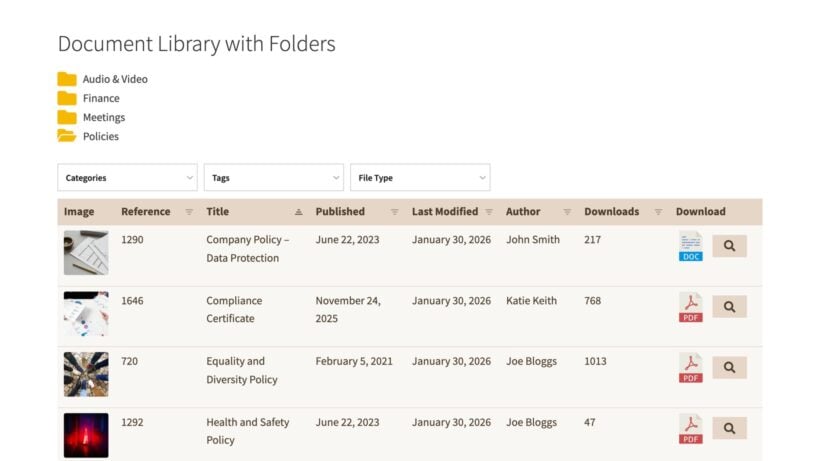
Nonprofits deal with a surprising number of documents and online resources. Board minutes, annual reports, grant policies, personnel handbooks, compliance paperwork... The challenge is balancing transparency (the public expects to see your financials and policies) with confidentiality (board materials and donor data need to stay private).
A document library is a searchable collection of files displayed on your website. If you want to evaluate the leading tools before choosing one, our document library software compared guide covers the main options side by side. It lets visitors find specific documents through search, filters, and categories rather than digging through a list of PDF links.
Document Library Pro is built specifically for this. It creates searchable, filterable databases where you can organize policies, reports, and resources by category and tag. The Advanced plan adds granular access control, so you can restrict entire libraries, specific categories, or individual documents by user role or password. This means public policies stay visible to everyone while board materials remain locked down for members only.
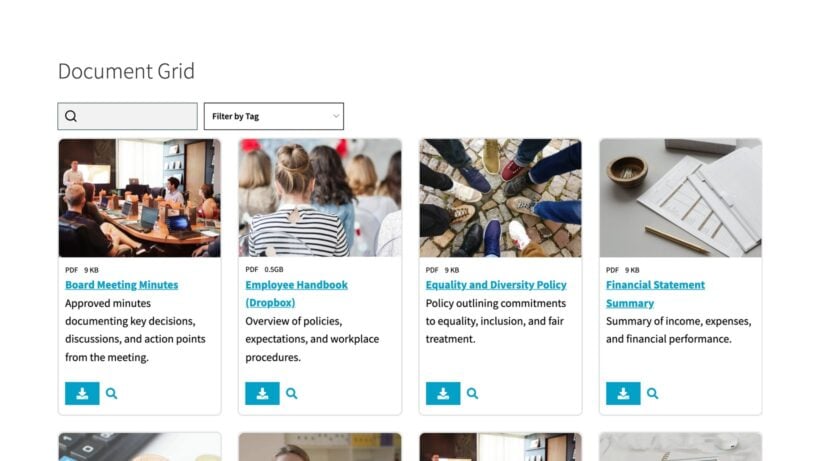
The plugin also includes version control for tracking policy revisions, file type icons, and download buttons. And yes, there's a 15% nonprofit discount for verified organizations.
Library Pro has delivered as promised. I needed basic functionality to store and share a variety of documents for a not-for-profit. The set-up was straightforward and my inquiries to double-check a few points got quick and effective responses.
Joe F.Trustpilot review
Events and volunteer management
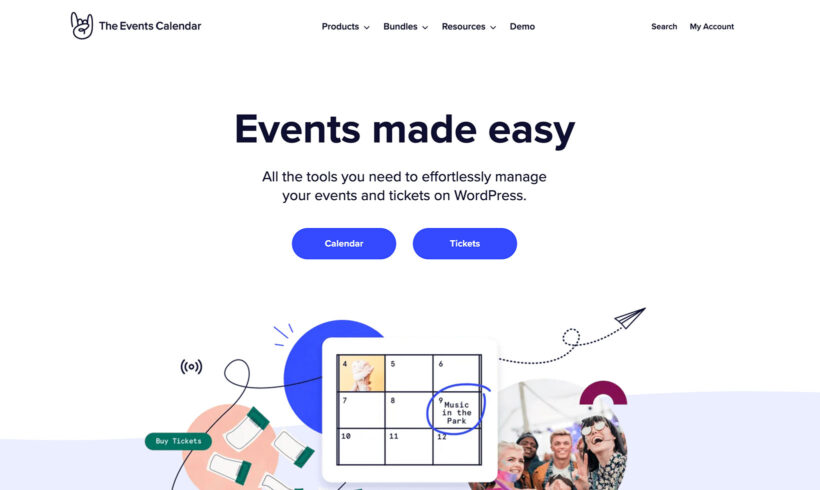
Most nonprofits run events and rely on volunteers, so you'll need plugins that handle both.
For events, The Events Calendar is the most popular option. The free version covers basic event listings, and Pro (starting at $149/year) adds advanced features like recurring events and ticket sales. Sugar Calendar is a lighter alternative with a free version and paid plans from $99/year. It handles events and bookings without the bloat.
For volunteer coordination, Wired Impact's Volunteer Management plugin is purpose-built for tracking hours, managing sign-ups, and scheduling shifts. If your volunteer needs are simpler, a form plugin like Gravity Forms or WS Form paired with a spreadsheet can work well enough to start.
Performance, SEO, and site essentials
A few foundational plugins round out your nonprofit WordPress site.
Performance: A caching plugin like WP Super Cache, W3 Total Cache, or NitroPack speeds up page loading. However, your theme choice matters even more. Lightweight themes like Astra or Kadence outperform bloated ones regardless of caching.
Themes: In the WordPress themes directory, filter for themes with the "accessibility ready" tag. Don't rely on theme claims alone though. Always test accessibility yourself (more on that below).
SEO: Yoast SEO or Rank Math (both have free and paid versions) help with meta descriptions, sitemaps, and title tags so donors and supporters can find you through search.
Page builders: The block editor comes built into WordPress and is free. Elementor Pro starts at $60/year and Beaver Builder from $89/year. Any of these help non-technical staff create polished layouts without code. I recommend keeping things simple and starting with the block editor.
Evaluating any plugin: Check when it was last updated (within 6 months is ideal), look at active installations, read reviews, and confirm compatibility with your WordPress version.
Realistic annual cost summary for a nonprofit WordPress site:
| Item | Cost range (per year) |
|---|---|
| Hosting (nonprofit discount) | $0 - $180 |
| Domain name | $10 - $20 |
| Donation plugin (GiveWP Pro) | $0 - $149 |
| Document library (Document Library Pro) | $0 - $199 |
| Events plugin | $0 - $149 |
| SEO plugin (free tier) | $0 |
| Backup plugin | $0 - $70 |
| Total estimated range | $10 - $767 |
Most nonprofits will land somewhere in the middle. Free tiers cover a surprising amount of ground, so you only pay for premium features when you genuinely need them.
Security and maintenance requirements
I won't sugarcoat this: WordPress is not a "set and forget" platform. Owning a WordPress site means committing to regular maintenance. Here's what that actually involves.
Monthly tasks:
- Update WordPress core, your theme, and all plugins. Security patches need prompt attention.
- Run security checks and respond immediately to any malware alerts.
- Verify your backups are running and test restoring them at least quarterly.
- Monitor site performance and page load times.
- Refresh content by removing expired events, updating donor stories, and reviewing outdated pages.
For backups, I recommend UpdraftPlus. A free version handles the basics, and paid plans start at $70/year for more advanced scheduling and storage options.
If nobody on your team can handle this, WordPress maintenance services are available for around $100-300 per month. These typically cover updates, security monitoring, backups, and basic troubleshooting.
Here's the reality: expect to spend 2-5 hours per month on WordPress maintenance at minimum, or signing up for a plan. Neglected WordPress sites become security risks that often require expensive emergency fixes later.
Making your site accessible
Accessibility isn't optional for nonprofit websites, both legally and ethically.
Why it matters: Many nonprofits must comply with Section 508 and WCAG 2.1 AA standards, especially those receiving federal funding. Beyond compliance, excluding people with disabilities directly contradicts most nonprofit missions. Accessible sites also perform better for all users and can affect grant eligibility.
Key WCAG 2.1 AA requirements include:
- Alt text for all images.
- Keyboard navigation for every feature on your site.
- Color contrast ratio of at least 4.5:1 for normal text.
- Clear, descriptive form labels.
- Captions and transcripts for video content.
Testing and resources:
- Learn the fundamentalsWebAIM offers free guides on WCAG compliance and common accessibility issues.
- Test with real toolsUse the WAVE browser extension and try navigating your site using only your keyboard. The Accessibility Checker plugin (also has a free version) scans pages for common problems.
- Do manual testingAutomated tools miss plenty of issues. Test with screen readers like NVDA for Windows or VoiceOver for Mac.
- Get expert helpA11Y Collective provides resources and affordable accessibility training. Consider an accessibility audit before launching your site.
When choosing themes and plugins for WordPress for nonprofits, verify their accessibility claims. Many popular donation forms and event calendars fail basic keyboard navigation and screen reader tests.
Set up your nonprofit website with WordPress today
WordPress for nonprofits is a solid choice when you're prepared for the commitment. It offers unmatched flexibility, a massive ecosystem of plugins, and genuine cost savings, especially with nonprofit discounts on hosting and tools.
Here's how to get started:
- Define your foundation. Identify your primary audience (donors, volunteers, or beneficiaries), plan 3-5 essential pages (homepage, mission/impact, donate, contact), and prepare trust signals like annual reports and staff profiles.
- Verify your nonprofit status with hosting providers and plugin companies to unlock discounts.
- Install the essentials. Set up donation forms with GiveWP, add security and backup plugins, and configure your SEO.
- Add document management. Document Library Pro lets you publish board minutes, policies, and resources with proper access controls. Verified nonprofits get a 15% discount.
The organizations that succeed with WordPress are the ones that plan for maintenance from day one. Budget the time, assign responsibility, and your nonprofit WordPress site will serve your mission well for years to come.