WP file manager guide: Do you actually need one?

WordPress has no built-in file manager. Whether you need a plugin depends on what you're actually trying to do - and there are three very different jobs that people lump together under "file management."
Most people searching for a file manager WordPress plugin are trying to solve one of three completely different problems:
- Some need direct access to their server files - the kind of access you'd normally get through FTP or cPanel.
- Others just want to organize a chaotic Media Library full of years' worth of images and documents.
- And others need a searchable file portal that visitors can actually browse on the front end.
The plugins that handle each job are completely different, and yet people call them all "WordPress file managers". This guide explains what each type of plugin does, which one fits your situation, and which specific plugins to consider.
What is a WP file manager plugin?
A WP file manager plugin is a tool that lets you work with your WordPress site’s files without using FTP or cPanel. The term covers three different jobs.
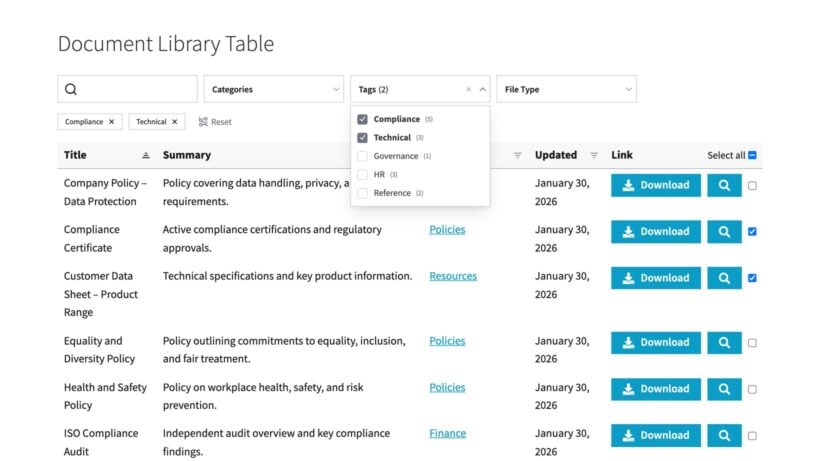
Backend file managers give admins direct access to server files from the dashboard. Media Library organizers add folders to tidy your uploads. Front-end document libraries, such as Document Library Pro, publish searchable file collections that visitors browse and download.
Which one you need depends on whether you are managing server files, organizing media, or sharing documents with people.
What is a file manager WordPress plugin and why use one?
A file manager plugin provides easy ways to access your website's files directly from the WordPress dashboard. As we have seen, "File management in WordPress" actually describes three different jobs. I'll explain these one by one.
Three types of file management in WordPress
1. Backend file managers
Your WordPress files live in your server's public_html or www directory. A file manager plugin gives you FTP-like access to your WordPress server files directly from the admin dashboard. They let you one-off server tasks without setting up FileZilla or logging into cPanel. Instead of opening FileZilla or logging into cPanel, you can upload, download, copy, move, rename, and delete files without leaving WordPress.
Common use cases include uploading files to wp-content, editing theme or plugin files, modifying wp-config.php, changing file permissions, and unzipping packages on the server.
Most file manager plugins also let you:
- Create and extract archives (zip, rar, tar, gzip) directly on the server.
- View PDFs, images, video, and audio without downloading them first.
- Edit code files with syntax highlighting.
- Change file permissions without command line access.
For non-technical admins, that's a meaningful improvement over setting up a separate FTP client. For one-off tasks like manual plugin uploads, wp-config edits, or permission checks, a file manager plugin is genuinely faster. The trade-off is security, which I'll cover in more detail below.
One important thing to know: Files uploaded through a backend file manager don't automatically register in the WordPress Media Library. If those files need to appear in the Media Library - for example, to use them in posts or pages - you'll need to handle that separately. This surprises a lot of people who assume the two systems are connected.
2. Media Library organizers
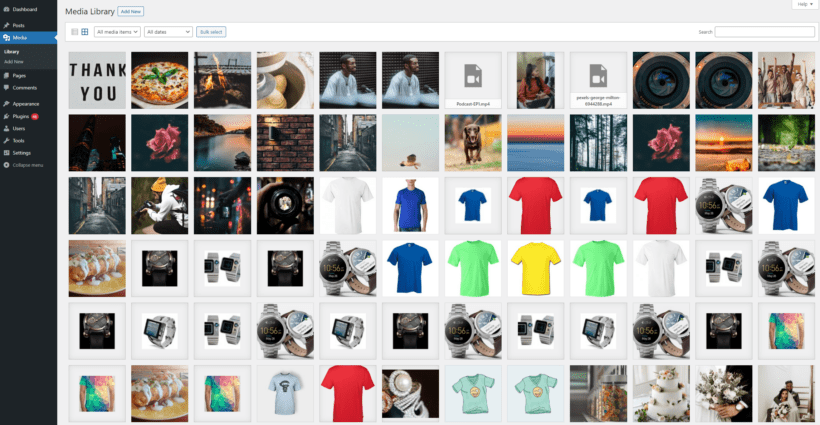
Media Library organizers add folder structures to the WordPress Media Library interface. They're designed for content teams needing to organize thousands of Media Library uploads - not for accessing server files.
Use cases include sorting media into folders, bulk-moving files, and creating galleries from organized collections. Example plugins include FileBird and Real Media Library.
3. Front-end file libraries
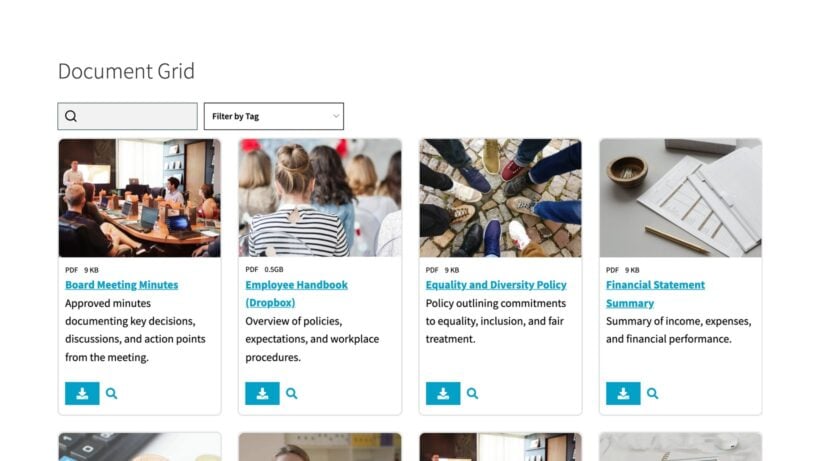
Front-end file managers create searchable, filterable databases that site visitors can browse in order to find, view and download files from the front end. Unlike the first two types of file manager plugin, these are publication tools - not back end admin tools.
Document Library Pro is the best file manager WordPress plugin that lists files on the front end. It works with all file types, so you can use it for a wide range of purposes:
- Create a document library or PDF library listing downloadable resources.
- List multimedia resources with embedded media players to create a WordPress audio library or video gallery.
- Its "Advanced" plan also comes with access restrictions, making it popular for WordPress intranets and client portals wanting to share files with internal contacts who don't have admin access.
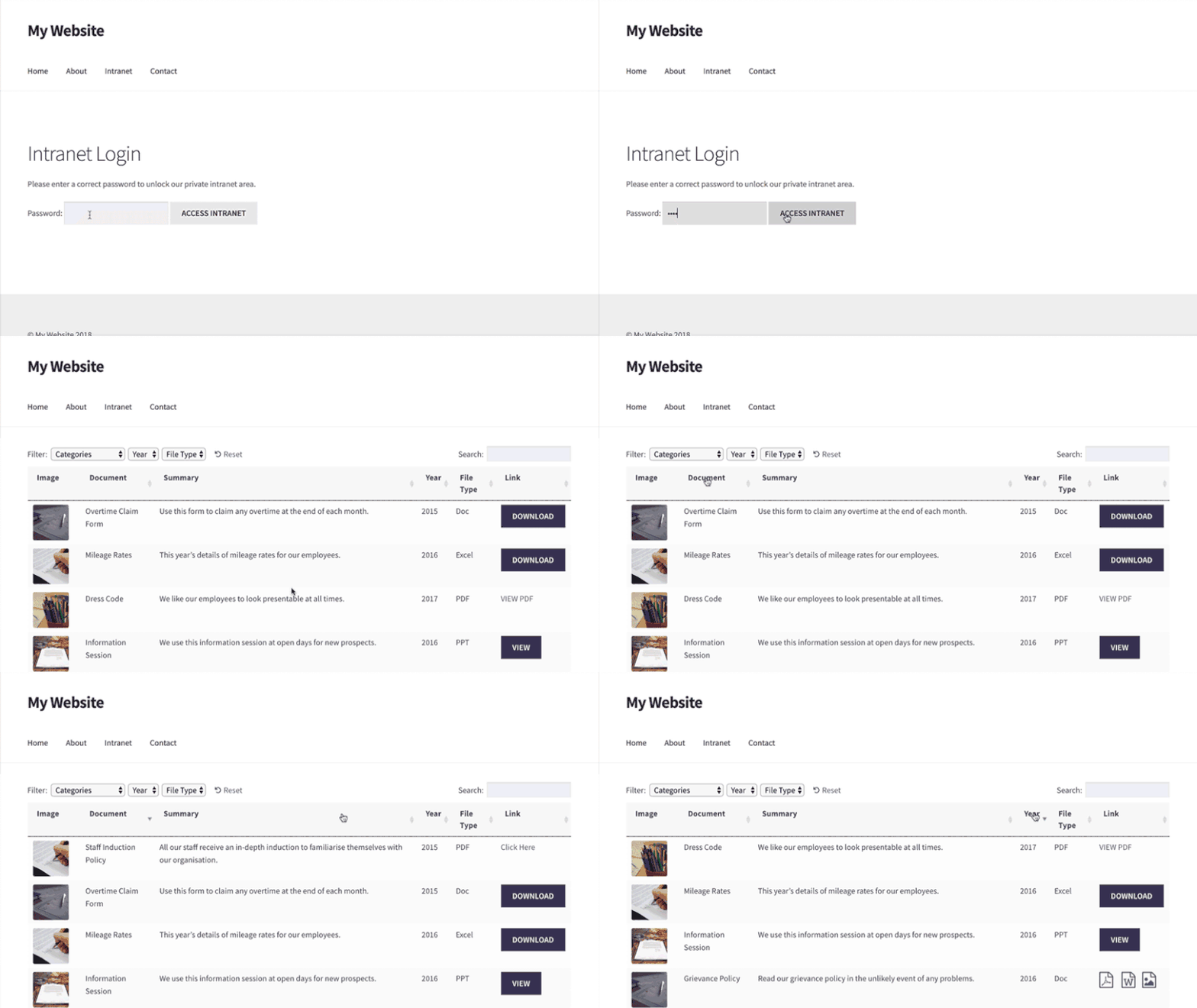
Nonprofits, healthcare organizations, membership sites, and government agencies use Document Library Pro to create resource libraries in WordPress, policy libraries with access control, meeting minutes, and public document portals. However, it's suitable for any use case that involves making files available on the front end of a WordPress website.
Which type do you need?
Ask yourself which job you're actually doing:
- Need to edit theme files, upload to wp-content, or modify server files? → Backend file manager.
- Drowning in thousands of Media Library uploads with no organization? → Media Library organizer.
- Need a searchable document portal for members or visitors? → Front-end document library.
Best file management plugins by category
Backend file managers for server access
WP File Manager
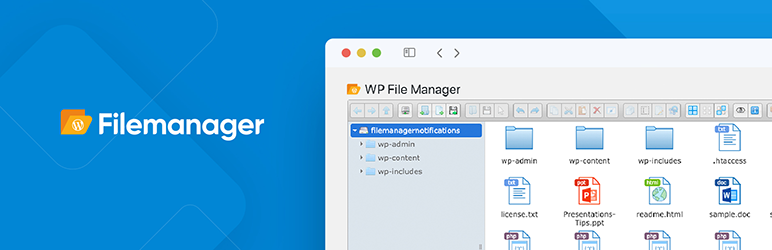
WP File Manager focuses on comprehensive backend file system access with a desktop-style interface. It's the most widely installed option in this category.
Key features include drag-and-drop uploads, context menus, file preview, code editing with syntax highlighting, archive creation, and cloud storage connections to Google Drive, Dropbox, and OneDrive.
The free version covers core file operations, basic code editing, and file preview. The Pro version starts at $39 and adds an advanced editor, role restrictions, hidden directory management, and priority support.
This file manager WordPress plugin is best for admins who need occasional server access and prefer a visual interface. It requires careful permission management given its security history (more on that below).
Advanced File Manager
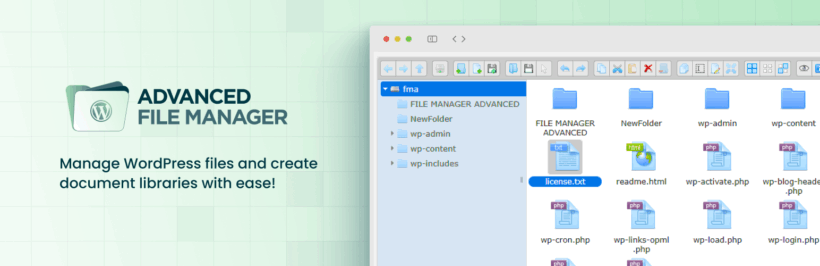
Advanced File Manager focuses on backend access with broader cloud integration and AI-assisted organization features.
Key features include standard file operations, connections to Google Drive, Dropbox, OneDrive, Box, and AWS S3, AI document library features, and syntax highlighting. The free version covers basic file management with limited cloud connections. Pro starts at $49.90/year and adds unlimited cloud integrations, advanced AI features, and priority support.
This plugin is best for organizations already using cloud storage who want cross-service file management in one place.
Media Library organizers for tidying uploads
FileBird
FileBird focuses on folder organization within the WordPress Media Library. It doesn't touch your server files and has no front-end display features.
Key features include drag-and-drop folder creation, bulk organization, gallery creation, folder filtering, and unlimited folders and subfolders. The free version covers unlimited folders and basic management. Pro costs $49/year and adds physical folder storage, a file size manager, a duplicate finder, and scheduled organization.
It's best for content teams managing thousands of media uploads who want a cleaner Media Library interface.
Real Media Library
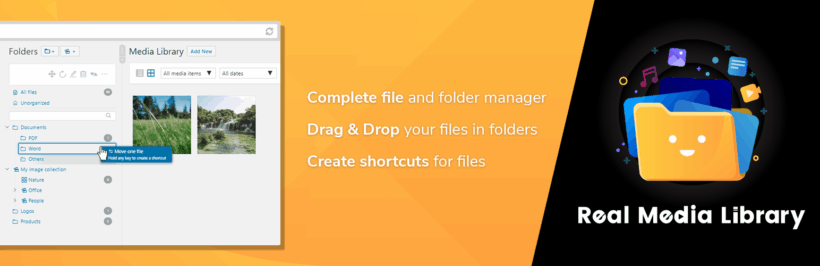
Real Media Library adds folder structures to the Media Library with tighter WordPress-native integration.
Key features include folder structures across post types, drag-and-drop organization, galleries, shortcode support, and folder permissions. The free version handles basic folder creation and organization. The Pro Single plan is $39 (lifetime) and adds advanced folder types, permission controls, and automatic organization rules.
This file manager plugin is best for teams wanting role-based folder access within a WordPress-native experience.
Document Library Pro for front-end access
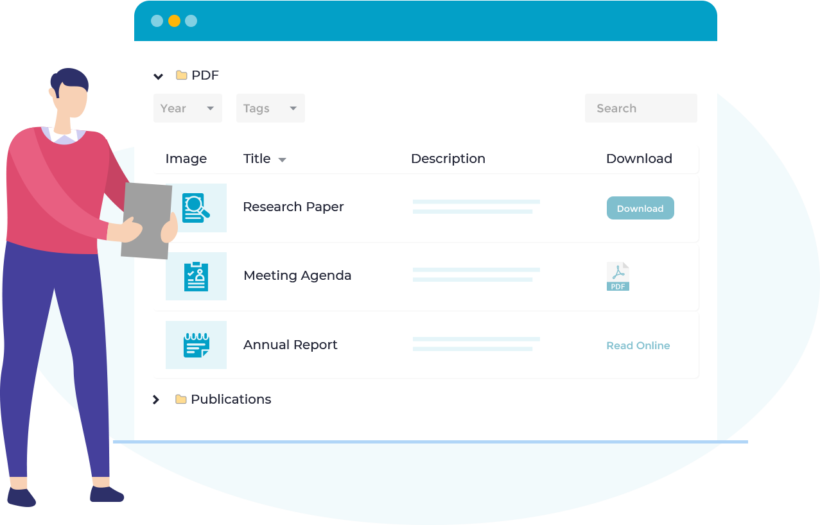
Document Library Pro focuses on searchable front-end WordPress file and document management with access control and metadata. It's worth being clear about what it is and isn't: it's not a Media Library organizer and not a backend file manager.
We built Document Library Pro because so many people were trying to display files for visitors, not tidy up the back end. It handles back-end files fine, but that's never the reason to choose it. The point is the searchable front-end library your members and visitors actually use.
What it does is create separate, searchable libraries that site visitors browse on the front end. It can pull files from your Media Library to populate those libraries, but it doesn't reorganize the Media Library interface itself.
Not on WordPress? The same front-end library is available as a cloud version for sites built on other platforms, which you build once and embed wherever you need it.
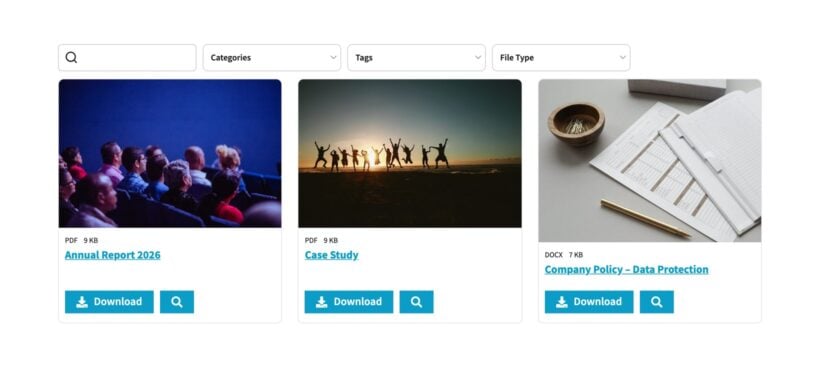
Key features include table and grid layouts with instant AJAX search, filter dropdowns, folder browsing, file preview, multi-download (ZIP), custom fields, and external cloud linking to Google Drive, OneDrive, SharePoint, Dropbox, Box, and S3. It's rated 4.99 out of 5 stars.
Price options:
- Essentials plan: Searchable libraries, bulk import via drag-and-drop or CSV, table and grid layouts.
- Advanced plan: Adds role-based access control (by role, user, or password at library, category, and document levels), version control with revision tracking, auto-expiry, and download analytics.
This plugin is best for nonprofits, healthcare organizations, government agencies, and membership associations needing member or public portals with governance. Organizations like Albury Parish Council, Arts Active, and IGBC Online use it for meeting minutes, member portals, and policy libraries with role-based access.
Storage is flexible too - documents can live in your Media Library or link directly to external cloud storage, so you don't need to duplicate files already stored in Google Drive or SharePoint.
This plugin is wonderful! It enabled me to build a document database exactly suited to my needs. And, thanks to a very fine granularity, I can give access to my customers, while selecting only the fields I want them to see.
Katie KeithFounder & CEO
Set up a document library with Document Library Pro
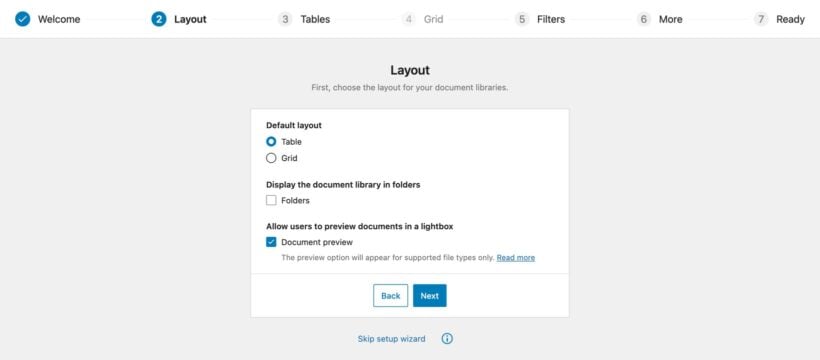
If you've identified that a front-end document library is what you need, setup is straightforward:
- Purchase and install the plugin. Activate your license at Documents → Settings.
- Add documents via drag-and-drop, CSV import, or by converting existing Media Library files.
- Configure the display (table or grid layout, search, filters) and embed it with the
[doc_library]shortcode. - Set access control by role, user, or password if you're on the Advanced plan.
For complete instructions including external cloud linking and version control, see our step-by-step Document Library Pro file management guide.
Tips and best practices for file management
Security for backend file managers
Backend file manager plugins represent a real attack vector. For example, the CVE-2020-25213 vulnerability exposed over 700,000 WP File Manager sites to malware uploads and backdoor attacks in 2020. The safest approach is to install the plugin when you need it, complete the task, and then uninstall it immediately.
If you need to keep it installed, restrict access to the Administrator role only, limit the root path to wp-content, and deactivate the plugin when it's not in active use.
Media Library organizers and front end file management plugins like Document Library Pro carry no equivalent security risk. They're safe to leave active because they don't provide access to your website's underlying file structure.
Backups
File manager plugins offer ad-hoc file-level copies - not real backups. For full site protection, use a dedicated backup plugin like UpdraftPlus or BackWPup. Alternatively, use a high quality web host like Kinsta that provides daily backups and easy rollbacks. (This website is hosted with Kinsta ☺️)
If you need version control and revision tracking for compliance purposes, Document Library Pro's Advanced plan handles that at the document level.
Upload limits, performance, and compatibility
Backend file managers can bypass WordPress's default upload size limits, but your host's PHP settings still apply. If you hit a wall, you may need to adjust php.ini or ask your host to increase the limit.
When linking to external cloud storage, test URLs for stability and confirm permissions are correctly set before publishing. Links that require authentication or that expire will break the library for visitors.
Before installing any file manager plugin, check the plugin's last update date and confirm compatibility with your current WordPress version. An abandoned plugin is a security risk even before you consider whether it works correctly.
Frequently asked questions
How do I get to the file manager on WordPress?
WordPress has no file manager built in, so there is nothing to find in the default dashboard. To get server-file access from the dashboard, install a backend file manager plugin, which then adds its own menu item. To publish files for visitors instead, a front-end document library plugin adds a library you embed on a page. Pick the type that matches the job you are doing.
How do I show hidden files in a WP file manager?
Most backend file manager plugins hide dotfiles, such as .htaccess, by default. Look for a settings or preferences panel in the plugin and enable the option to show hidden files, often labeled ‘show hidden files’ or ‘show dotfiles’. Take care when editing these files, since changes to .htaccess or wp-config.php can take a site offline. Always keep a backup before you edit them.
Is the WP File Manager plugin safe to use?
Backend file manager plugins are a known attack surface, and the WP File Manager plugin has a history of serious vulnerabilities. They can still be used safely for one-off tasks: install the plugin when you need it, restrict access to administrators, keep it fully updated, and uninstall it when the task is done. Front-end document libraries carry no equivalent risk because they do not expose your server files.
What is the best WordPress file manager plugin for sharing files with visitors?
For publishing files that visitors browse and download, a front-end document library is the right category rather than a backend file manager. Document Library Pro builds searchable, filterable libraries with table and grid layouts, file preview, and access control on its Advanced plan. Nonprofits, healthcare organizations, government agencies, and membership associations use it for member portals and policy libraries.
Start managing your files effectively today

Once you understand that there are three types of WordPress file manager plugin, it's easier to choose the right tool for the job. To recap:
- Backend file managers handle server access and FTP replacement tasks - useful for developers and admins, but worth treating carefully from a security perspective.
- Media Library organizers clean up chaotic upload collections without any server access.
- Front end file managers like Document Library Pro create searchable, access-controlled document portals that your members or visitors actually browse.
Choose the right plugin for your file management needs, and install it today 🚀
2 Comments
That’s a really good breakdown. I’ve definitely struggled with keeping my Media Library tidy – it’s easy to let it get completely out of control!
Thanks! I'm really glad you found it helpful!
You’re definitely not alone. The Media Library can spiral out of control before you even realise it 😅. A little organisation goes a long way, especially as your site grows.
If you ever have any questions about our plugins, feel free to reach us via our Support Center: https://barn2.com/support-center/