How to bulk update WooCommerce products via Google Sheets


This guide shows you how to connect WooCommerce to Google Sheets for bulk product updates, reveals when this method breaks down, and what professionals use instead.
Imagine the perfect setup for managing WooCommerce products. Something that lets you change 500 descriptions with one formula, update inventory across variations instantly, and collaborate with your team without overwriting each other’s work. But there’s a catch that keeps store owners up at night: one wrong sync can corrupt your entire catalog during peak sales.
The good news is that you can connect WooCommerce to Google Sheets. This guide shows you how to do it, where that approach starts to break down, and what to use when your store outgrows manual syncing.
First, we’ll look at how to connect Google Sheets to WooCommerce and the common tools people use to manage products this way. Then, we’ll explore when it makes sense to switch to Setary, a dedicated WooCommerce spreadsheet editor that gives you the speed and flexibility of a spreadsheet without relying on external syncs or risking your live store data.
This way, you can choose the approach that fits your store today and know when it’s time to level up.
Method 1: How to bulk update WooCommerce products via Google Sheets
You can bulk update WooCommerce products in Google Sheets using two-way sync plugins. Once connected, you edit prices, stock, or descriptions in the spreadsheet. Changes sync back to your store automatically.
WP Sheet Editor creates a spreadsheet interface inside your WordPress admin that looks like Excel. Their Google Sheets Sync addon then connects this interface to an actual Google Sheet. This creates true two-way editing.
Changes in either location sync to the other. Team members can edit products in Google Sheets from anywhere with an internet connection. Bulk operations like "increase all prices by 10%" become a simple formula.
Set up your Google Sheets sync with WP Sheet Editor
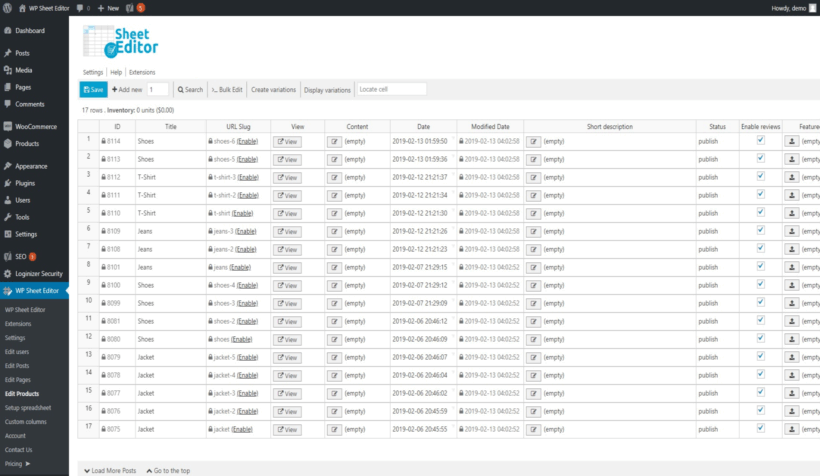
Installation and connection
Getting WooCommerce to Google Sheets takes about 15 minutes of initial setup:
- Purchase WP Sheet Editor Pro plus the Google Sheets Sync addon.
- Install both plugins via WordPress admin → Plugins → Add New → Upload.
- Navigate to WP Sheet Editor → Settings to configure basic options.
- Enable product editing and variation support in the settings.
- Click the 'Google Sheets' tab for sync configuration.
Now connect your Google account:
- Click the 'Connect with Google' button in the plugin settings.
- Authenticate using your Google account through OAuth 2.0.
- Grant permissions for spreadsheet access when prompted.
- The plugin creates a new Google Sheet automatically in your Drive.
- Your entire product catalog populates the sheet. This can take 10 to 30 minutes for large catalogs.
- Column headers match WooCommerce fields exactly: SKU, Price, Stock, and so on.
This sheet is now live and edits here affect your store directly.
Configure your sync settings
Choose sync frequency:
- Manual - You click 'Sync Now' when ready, this is the safest option.
- Auto - Syncs every 5, 15, 30, or 60 minutes, it's more convenient but it can cause conflicts.
- Real-time - Instant sync but very resource-heavy, I don't recommended it for most stores.
Select sync direction:
- WooCommerce to Sheets - One-way export only, it's very useful for reporting purposes.
- Sheets to WooCommerce - One-way import only, this time it's perfect for supplier updates.
- Bidirectional - True two-way sync, the most powerful but the most complex to set up.
Configure conflict resolution:
- Last edit wins - The most recent change overwrites others.
- Manual review - Conflicts pause the sync for you or your team to make a decision.
- Priority to Google Sheets - Sheet edits will always override WordPress ones.
Set field permissions:
- Choose which fields can be edited: prices, stock, descriptions.
- Set some fields as read-only: product IDs, creation dates.
- Map custom fields from other plugins if needed.
Perform a bulk price update (example)
Here's how to update prices across your catalog using your new WooCommerce to Google Sheets connection:
- Open your synced Google Sheet.
- Filter products by category or price range.
- Select the price column for filtered products.
- Enter your new price or formula in the first cell.
- Apply to all selected cells using Ctrl+Enter.
- Changes highlight as 'pending sync'.
- Trigger sync or wait for your scheduled interval.
- Verify the updates in WooCommerce admin.
Other bulk operations follow the same pattern. Need to update inventory? Filter by SKU and adjust quantities. Running a sale? Select your products and apply a percentage discount. You can filter all "Large" sizes and update their pricing without breaking variation relationships. Reorganizing your catalog? Bulk update products descriptions using comma-separated values.
The ideal scenario for Google Sheets sync
This WooCommerce to Google Sheets method works brilliantly for specific situations.
- Small-to-medium stores - Your catalog is under 500 products with simple or no variations.
- Infrequent, planned updates - You perform bulk updates weekly or bi-weekly, not daily. Perfect for seasonal price adjustments, planned inventory updates from suppliers, or reorganizing product categories.
- Solo operators or small teams - A single person manages product data. Or a small team coordinates easily to avoid editing conflicts. Marketing updates descriptions while warehouse updates stock levels in the same sheet.
Under these conditions, the productivity gains are significant. You update hundreds of prices or stock levels in minutes using an interface everyone knows. It eliminates the tedious CSV export-edit-import cycle that so many store owners dread. Google Sheets' version history acts as an audit trail, letting you roll back mistakes easily. I find this setup works particularly well for stores running occasional sales. Set up the sync, make your price changes, trigger the update, and you're done.
For Black Friday preparation or seasonal clearances, this workflow can save serious time. The key is understanding your sweet spot. If you're updating the same 200 products every few weeks, the WooCommerce to Google Sheets connection handles this beautifully. You get the familiar spreadsheet environment without learning new tools. However, as your store grows beyond these parameters, you'll start hitting the system's architectural limits.
The breaking points at scale
The WooCommerce to Google Sheets sync degrades predictably as catalogs grow. I've seen this pattern repeatedly across different stores and hosting setups:
- 500 products - 2-minute syncs, works fine.
- 1,000 products - 5-minute syncs, occasional failures.
- 2,500 products - 15-minute syncs, weekly issues.
- 5,000 products - 30+ minute syncs, daily problems.
- 10,000+ products - System essentially unusable.
As stores grow, these limits start showing up in very real ways. One common scenario is OAuth access expiring at exactly the wrong moment (say Monday morning when you’re preparing a sale) and suddenly can’t sync anything. In other cases, two team members might update the sheet at the same time and unknowingly overwrite each other’s work.
Formula-driven edits create another pain point. Large spreadsheets can trigger thousands of API calls within minutes, pushing Shopify or Google beyond their rate limits. When that happens, the sync may stop halfway through, leaving prices, inventory, or product data only partially updated. That’s when things break: inventory counts become inconsistent, product data becomes unreliable, and you’re left trying to hunt down which items updated and which didn’t.
At that stage, you’re no longer working on your catalog - you’re managing sync failures. When the operational overhead starts to outweigh the productivity benefits, it’s usually a sign that it’s time to consider a different approach.
Why synchronization is the core problem
Every sync between WooCommerce and Google Sheets introduces multiple points of failure. You’re asking two separate systems to stay perfectly aligned at all times, which means even a small interruption can break the process. As your product catalog grows, that fragility increases. Rather than editing products, you’re managing the sync itself and that complexity scales fast.
Over time, most stores run into the same technical limits:
- Google Sheets has cell maximums (10 million cells) that large catalogs can exceed.
- PHP timeouts vary by hosting but always exist.
- Both Google and WooCommerce enforce API rate limits.
- Conflict resolution is primitive. Last save wins with no smart merging.
The time cost adds up:
- Regular sync monitoring becomes necessary.
- Troubleshooting sync failures eats into productive time.
- Re-authentication interrupts your workflow.
- Managing sync issues becomes significant overhead.
For small catalogs, this overhead is acceptable. But there's a tipping point where the sync solution becomes the problem it was meant to solve. That’s why many growing stores switch to the second method: a WooCommerce spreadsheet editor that edits products directly, without relying on Google Sheets or fragile syncs.
Method 2: Using a direct API bulk editor like Setary
Setary takes a fundamentally different approach. Rather than syncing two separate tools, it works directly with WooCommerce as the single source of truth. That removes an entire layer of complexity and the failure points that come with it.
You edit products in a familiar spreadsheet layout, but those changes are applied immediately to your store via the WooCommerce API. There’s no separate sheet to maintain and no sync process running in the background. The spreadsheet isn’t a copy of your data, it’s simply another way of working with WooCommerce itself.
Get the spreadsheet experience in WooCommerce
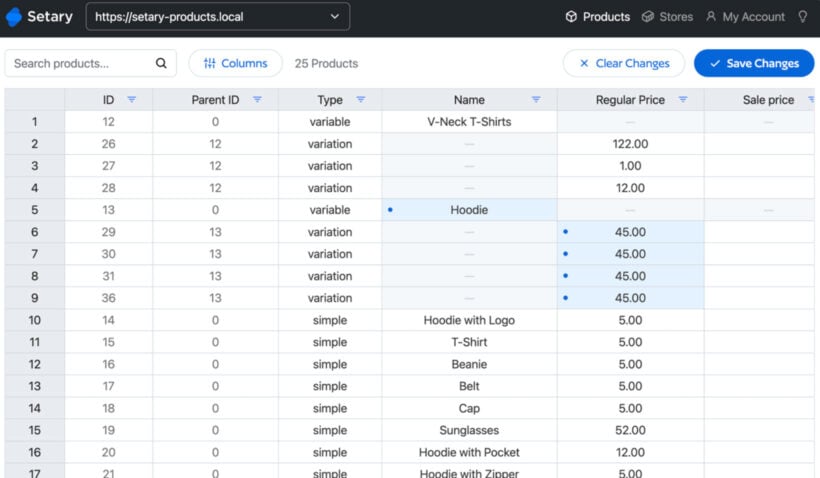
What Setary provides:
- Spreadsheet interface exactly like Google Sheets or Excel.
- Familiar filtering and sorting options.
- Multi-cell selection and editing.
- Copy-paste for bulk operations.
- Formula bar for calculations without ARRAYFORMULA dangers.
Setary handles bulk price updates including wholesale pricing tiers, attribute management, and product descriptions. It's fundamentally different under the hood:
- No sync process exists because it's unnecessary.
- No authentication failures with Google.
- No API limits between systems.
- No concurrent editing conflicts thanks to built-in user management.
- No timeout errors on large catalogs.
- No partial update corruption.
- Works smoothly with 50,000+ products.
Setary handles large catalogs without the sync delays you'd hit with Google Sheets:
- Updates that take 30 minutes via sync happen in seconds.
- No degradation as your product count grows.
- Multi-store management from a single dashboard.
Because edits are sent directly to WooCommerce via the API, changes are applied immediately. There’s no background sync process to wait on or recover if something goes wrong.
Many merchants spend hours on menial tasks like updating product data one by one. Setary gives them back valuable time they can reinvest in growing their business.
Katie KeithFounder & CEO
Learn more: Read Managing product data in WooCommerce: A comprehensive guide.
When to switch from Google Sheets to direct editing
Stay with Google Sheets sync if ALL these apply:
- Under 500 simple products with no complex variations.
- Updates weekly or less frequently.
- Single person editing with no team collaboration.
- Downtime acceptable if something breaks.
- Time available for troubleshooting.
- Budget absolutely prohibits paid tools.
- Comfortable with technical troubleshooting.
Switch to Setary when ANY of these apply:
- Over 500 products with variations.
- Daily price or inventory updates required.
- Multiple team members need to edit products.
- Downtime costs you money.
- Your time is worth more than tool cost.
- Sync failures causing stress.
- Growth planned beyond current limits.
Common problems and solutions
Before you start with any method:
- Test with 10 low-traffic products first.
- Document current prices and stock levels.
- Schedule updates during off-peak hours.
- Always maintain a CSV backup.
For Google Sheets sync users:
- Authentication expires - Set a calendar reminder monthly for re-authentication.
- Sync delays - Switch to manual sync with scheduled windows. Tuesday and Thursday at 2 PM works well.
- Timeout errors - Reduce batch sizes to 100 products maximum.
- Conflicts - Assign product ranges to specific team members. John handles SKUs A through M.
- Performance issues - Upgrade hosting to VPS with 4GB RAM minimum.
Consider using sync only for exports, then make manual updates in WordPress.
For those switching to Setary:
- Read our complete setup guide to learn how to implement Setary.
- Learn how to manage variations efficiently.
- Master your bulk pricing strategies including percentage, fixed, and tier pricing.
- Implement effective inventory management by learning stock levels and alerts.
- Learn how to control multiple sites from one interface.
Your bulk update journey starts here
Yes, you can bulk update WooCommerce products via Google Sheets using tools like WP Sheet Editor. It works great for small catalogs under 500 products with occasional updates. The question isn't whether you can connect them. It's how long this approach will work as your store grows. Scale brings inevitable sync problems. These waste hours of your time and risk data corruption that takes even longer to fix. The architecture of synchronization has fundamental limits you cannot engineer around.
No amount of better hosting or optimization eliminates the core challenge of keeping two systems in sync. Direct API editing with Setary removes that problem entirely while still letting you work in a familiar spreadsheet interface. It avoids the usual pain points like failed authentication, half-completed updates, and edits clashing between users.
Choose your approach based on your catalog size, update frequency, and growth plans. For smaller stores, Google Sheets sync offers a workable solution. For growing businesses, direct editing saves time and prevents headaches. Ready to eliminate syncing errors for good? Get started with Setary today.