Bulk update product descriptions across your Shopify store

This guide shows you how to bulk edit descriptions in Shopify safely, covering native tools, their limitations, and better alternatives like Setary for larger catalogs.
If you have hundreds of product descriptions to update before a sale, editing them one by one is rarely practical. Even in a well organized store, it can take most of the day to work through everything manually, which is why bulk editing usually feels like the only sensible option. It’s also the point where many store owners have run into problems.
CSV imports can update large numbers of products quickly, but they come with their own risks. Fixing spreadsheet formatting problems often ends up taking longer than the updates you were trying to make in the first place.
In this article, I’ll walk through safer ways to bulk edit product descriptions in Shopify without relying on risky CSV workflows. You’ll see how the built-in bulk editor works, where its limitations start to get in the way, and how tools like Setary are built to handle larger updates more reliably. I’ll also explain why it’s important to know how you’ll undo changes before you make any large-scale edits.
How to bulk edit product descriptions with Shopify's native bulk editor
Shopify’s built-in bulk editor works well for small catalogs and simple changes. It’s best suited for editing a limited number of products at once.
To edit product descriptions in bulk, go to Products in your admin, select the products you want to update, and click the Bulk edit button.
Here's the complete process:
- Navigate to products: Log in to your Shopify admin. Click Products in the left menu.
- Select products: Check the boxes next to the products you want to edit. You can select up to 100 products at once. Check the top box to select all visible products on the current page.
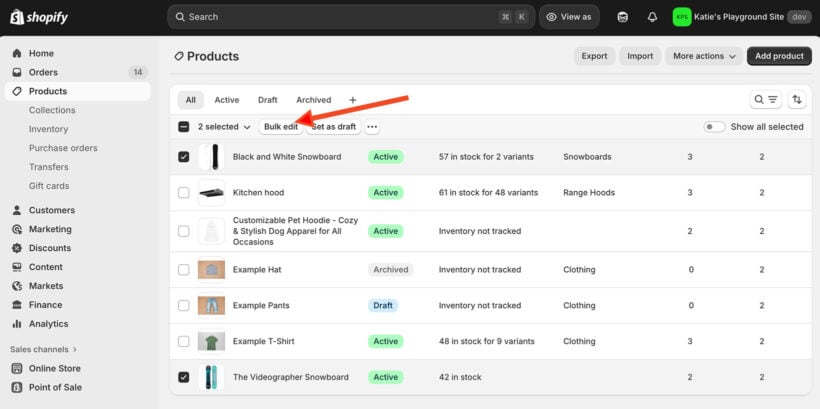
- Open the bulk editor: Click 'Bulk edit' in the action bar at the bottom of the screen.
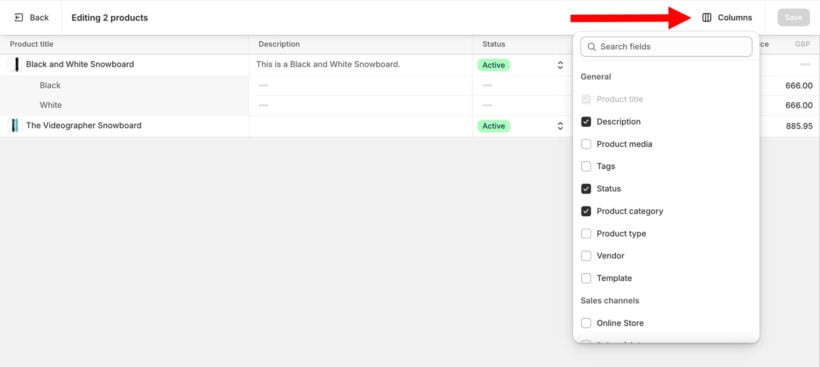
- Add the description column: Click 'Columns' in the top right corner. Select 'Description' from the General section dropdown.
- Edit descriptions: Click any Description field to start editing. Type or paste new text. You can also use the AI option to auto-generate descriptions. The field expands to accommodate multi-line HTML content.
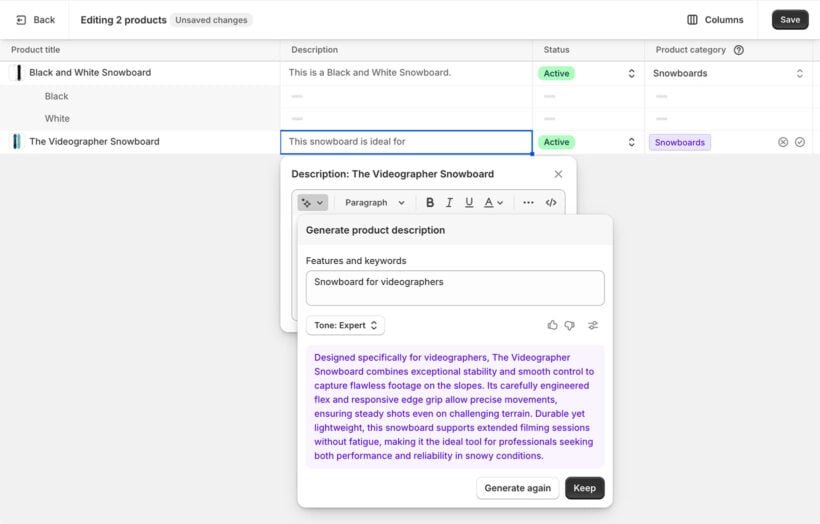
- Save your changes: Click the 'Save' button. Changes apply immediately to your live store.
Efficient editing techniques
- Copy and pasteCopy text from one description using Ctrl+C (or Cmd+C on Mac). Paste into multiple selected cells at once.
- Drag to fillEdit one cell, then grab the small square in the bottom-right corner. Drag it down to apply the same content to products below.
- Multi-select editingHold Shift and click to select consecutive cells. Type once to update all selected cells simultaneously.
- Bulk edit meta descriptions tooAdd the 'SEO description' column from the same Columns menu. Edit meta descriptions alongside your product descriptions in one session.
Critical limitations
The Shopify native bulk editor is a decent starting point for editing product descriptions. However, it comes with significant limitations that affect efficiency, especially for larger catalogs:
- No variant descriptions: You can't access variant-specific descriptions through the bulk editor. Each variant must be edited individually.
- Zero undo capability: Once you click Save, changes are permanent. There's no rollback option, even hours later.
- No find-and-replace: Need to change "ships in 48 hours" to "24 hours" across your catalog? You'll have to manually edit each product description.
- 100-product ceiling: Larger catalogs require multiple editing sessions. You lose your place between batches, making it easy to miss products.
- Session-only changes: If your browser crashes or you navigate away, all unsaved edits vanish. Crashes happen frustratingly often with the built-in tools.
Fortunately, tools like Setary solve these limitations with a purpose-built spreadsheet interface.
How to bulk edit descriptions with Setary's spreadsheet editor
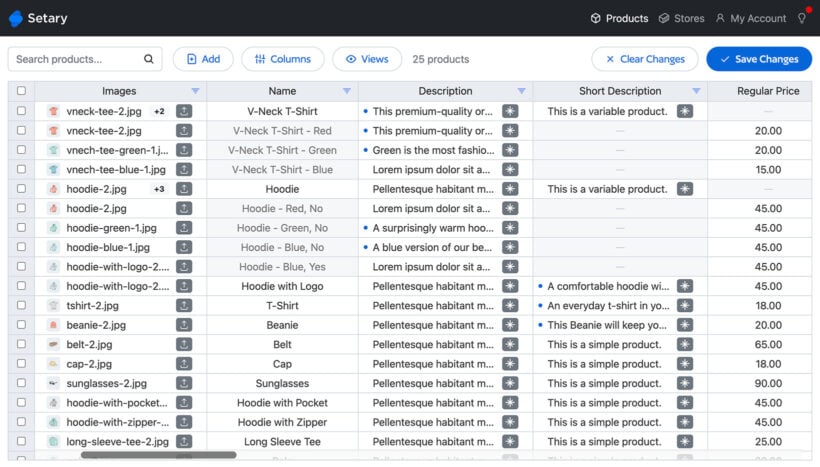
Setary provides a spreadsheet-style interface that connects directly to your Shopify store. Here's how to bulk edit descriptions in Shopify using Setary:
- Connect your store: Sign up for a Setary account and enter your Shopify store URL. The app connects via API, so there's no CSV importing required.

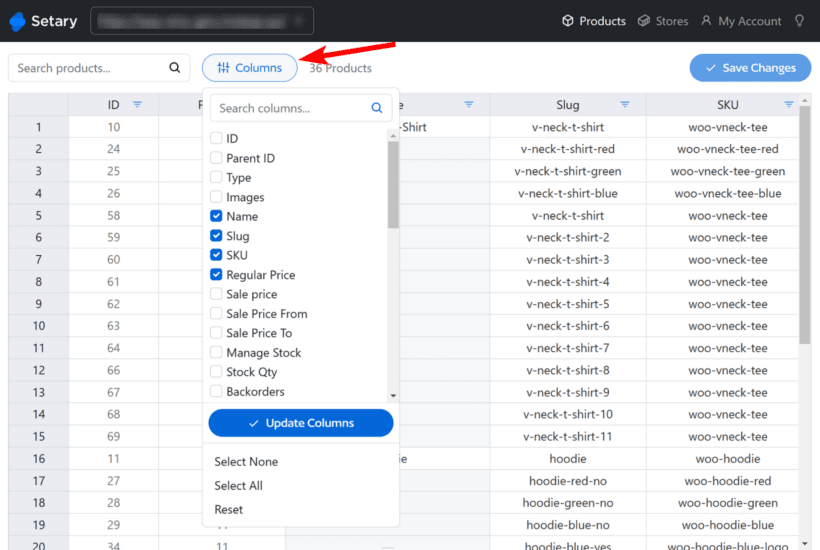
- Show relevant columns: Click the column selector to show or hide fields. Display only the Description column and any reference fields you need.
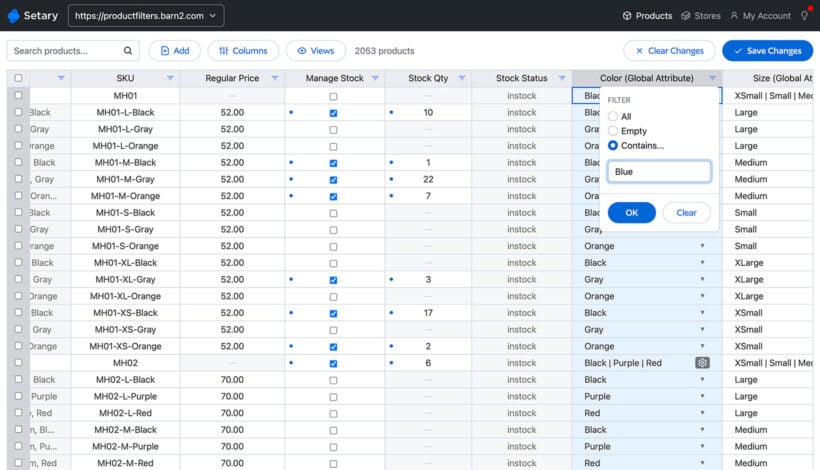
- Filter for target products: Use the filter options to isolate products by collection, vendor, tags, or any other attribute. This lets you focus on exactly the products that need updating.
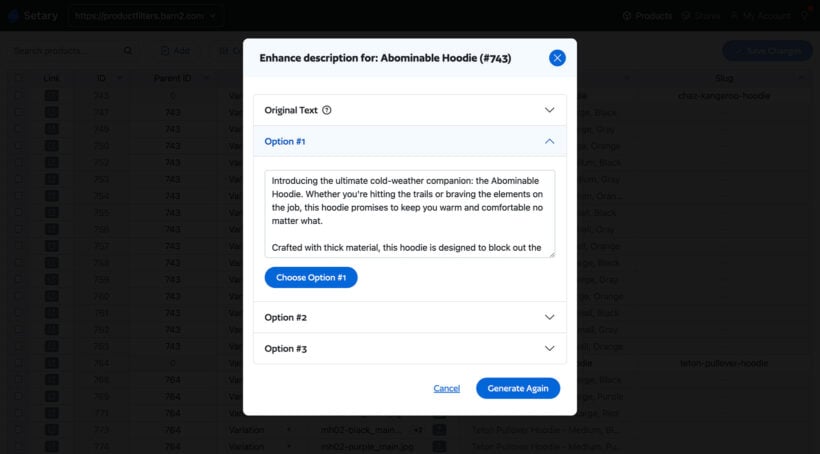
- Execute bulk edits: Select multiple cells, drag to fill, or copy and paste descriptions. For larger updates, select products and click the Bulk Edit button to apply changes to all selected items at once.
How Setary solves native limitations
Setary addresses every frustration you encounter with Shopify's built-in bulk editor when updating product descriptions:
- Product and variant description editingAccess variant-level descriptions in the same spreadsheet view. No more editing variants one by one through individual product pages.
- True spreadsheet interfaceWork in an Excel-like environment with formulas, filters, and bulk operations you already know how to use. The learning curve is minimal.
- Preview changes before going liveSee your edits highlighted in the spreadsheet before applying them to your live store. Catch mistakes before customers see them.
- No product limitsBulk edit unlimited products in one session. No pagination breaking your workflow. No crashes. No lost progress mid-session.
- Live synchronizationDirect API connection means no CSV files, no import errors, and no handle mismatches creating duplicate products in your catalog.
- HTML preservationThe split-view editor shows both WYSIWYG and source code views. Your formatting stays intact through every bulk edit you make.
Best practices for bulk editing product descriptions
Always create a backup before using the native editor
Export your products to CSV before any bulk editing session. This is your only safety net with Shopify's native tools.
- Go to Products → Export in your Shopify admin.
- Download your entire catalog as a CSV file.
- Name it with a date stamp like "products_backup_2024_01_15.csv" so you know exactly which version to restore.
- Store the file somewhere safe outside of Shopify where you can access it quickly.
Even if you're using tools with undo features, critical updates deserve a backup first.
Work in small, saved batches
Imagine spending 3 hours on edits, then discovering a typo in change #1. Without incremental saves, you'd have to redo everything. Instead, edit 20-50 products at a time, save your changes, verify everything looks right on your live site, and then continue with the next batch. This approach limits the damage from any mistakes. I find it helpful to set a 10-minute timer as a save reminder during repetitive editing sessions.
Handle CSV imports with caution
CSV imports are appropriate for one-time migrations from other platforms. For regular bulk edit updates to product descriptions, they're error-prone and risky.
Common breaking points include:
- Excel converting SKUs to scientific notation, which corrupts your product identifiers.
- Special characters corrupting on save when encoding isn't set correctly.
- Unescaped quotes breaking HTML tags and destroying your formatting.
- Handle mismatches creating duplicate products that clutter your catalog.
If you must use CSV to bulk edit descriptions in Shopify, test with 5-10 products first. Maintain UTF-8 encoding throughout the process. Never modify the Handle column under any circumstances. Keep your original export file as a backup before importing any changes. For detailed CSV guidance, see Shopify's official documentation.
Test before peak traffic
Run bulk updates during off-hours when fewer customers are browsing your store. Spot-check several products immediately after editing to verify everything looks correct on the front end. Always have a rollback plan ready before you start. Know whether you can undo changes and how quickly you can restore from backup if needed.
Safely bulk edit your product descriptions in Shopify today
Bulk editing product descriptions doesn't mean choosing between tedious manual work and risking catalog corruption. Tools like Setary eliminate Shopify's native constraints by providing spreadsheet familiarity, complete rollback history, and unlimited product editing in a single session.
Most merchants remember their first bulk editing disaster vividly. With proper backups and dedicated rollback tools, you can update thousands of descriptions confidently. No more dreading seasonal updates or promotional changes to your catalog.
Try Setary for Shopify and transform risky CSV imports into safe, efficient bulk edits that take minutes instead of hours.