How to add recommended products in WooCommerce

Adding a phone case to a smartphone order is one extra click for the customer and a few extra dollars on every relevant order. That second-product nudge is what product recommendations are for, and where most WooCommerce stores leave it on the floor.
The reason default WooCommerce recommendations underperform is mostly about real estate. Upsells sit at the bottom of the product page, below the description, the gallery and any tabs. Cross-sells sit below the cart.
Both positions are below the fold on most laptops and well past the part of the page where a customer's attention is highest. The customer who would have added a second item if it had been visible above the add to cart button never sees the cross-sell.
Moving the recommendation block higher up the page, or into a popup that opens as the cart updates, is the same content in a much better spot. That's where the lift comes from.
Before reaching for a plugin, the default WooCommerce upsells, cross-sells and related products are worth understanding properly. Some stores can capture most of the available lift just by configuring those better.
Beyond that, the two plugins I'd use are WooCommerce Product Options for above-the-button placement and Fast Cart for popup-cart placement. Disclosure: Barn2 makes both. The average order value lift from moving the recommendations into either of those positions is real either way, and I'll be honest about where the plugins fit and where they don't.
What are WooCommerce product recommendations?
WooCommerce product recommendations are products suggested to customers in an online store. They are also usually referred to as related products.
The recommendation is selected based on context: the product currently being viewed, items already in the cart, or the customer's previous purchases.
Here are some of the common approaches you can take when displaying WooCommerce product recommendations:
- Recently viewed products Surface items the customer has already browsed on the site.
- Popular products Highlight the store's best-sellers to new visitors.
- Related products Match the product being viewed against other items in the same category or tag.
- Upsells Offer a more expensive or upgraded version of the product being viewed.
- Cross-sells Suggest complementary items that go well with what's already in the cart.
Default WooCommerce product recommendations
WooCommerce has three built-in ways to surface recommended products: upsells, cross-sells and related products.
Upsells are products you recommend as an upgrade or alternative to the one a customer is viewing. They appear at the bottom of the product page under "You may also like". Configure them per-product by editing the product and opening the Linked products tab on the Product data panel.
Cross-sells are products you suggest alongside the one a customer has added to their cart. They show on the cart page under "You may be interested in". Same configuration spot, different field on the Linked products tab.
Related products work differently. WooCommerce surfaces them automatically on each product page based on shared categories or tags. Two products that share a category or tag will appear in each other's related-products row, with no per-product setup needed.
The trade-off is that you don't control which products show up. For tighter control, the Barn2 guide to WooCommerce related products walks through the alternative approaches.
The challenge with these three methods is that the product recommendations are easy to miss or ignore. The upsells on the product page appear at the bottom of the page, well below the add to cart button. The cross-sells sit beneath the list of items in the cart, which on most carts means below the fold. Both positions are past the point where customer attention drops off, so the suggested products are functionally invisible.
Fortunately, there are other ways to display WooCommerce product recommendations. Better locations include the checkout page, order page, confirmation page, and My Account page.
Whatever option you choose, the goal is to put recommendations where customers actually see them. The two methods below outperform the default cross-sells because the visible position drives the click: WooCommerce Product Options for above-the-button placement, and Fast Cart for popup-cart placement.
The best ways to display recommended products in WooCommerce
A dedicated plugin places suggested products where customers actually see them.
The two plugins I'll cover below are:
- WooCommerce Product OptionsDisplay recommended products in a prominent position above the add to cart button. Learn more.
- WooCommerce Fast CartCreate an on-page popup cart, which speeds up shopping for your customers while displaying recommended products at the same time. Learn more.
These tools pack all the features you need to increase the chances of customers buying suggested items. For best results, use both options together to draw maximum attention to your recommended products.
Method 1: WooCommerce Product Options
WooCommerce Product Options allows you to display related items above the Add to Cart button on the product page. This is more noticeable than the cross-sells option of the built-in WooCommerce product recommendation functionality. The recommended products appear above the button, so customers can't miss them.
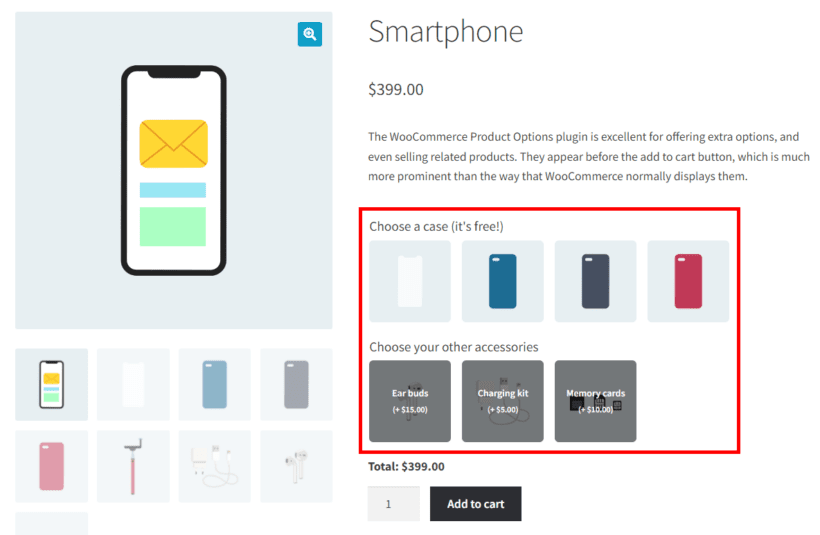
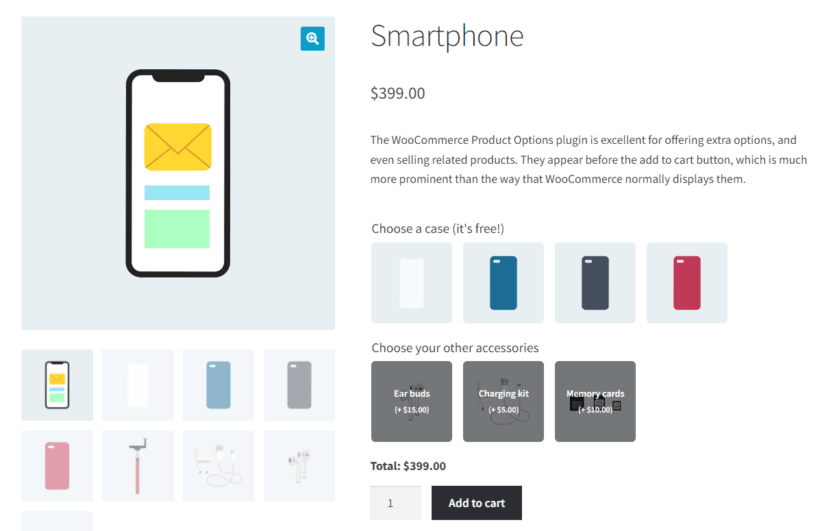
For example, you can add accessory options to a Smartphone product just above the 'Add to cart' button. This way, a customer can easily add related accessory options like charging kits, memory cards, or earbuds to their carts before checking out. As a result, the chances of adding these items to their order is higher.
You can display the WooCommerce product recommendations as a dropdown list, clickable images, radio buttons or checkboxes.
How to add WooCommerce product recommendations above the add to cart button
To get started, you need to first get the plugin, WooCommerce Product Options. You can download the plugin from the order confirmation page, or the email that you'll receive. It's quick and easy to set up the plugin:
- In the WordPress admin, go to Plugins → Add New.
- Select the plugin's ZIP file which you just downloaded, and install and activate it.
- The plugin setup wizard will open automatically. Use this to activate your license key.
With the plugin installed, it's time to add WooCommerce product recommendations to products. As I mentioned earlier, adding WooCommerce recommended products as product options makes it difficult for the buyer to ignore them.
Creating WooCommerce product recommendations as product options
On the last page of the plugin setup wizard, click 'Create product options' to jump straight into setting up new options. The same screen is reachable later from Products → Product Options.
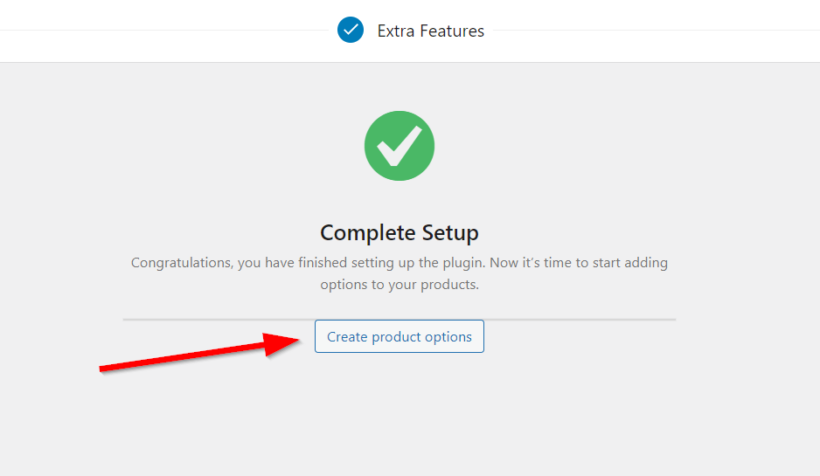
From there, the configuration is a sequence of UI steps:
- Click Add Group to create a new product options group.
- Set the group name and pick which products or product categories the option applies to.
- Under 'Inclusions', type the product name in the search box.
- Click Add option inside the group.
- Enter an 'Options name' for the block (this is what customers see above the add to cart button).
- Choose 'Products' in the 'Type' menu so the option pulls in other products as recommendations.
- Pick which products appear as the recommendations.
- Choose a display style, such as a shop-style layout, checkboxes or radio buttons.
- Optionally configure minimum/maximum quantity limits and conditional logic in the advanced settings.
- Click Add Group at the bottom left to save.
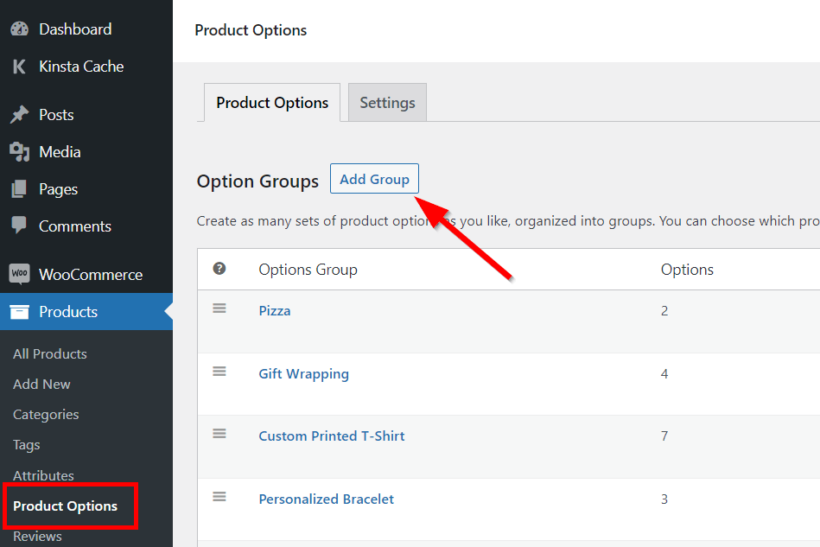
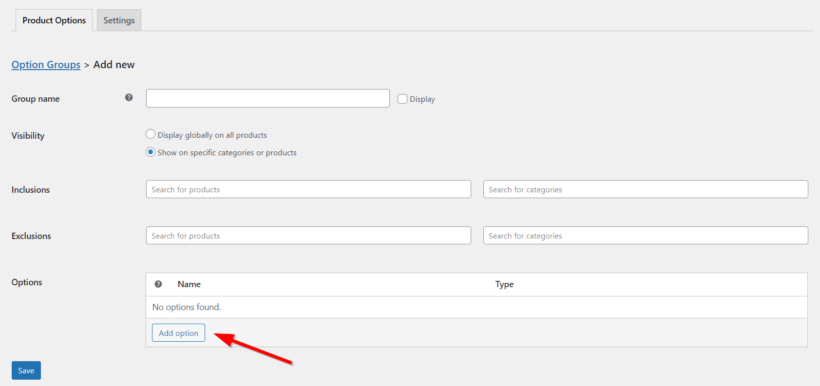
Repeat the same procedure to add more recommended-product groups across other products. The Barn2 KB has the full reference at Displaying Product Options.
Previewing your WooCommerce product recommendations
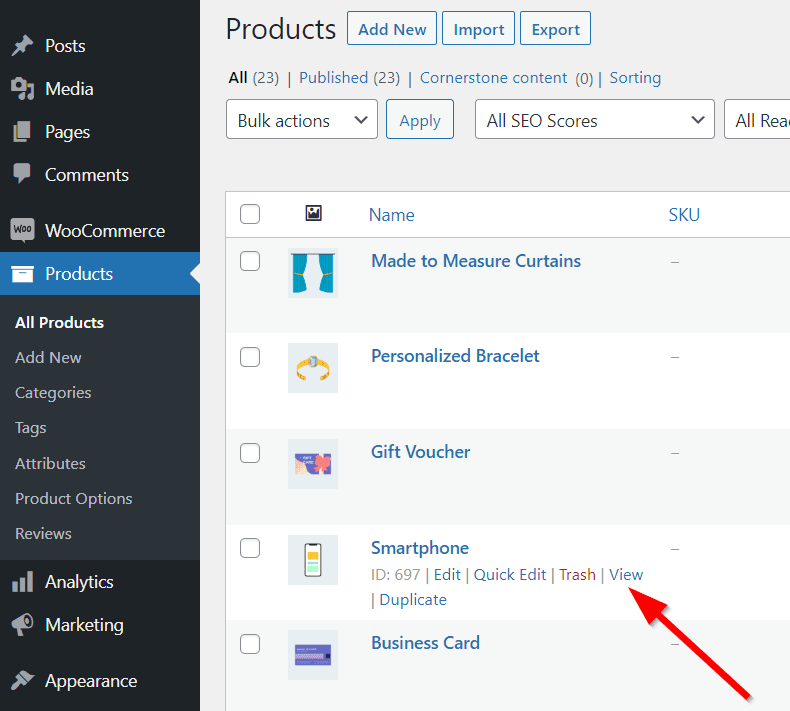
To view the product options in the front end, go to Products → All Products. Select the View option after hovering over the product you added the options to. WordPress will direct you to the front end of the site.
The result on the front end should look like this:
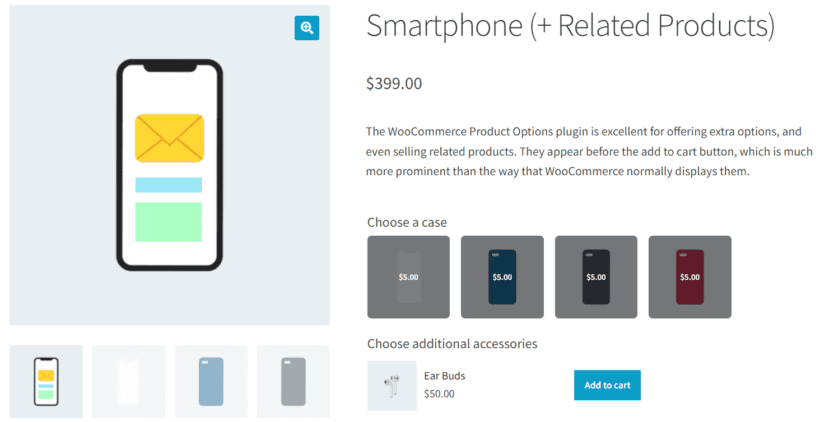
That covers above-the-button recommendations with WooCommerce Product Options. The second method puts recommendations in a popup cart using WooCommerce Fast Cart, which I'll walk through below.
Method 2: WooCommerce Fast Cart
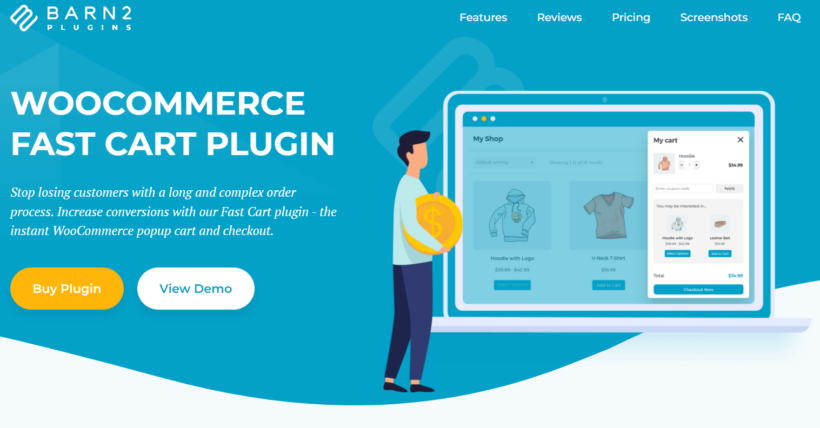
WooCommerce Fast Cart displays recommended products inside a popup cart that opens as soon as the customer clicks add to cart.
The products displayed change depending on the items in the cart already. The popup cart sits in the customer's direct line of sight as soon as they add something. That visibility is what makes a second-product add easy where the default cart-page cross-sells fail.
Picture a customer adding a customized hoodie with a logo to their cart. Fast Cart can be configured to show a popup cart with similar products the buyer may be interested in, such as another logo hoodie or a t-shirt.
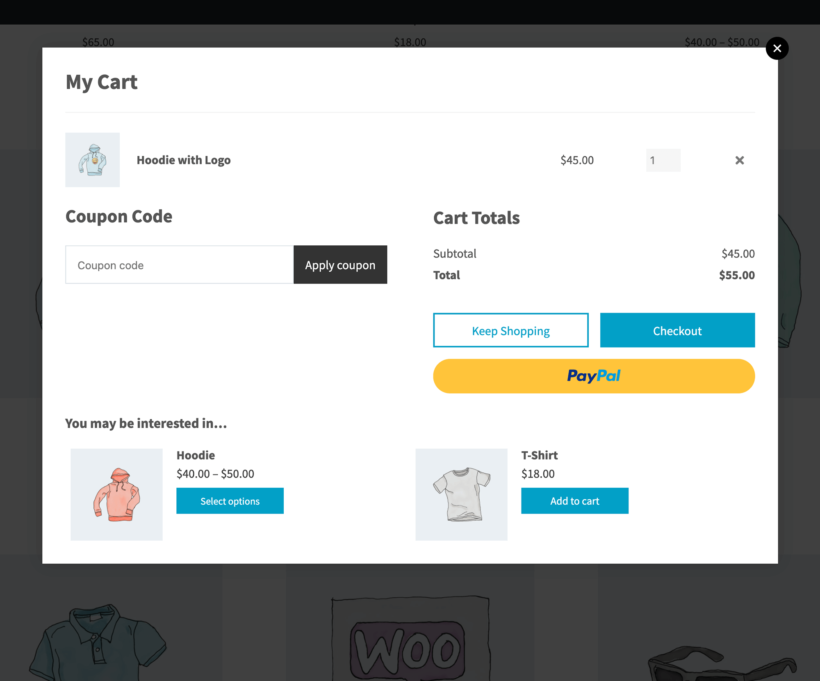
How to add WooCommerce product recommendations to a popup cart
WooCommerce Fast Cart reads from the built-in cross-sells feature, configured under Product Data → Linked products when editing a product.
The advantage over the default cross-sells is purely about placement. Fast Cart surfaces those same recommended products in a popup cart that opens as soon as the customer clicks add to cart, rather than waiting for them to navigate to the cart page.
As a side benefit, Fast Cart also gives customers access to their cart and checkout from any page on the store.
First, add the recommended items to each product
Next, you need to add WooCommerce product recommendations as cross-sells on each product. Fast Cart reads from WooCommerce's built-in cross-sells field, not the upsells field. To do this, go to Products → All Products. Click Edit after hovering over the product you want to add the recommended products to.
Scroll to the 'Product data' section and open the 'Linked products' tab. Then select the products you wish to recommend to your buyers as 'Cross-sells':
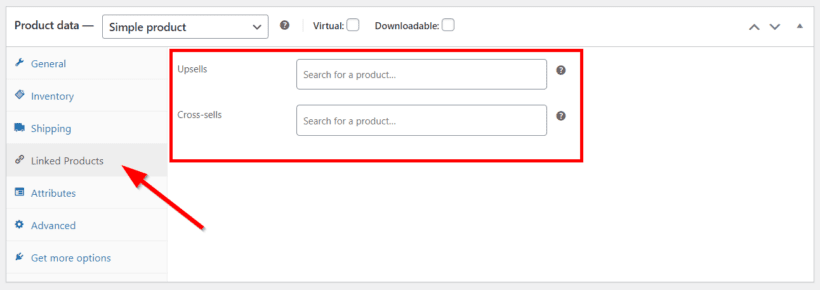
Next, set up WooCommerce Fast Cart
Get your copy of the plugin here, then install it the same way as Product Options:
- In the WordPress admin, go to Plugins → Add New.
- Upload the Fast Cart ZIP file and click Install, then Activate.
- Enter your license key when prompted.
Having installed Fast Cart, go to WooCommerce → Settings → Fast Cart. Next, make sure you check the 'Show cross-sells' box in the 'Cart contents' section to display WooCommerce recommended products in the popup.
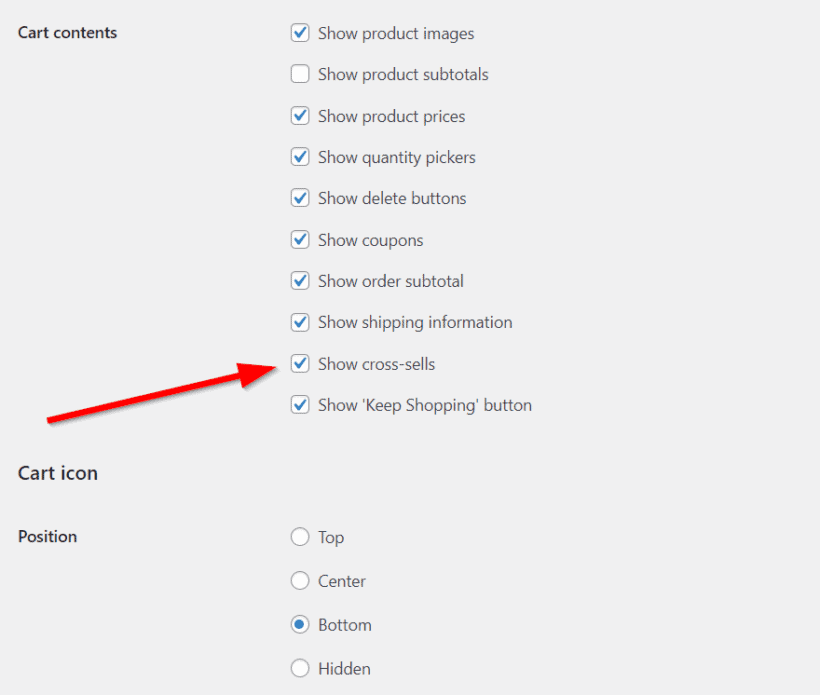
That's it! You've successfully added WooCommerce product recommendations with Fast Cart. You can also configure other settings on this page like choosing the position of the popup cart. The side cart looks like this.
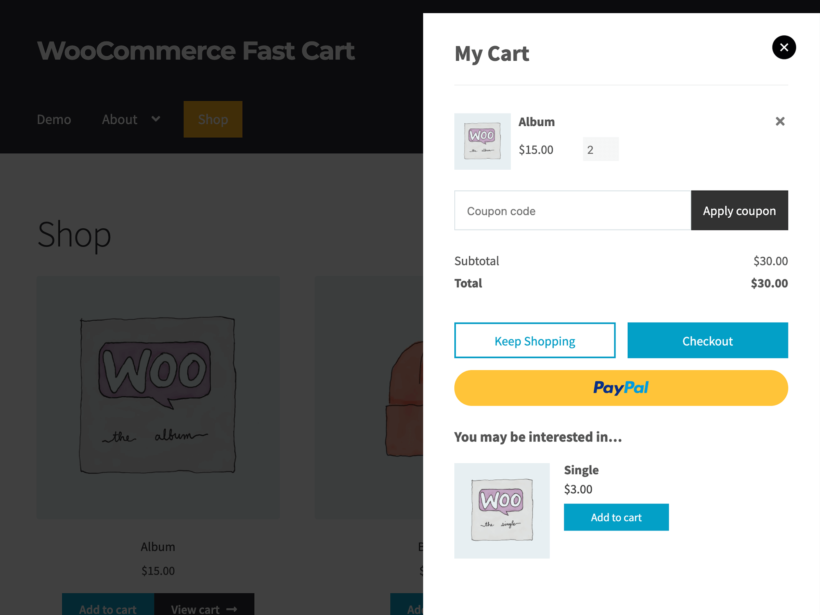
The centered popup variant is the one shown earlier in this section. Same content, displayed in the middle of the screen instead of as a side cart. Pick whichever feels more natural for your store layout.
Three more product recommendation options to explore next
Once the basics from the previous two sections are running, three higher-impact recommendation patterns are worth setting up next. Each one targets a different point in the ecommerce customer journey, and each has a dedicated Barn2 guide with the plugin setup, screenshots and configuration steps. Use this section as a signpost to those deep-dives, not as a tutorial in itself.
Frequently bought together
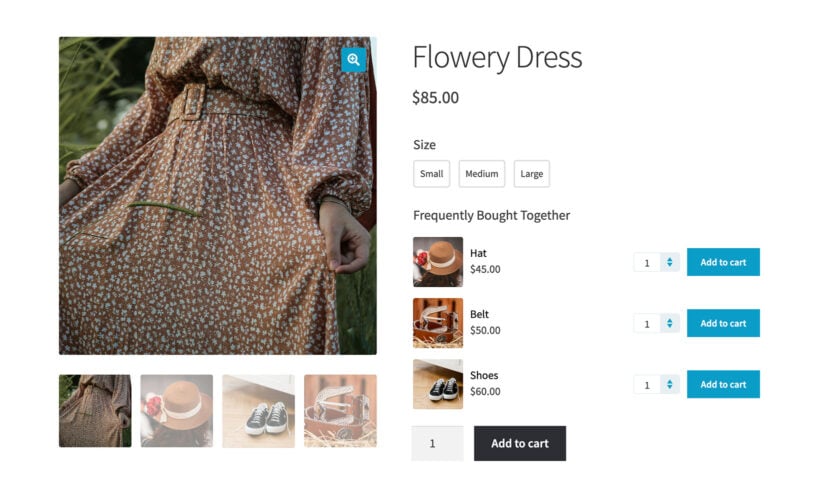
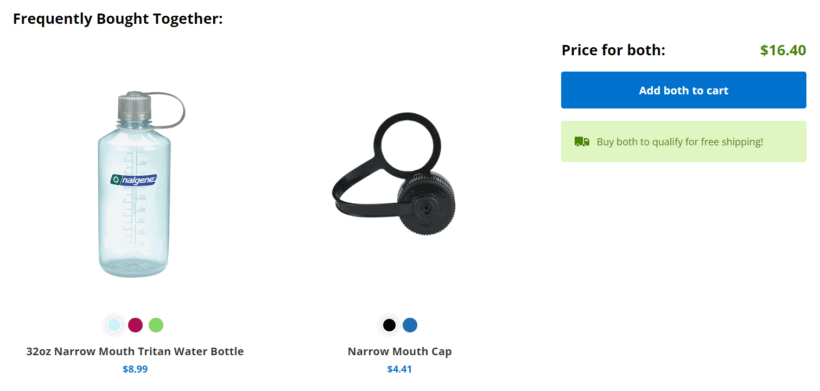
Amazon's "Frequently bought together" block is the canonical version: two or three complementary items on the product page that the customer can add to the cart with one click. The mechanic is simple and the click-to-add format outperforms a generic related-products row because the customer never leaves the page.
Plugin options for WooCommerce are catalogued in the Barn2 guide to WooCommerce frequently bought together, with screenshots of each option.
Order bumps at checkout/upsell
This is the small, opt-in offer that appears on the checkout page just above the place-order button. The payment details are already on screen by then, so the friction to add one more item drops close to zero, and the conversion rate on a well-placed order bump reflects that.
For the plugin setup and the right checkout placement, see the WooCommerce order bump guide.
One-click post-checkout upsells
The third approach lives entirely after the customer has paid. They've already entered card details and clicked the place-order button. A well-designed thank-you page then offers one more product that can be added to the same order with a single click, no second checkout and no re-entered payment. The technical setup and the offer-design choices that matter most are covered in the WooCommerce one-click upsell guide.
These three approaches pair well with the WooCommerce Product Options and Fast Cart setups above. Use them together once the on-page recommendations are working, rather than instead of them.
What to watch out for with these plugins
A few honest trade-offs worth knowing before you buy:
- WooCommerce Product Options works on a per-product or per-category basis. If your store has thousands of products and you want different recommendations for each one, the setup is real work. The plugin is also paid, not free.
- WooCommerce Fast Cart changes how the cart behaves across the site. Some store owners want the traditional separate cart page for design or analytics reasons, and Fast Cart's popup approach isn't for them. Also paid.
Both plugins work best on stores where customers already convert reasonably well. Recommendations amplify a working sales funnel rather than rescue a broken one. If conversion is currently very low, fix the underlying issue (slow site, unclear product pages or payment friction) before adding recommendation widgets on top.
Start recommending products the right way
If you only do one thing after reading this, turn on the built-in WooCommerce upsells and cross-sells on your top ten products. The setup takes about an hour, costs nothing extra, and lets you see whether moving recommendations around is even worth a plugin purchase on this particular store.
Track the average order value over the next two weeks. If it moves at all from the default placements, the placements above the button and inside Fast Cart will move it further. If it doesn't move at all, the bottleneck is somewhere else and no recommendation plugin will fix it. Either answer is useful.