Create an archive listing 'Sold Out' products in WooCommerce


Some e-commerce websites sell the same products to multiple customers, while others sell one-of-a-kind products that can only be bought by one customer. If you're in the second category, then what happens after a product has been purchased and is no longer available?
There are lots of products that can only be sold once. It could be anything unique, ranging from used products such as cars or designer handbags; to original handmade products such as art or jewellery.
Read this article if you sell one-off products and want to learn how to:
- Remove each product from sale once it has been bought - this prevents accidents and automates your stock control.
- Create an archive of sold out products in your WooCommerce store - this can boost your search engine position by adding extra keyword-rich content to your site, as well as your credibility by showing all the amazing products you have sold in the past.
How to prevent products from being purchased more than once
It's surprisingly easy to set up your WooCommerce store so that each product can only be bought once:
- WooCommerce settings:
- Go to WooCommerce → Settings → Products→ Inventory.
- Tick 'Enable Stock Management'.
- Disable the low and out of stock notification emails, as if you sell one-time-only products then you don't need to know when something goes out of stock.
- Do NOT enable the 'Hide out of stock items from the catalog' option.
- Save the page.
- Product settings:
- Go to the 'Edit Product' screen for each product.
- Scroll down to the 'Product Data' section and open the 'Inventory' tab.
- Tick 'Manage Stock' and set the stock quantity to 1. Do not allow back orders.
- Save the product.
Once you have done this, each product can only be purchased once. The product page will show an 'Add to cart' button with no quantity picker because only one is in stock. After a customer has bought the product, the add to cart button will disappear and no one else will be able to buy it.
New to WooCommerce Product Table? Here's how to set one up first:
How to list previously sold products in WooCommerce

Most stores selling one-off products want to list the available products in their main shop, and the sold out products on a separate archive page. I'll tell you how to do both of these things next.
You'll need the WooCommerce Product Table plugin for both of these. You can use it to list products in different parts of your store, based on their stock status.
List available products
First, I'll show you how to list 'In stock' WooCommerce products.
Once you've installed WooCommerce Product Table, the table wizard will open. To open it later instead, go to Products → Product Tables → Add New.
The wizard will walk you through the process of listing in stock products:
- On the first page, select the option to insert the product table manually to a page.
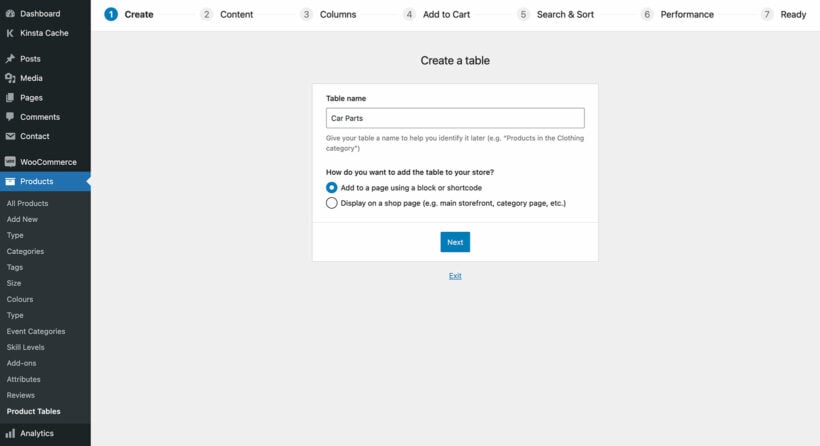
- Use the 'Select products' page to tick the 'Stock status' checkbox and then select 'In stock'. This tells the product table to list product which are in stock and hide other stock statuses.
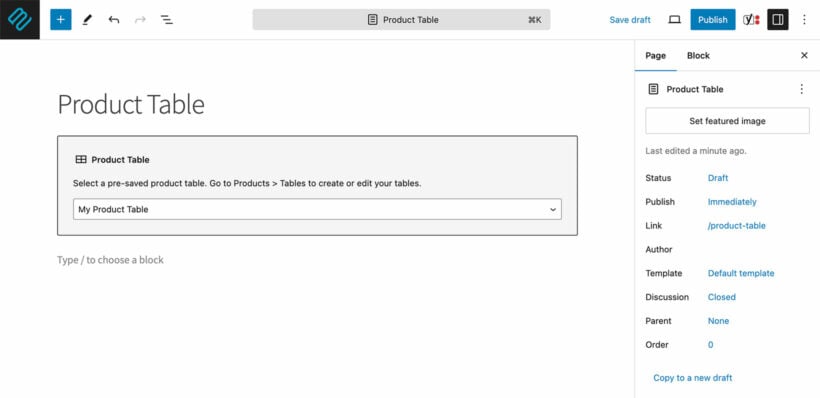
- To add the table to a page, either use the 'Product Table' block or insert the shortcode fro the final page of the table builder. (You'll need to use the shortcode if you're not using the WordPress block editor.)
Create a sold out products archive in WooCommerce
The process for creating an archive of sold out products is similar to listing in stock products. However, this time we're listing products which you have previously sold but are no longer available.
To do this, simply go to Products → Product Tables → Add New. This time, tick the 'Stock status' box again on the 'Select products' page - but select the 'Out of stock' status.
You can make this as simple or as complex as you wish. For example, you could also use the 'Category' option to list sold out products by category.
Troubleshooting tip: If no products are listed, go to WooCommerce → Settings → Products → Inventory and make sure your store isn't set to hide out of stock products.
Choosing your table columns
The sold out products will be listed with whichever columns you choose on the 'Columns' page of the table builder. By default, this will include an add to cart column, which was perfect when you listed your In Stock products. However, that may not be appropriate now you're listing sold out products. After all, the products are no longer available - so no one can buy them 🙃
At this point, your table won't look broken because WooCommerce Product Table cleverly transforms the 'Add to Cart' button into a 'Read More' button for sold out products. The button links to the single product page, where people can see more images and learn more about the previously sold product. Alternatively, if your products don't sell based on their visual appearance then you can list the products without images.
If you don't want to include a 'Buy' column for your sold out products, then remove it from the list of columns.
Where to get the plugin
As you can see, WooCommerce Product Table makes it super-simple to list your previously available 'sold out' products separately from your main shop. If you sell one-of-a-kind products that are different each time, this is a great way to show customers what to expect from your store, even if they want isn't available right now.
Test the plugin risk-free today - it only takes a few minutes to set up!
2 Comments
A client requested a page with sold items for his website, because it helps SEO. I found, used and subscribed to this plugin. It filters as advertised. Frankly, I think this should be included in standard WooCommerce functionality. It works nicely, but it only produces lists that are one product wide. If I may do a suggestion: It would suit WooCommerce sites better if it would integrate further, so you could set a shop page that has the same graphic design as the still available items.
Hi laptopleon! Thanks so much for the feedback and for subscribing. You make a great point—having the 'Sold' archive match the native shop's grid design is a popular request for maintaining brand consistency.
The reason it currently displays as a list is that the tutorial is built around WooCommerce Product Table, which is optimized for data-heavy layouts. While the table is excellent for quick browsing, we definitely see the value in a grid-style archive.
I’ve shared your suggestion with our product team. In the meantime, some users achieve a grid look for sold items by using a custom shop template and filtering by inventory status, though it usually requires a bit more custom coding than the table method.
We really appreciate you taking the time to share how we can make the integration even better! -Nikki