Links in the document library
Document Library Pro lets you add various types of link, both to the actual document, whether this is a downloadable file or a link to a specific web page, and to a separate page for each document.
This article explains how to set up and control these links. The same options are available for links in the table and grid layout, although the method for adding them via the Display settings page is slightly different. For table layout, you can control the links by clicking on the pencil icon for a column in the column editor. For grid layout, the options appear under the list of available fields.
Note: If you are on the Advanced plan and have enabled the 'Show protected documents' setting under Documents → Access Control then public visitors will be able to see protected documents, but links to them will be disabled.
Document Link field
You can add a main 'Document link' field to your document library table or grid. This will contain a download button, icon or text link. The styling and behavior of the document link is controlled by other options, which are described below. As well as adding the link field via the list of table columns or grid fields, you can enable it directly in the shortcode as follows:
[doc_library document_link="true"][doc_library document_link="false"]
Tip: If you disable the document link then you can still enable the document preview, which appears in the same column or field of the library.
Download button options
Several options for customizing the document link appear in the Download button section of the Display settings page.
Button behavior
This controls whether clicking in the link column will download the file directly or take the user to the single document page, from which they can then download the file. You can also configure this directly in the shortcode as follows:
[doc_library link_destination="direct"][doc_library link_destination="post"]
Note: This option only controls the link field. If you wish to prevent people from accessing the single document page at all, we recommend setting the link destination option to download the file directly and also setting any other clickable columns to link to the downloadable field. This completely disables access to the single document page, so users will only be able to access the document directly from the link field.
Style
Use this option to choose what style of link to include in the document library. The selected link style is used on the list of documents and also on the individual page for each document.
-
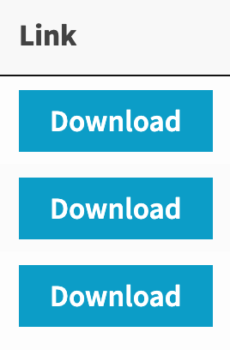
- Button + text
-
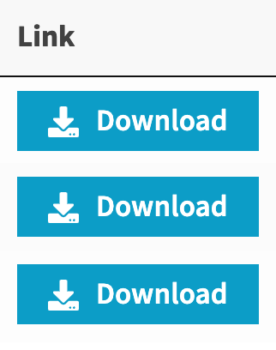
- Button + icon + text
-
- Button + icon
-
- Icon only
-
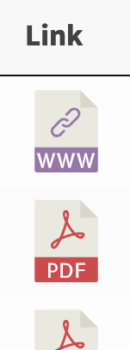
- File type icon

-
- Text
Button or link text
Use this option to control the text that appears in the link field when 'button' or 'link' is selected. It is case sensitive, so you can choose whether to enter the link text in uppercase, lowercase, etc. as required.
Configure the link text globally on the plugin settings page, or directly in the shortcode as follows: [doc_library link_text="View Document"]. The link text is used on the list of documents and also on the individual page for each document.
Icon
Use this to add a download icon which will appear to the left of the link text.
Shortcode options
You can also configure the link style directly in the shortcode:
- Link style:
[doc_library link_style="button"][doc_library link_style="link"][doc_library link_style="file_icon"]
- Link icon:
[doc_library link_icon="true"][doc_library link_icon="false"]
- Link text:
[doc_library link_text=""]leave blank if you want an icon but no link text[doc_library link_text="Click Here"]replace with the required link text
New tab
You can choose whether to open the links in a new browser tab. The default is to open in the same tab, self, and you can also open them in a new tab, blank. You can also set this directly in the shortcode:
[doc_library link_target="blank"][doc_library link_target="self"]
Note: This option only affects the main document link field. To make links on other clickable fields open in a new tab, enable the separate option in the Advanced settings.
Adding links to other fields
In addition to the main document link field, you can make other fields in the document library clickable and control their behavior. The following fields can be formatted as links:
id,title, andimagelink to the single document page.doc_categories,doc_tags,doc_author, and anycustom taxonomyeither filter the document library by that term, or link to the taxonomy archive page if search_on_click is disabled.
Choosing which fields are clickable
Enable links to other columns globally in the Display settings, in the column editor for table layout or via the 'Clickable fields' option for grid layout, or by setting the clickable_fields option in the shortcode. Use the following values:
allmakes all possible fields clickable, default.noneorfalsedisables all links to the single post page.- Use any combination of the following keywords as a comma separated list:
idclickable, links to documentimageclickable, links to documenttitleclickable, links to documentdoc_categorieslinks to category archive pagedoc_tagslinks to tag archive pagetermsany custom taxonomy column, links to taxonomy archive page
For example, entering title,doc_categories as clickable fields makes only the title and categories columns clickable. Example shortcodes:
[doc_library clickable_fields="title,doc_categories"][doc_library clickable_fields="none"]
Note: Links within the content, excerpt or custom field columns are not controlled by the clickable fields option. See below.
Setting the link destination
Control the destination of links on other columns:
- Table layout: Click the pencil icon for a column and choose where it links, single document page, download file, filter by term, or archive page depending on column type.
- Grid layout: Use the Document title and File name fields to choose whether they link to the single document page or download file. Other clickable columns such as categories filter the table unless you disable search on click.
Search on click
By default, clicking on a category, tag or custom taxonomy term filters the table by that value. Disable search_on_click so clicks go to the relevant archive page instead. Example:
[posts_table columns="title,doc_categories,doc_tags" search_on_click="false"]
Tip: This only works correctly if your theme includes archive pages for those taxonomies.
Can I add links to other fields too
Manually add links to any text based fields displayed in the library, such as content, excerpt, or a text custom field. These are not controlled by the link options above. Links and shortcodes in the main content are normally removed because content is truncated using the content_length option. Without removing HTML, content could be split incorrectly and miss closing tags such as , , . To preserve HTML formatting, including links, set content to display in full by using content_length=-1 in the shortcode or in the Advanced plugin settings.
Multi-download buttons
The table layout provides these options for accessing documents:
- Link to document display a button, icon or text link to the document.
- Multi-select checkboxes display a checkbox for downloading multiple items as a zip file.
- Both display a link and a checkbox.
Configure directly in the shortcode:
[doc_library accessing_documents="link"][doc_library accessing_documents="checkbox"][doc_library accessing_documents="both"]
Note: The checkbox option only supports certain file types. Unsupported types will not show a checkbox, so change format, for example Word to PDF, or enable individual document links.
Multi-download button text
Change the text in the 'Download Selected Documents' button. Configure this globally on the plugin settings page.
Button position
Set the button to appear above the table, below it, or both. Configure globally on the plugin settings page, or in the shortcode:
[doc_library multi_download_button="above"][doc_library multi_download_button="below"][doc_library multi_download_button="both"]